
General Troubleshooting Guide
OVERVIEW
The following guide lists some of the common FYB Software issues you may experience along with the possible cause and resolution.
GENERAL APPLICATION ERRORS
UNABLE TO WRITE TO EVENT LOG
DESCRIPTION
An error shows in the event log that states your app cannot write to the event log due to security restrictions.
CAUSE
Incorrect Local Security Policy settings.
RESOLUTION
Follow the steps in this guide: https://mohsartawi.wordpress.com/2014/12/16/give-non-administrator-user-an-access-to-read-the-event-logs-in-active-directory/
VALUE CANNOT BE NULL (PATH1)
DESCRIPTION
You receive the following error when attempting to load your app. Value cannot be null. Parameter name: path1
CAUSE
The 64bit Content Manager client is not installed on the server which means your app cannot access the SDK.
RESOLUTION
Ensure the 64bit Content Manager client is installed on the server. Or alternatively, use the clientless install feature.
UNABLE TO ACCESS WEB.CONFIG FILE FROM IIS
DESCRIPTION
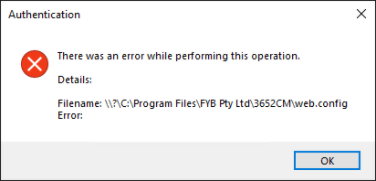
After installation, if you attempt to access the web.config file via application settings in IIS you see this message.
CAUSE
.NET Core pre-requisites haven't been installed properly.
RESOLUTION
Confirm that both the .NET Core SDK and .NET Core Hosting Bundle have been installed on the server in the correct order (.NET Core SDK followed by Hosting Bundle). If they have then make sure a full server restart has been completed as this allows them to bind to IIS.
If the issue persists, please reinstall the .NET Core components as per the relevant pre-requisite and install guides.
PROXY PREVENTING COMMUNICATION
DESCRIPTION
If your environment requires the use of a proxy server for external communication, you may need to configure the proxy within your apps web.config file.
The below guide details how to configure the use of a Web Proxy: Configuring FYB Software with Proxy Requirements
SITE BLOCKED BY CORS POLICY
DESCRIPTION
You see an error stating that the site has been blocked by the CORS policy.
CAUSE
The site is being blocked by the CORS policy or the IIS CORS module is not installed.
RESOLUTION
Ensure that the IIS CORS module is installed on the server: https://www.iis.net/downloads/microsoft/iis-cors-module
STRING EXCEEDS MAXJSONLENGTH
DESCRIPTION
The length of the string exceeds the value set on the maxjsonlength property.
CAUSE
The length of the json string exceeds the current maximum length
RESOLUTION
Increase the MaxJsonLength property in your web.config file
UNABLE TO COPY TO CLIPBOARD
DESCRIPTION
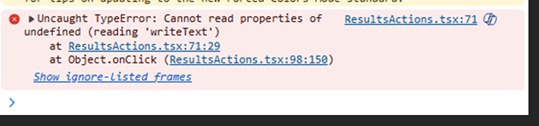
Clicking the Copy to Clipboard button results in an error logged to the dev tools console
CAUSE
The user is using HTTP instead of HTTPS when using your application
Issue details here: https://stackoverflow.com/questions/51805395/navigator-clipboard-is-undefined
RESOLUTION
Ensure you are using HTTPS for your application URL
SCHEDULED TASKS RUNNING INCONSISTENTLY
DESCRIPTION
FYB Web Apps that run scheduled tasks are repeatedly skipping runs, or appearing to run inconsistently, causing missed notifications.
CAUSE
Changes to IIS Application Pool behaviour have caused many apps to become dormant, despite being configured to never do so. This is similar to how selecting "Always Enable This Add-in" in an Office Application can still allow the add-in to be disabled in certain situations.
RESOLUTION
To combat this behaviour, we have developed and released a new FYB Software Scheduler Service, that can be used to keep all FYB Web Apps awake, ensuring scheduled tasks are no longer skipped.
Please install the service as described in the installation guide. A single scheduler service can be used for multiple FYB Web Apps.
DOCUMENT UPLOAD ISSUES
RECORDS TOO LARGE OR NUMEROUS TO TRANSFER
DESCRIPTION
Unable to upload records when the file size is over a certain size
CAUSE
Uploads can be restricted by the browsers innate document size restrictions, which generally have an upper limit of 4 GB per transfer
RESOLUTION
If possible, lower the amount of documents transferring through in a single instance.
UNABLE TO UPDATE UPLOAD FORMS
DESCRIPTION
User is unable to find the options to update the different metadata values on the Upload form.
CAUSE
The variables used by the upload form is taken directly from the 'Form' field from Content Manager Record Type.
RESOLUTION
To update the Upload form, update the Record Type form within Content Manager.
SEARCH RELATED ISSUES
NO RESULTS RETURNING FOR TITLE WORD SEARCH
DESCRIPTION
When searching for a Title within Mediazel the results did not include the instended result
CAUSE
Mediazel requires the words within the Search to be written in the order they appear withn the Title
RESOLUTION
Please ensure words within the search are in the correct order when performing the searches.
Expected Result: The Red Lady Incorrect Search: Lady The Red Correct Search: The Red*
THUMBNAILS NOT SHOWING
DESCRIPTION
When searching for a image within Mediazel, some thumbnails are avaliable within the search results.
CAUSE
A thumbnail rendition of the record is not avalible or has not yet been created.
RESOLUTION
Mediazel will generate thumbnails for records which do not have thumbnails on upload or when first searched within Mediazel.
Review the record within Content Manager and remove any thumbnail renditions availble for the record. Then search for the record again in Mediazel, this will cause a new Thumbnail Rendition to be generated for the record.
VIDEO OR IMAGES NOT DISPLAYING
DESCRIPTION
When attempting to view a image or video in Mediazel, the record does not display.
CAUSE
Mediazel is limited by the capacity of the browser it is opened in. If the record is of a file type that the browser does not support, Mediazel will be unable to display them.
RESOLUTION
Use a brwoser which has the capability to open the specified file or install a third party component that will allow the browser to display the file type.
OPENID/AZURE AD AUTHENTICATION ISSUES
NO CERTIFICATE FOUND
DESCRIPTION
You receive one of the following errors:
- No certificate found with the name {supplied certificate name}.
- Exception: Value cannot be null. (Parameter 'certificate')
CAUSE
The application cannot access the certificate correctly.
RESOLUTION
- Confirm the certificate friendly name shown in the appsettings.json matches the one installed on the server (in certificate manager)
- Confirm that the account running the app pool has full access to the private key for the certificate on the server
- Confirm that the public key component was uploaded to Azure as base-64 encoded
- Check all steps in the Certificate Based Authentication section of your apps relevant Azure App Registration Guide
INVALID PROVIDER TYPE SPECIFIED
DESCRIPTION
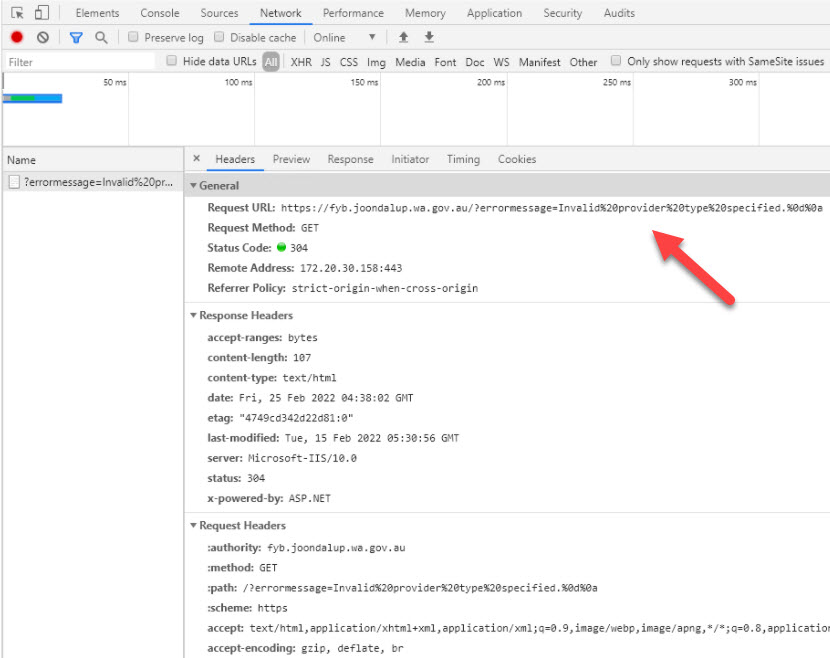
You attempt to load your app and receive a blank white screen. Checking the browser developer tools (F12) shows a message: Invalid provider type specified
CAUSE
The certificate used for the application is invalid.
RESOLUTION
Confirm that the same certificate has been installed on the server that has been uploaded to Azure. Ensure the certificate is valid and not expired. If it continues to fail then use a self-signed certificate from IIS instead and confirm if that works. If it does then it means your original certificate is invalid. The self-signed certificate needs to be uploaded to Azure after creating it from IIS. You can use the following guide to create the certificate: https://aboutssl.org/how-to-create-a-self-signed-certificate-in-iis/
BLANK SCREEN WHEN OPENING YOUR APP
DESCRIPTION
Your app had previously worked however suddenly stopped working and all users when opening your app are greeted by a white screen, your app does not load or show any of its usual interface.
CAUSE
There can be many causes to this issue, the most common is that the SSL Certificate has expired or the certificate has not been updated in both the IIS application and the application within Azure
RESOLUTION
Review the SSL certificate of both the IIS application of 365|2CM and the Azure Application.
For further information on how to do this, please refer to the 365|2CM App Registration Guide - Certificate Based Authentication.
SPECIFIC USERS UNABLE TO CONNECT
DESCRIPTION
A single user or group of users is unable to connect to an FYB Software Application. Users are unable to navigate to the site and are greeted by a white screen.
CAUSE
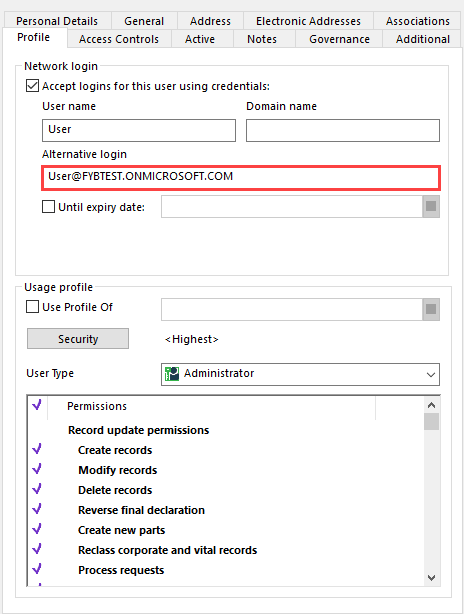
The user has not had their Content Manager location populated with their Microsoft365 login details within their alternative login.
RESOLUTION
Add the users Microsoft 365 account to the alternative login field in Content Manager.
SHAREPOINT RELATED ISSUES
CANNOT SEE ALL TEAMS/SHAREPOINT RESULTS
DESCRIPTION
You are not able to see all SharePoint or Teams results within your application that you can see from the M365 admin centre.
CAUSE
FYB Software applications are not the same as the Teams/SharePoint Admin Centre. When logging into an FYB Software Application you will be able to see all sites for the organisation that the logged in user has access to. An easy way to check and confirm what sites the user has access to is by using the Microsoft Graph Explorer. Note that users will need to be an Owner or Member of a site for it to appear within your application. When adding new users to sites it can take several hours before they appear.
RESOLUTION
-
Navigate to: https://developer.microsoft.com/en-us/graph/graph-explorer
-
Sign in with your account
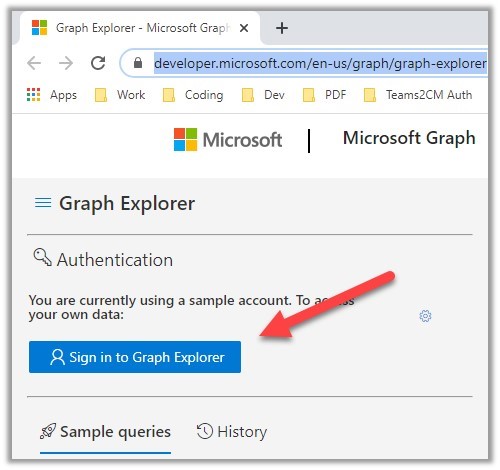
3.Run the following GET query: https://graph.microsoft.com/v1.0/sites?search=* 4. Check if you can see the required site in the list returned. If you can't see the site using the Graph Explorer then you won't be able to see it using your application
In certain cases, owners of Teams cannot see the sites but members can. This is a known issue with Microsoft Graph. Owners will need to have both the owner and member roles. This can occur if your Teams are created via a PowerShell script as PowerShell does not create owners correctly and skips the member association.
You may need to trigger the SharePoint crawling for the site to show up in Graph. The easiest way to do this is to upload some documents, this will trigger the crawling.
EXISTING CONNECTION WAS FORCIBLY CLOSED BY REMOTE HOST
DESCRIPTION
The SSL connection could not be established, see inner exception. Unable to read data from the transport connection: An existing connection was forcibly closed by the remote host..
CAUSE
The application cannot access SharePoint from the server.
RESOLUTION
Allow access to companyname.sharepoint.com from the server that the application is installed on.
For example: fybptyltd.sharepoint.com
FYB ADD-IN ISSUES
EXTERNAL LINK NOT AVAILABLE WHEN RIGHT-CLICKING
DESCRIPTION
Your External Link does not appear as an option when right-clicking on a record.
CAUSE
The record type has not been selected in the Used By options of the add-in.
RESOLUTION
Please refer to the installation guide for further details.
MISMATCH BETWEEN CONTENT MANAGER CLIENT AND ADD-IN
DESCRIPTION
You receive a message "Mismatch between Content Manager client and [FYB SOFTWARE ADD-IN]".
CAUSE
This can be caused by running a 32bit version of the Add-in on a 64bit Content Manager client or vice versa.
RESOLUTION
Ensure that there is no mismatch between the Soft Deleter and the Content Manager client.
SECURITY WARNING - WE CAN'T VERIFY WHO CREATED THIS FILE
DESCRIPTION
You receive a message "Open File - Security Warning...We can't verify who created this file."
CAUSE
This is because the network share may not be included as part of your local intranet.
RESOLUTION
Ensure the network share is included in your local intranet. Ensure you are using the FQDN for the share. Please refer to the installation guide for further details.
OBJECT REFERENCE NOT SET TO AN INSTANCE OF AN OBJECT
DESCRIPTION
When trying to use an External Link Add-in on a Record, an error message will appear advising 'Object Reference not Set to an Instance of an Object.'
CAUSE
This issue is caused by a missing element when the Add-in goes to perform an action, typically this is either an additional field or a blank setting within the Add-in's config.
RESOLUTION
Follow the configuration sections within the relevant Installation guide and ensure all additional fields are created and added to the relevant Record Types, and confirm all configuration settings within the Admin section of the Add-in have been populated.
DMZ SPECIFIC ISSUES
1603 INSTALLATION ERROR ON DMZ SERVERS
DESCRIPTION
If the default service account on a DMZ server does not have permission to modify the permissions of the application's App_Data folder within the installation Directory, the MSI will throw a 1603 Installation error, preventing the application from being installed
CAUSE
- Default service account is selected during installation on a DMZ server
- Default service account does not have the required permissions for modifying the permissions of the App_Data folder
RESOLUTION
- Before installing yoru application, create the App_Data folder within the Install directory
- Set the permissions of the App_Data folder to everybody
- Run the MSI