
DocUControl User Manual
NAVIGATION
HAMBURGER MENU

| NAME | DESCRIPTION |
|---|---|
| Home | Displays the Home page |
| View Documents | Displays different options for viewing documents |
| Upload | Displays different options for uploading documents |
| Statistics | Displays the DocUControl Statistics page |
VIEW DOCUMENTS
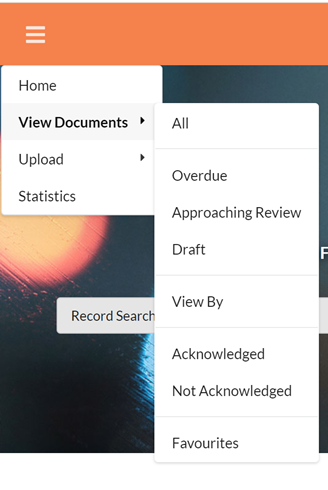
| NAME | DESCRIPTION |
|---|---|
| All | Shows all Finialized and Published Controlled Documents |
| Overdue | View overdue Records. These are Records that have its Next Review Date is older than the current Date |
| Approaching Review | View Records that are approaching review. These are Records that have its Next Review Date in 3 months or less. |
| Draft | View unfinalized Records. |
| View By | Browse for Controlled Documents via its Category, Topic or Document Type |
| Acknowledged | View mandatory documents that you have acknowledged |
| Not Acknowledged | View mandatory documents that you have not acknowledged |
| Favourites | Displays Documents that you have favourited in Content Manager |
UPLOAD
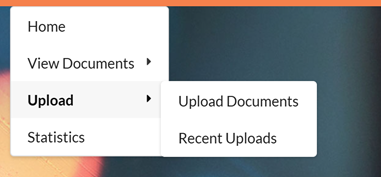
| NAME | DESCRIPTION |
|---|---|
| Upload Documents | Upload new Documents |
| Recent Uploads | Displays Documents that have been registered to Content Manager in the last week |
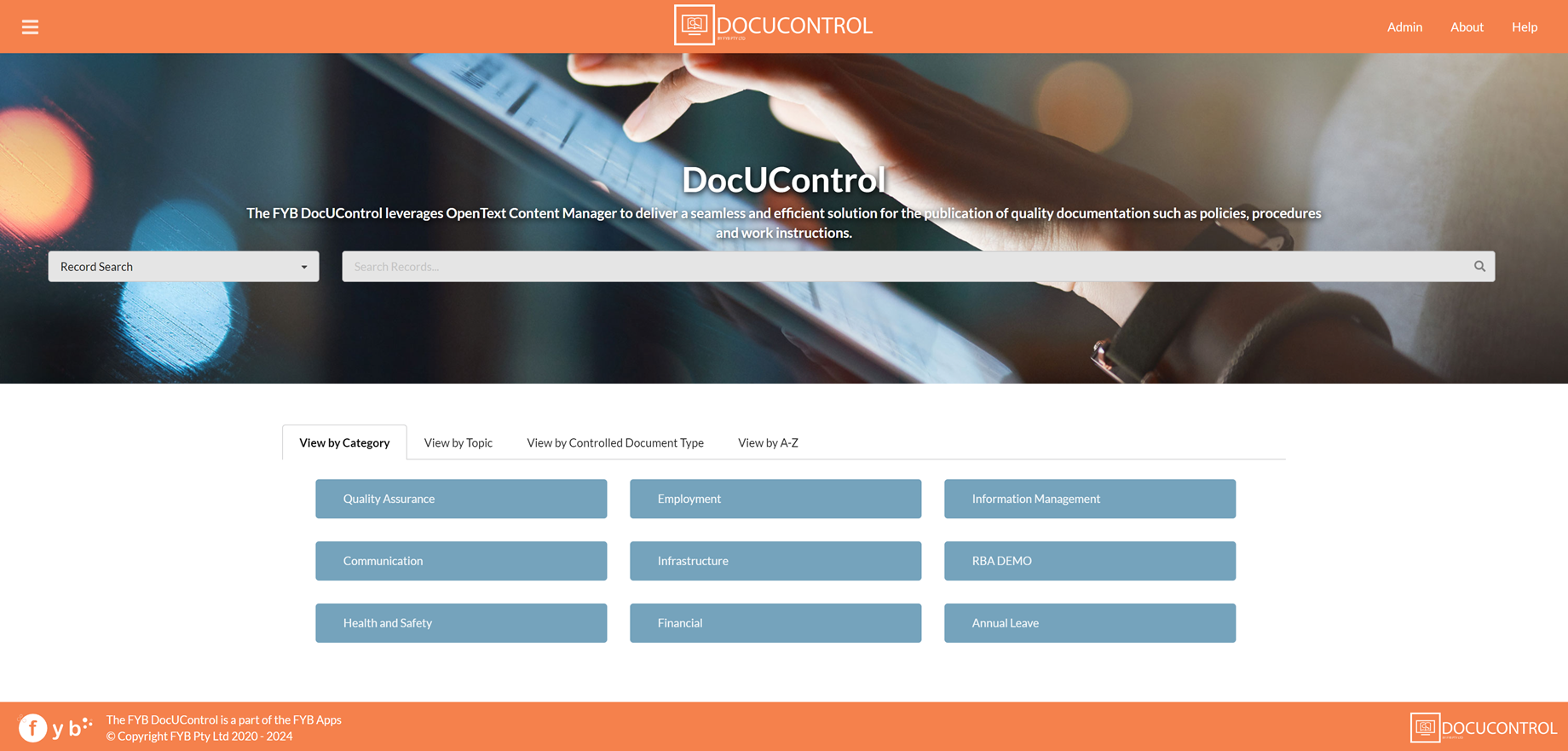
HOME PAGE
The home page will allow you to either search for Records using the search bar or using the Category buttons.
SEARCHING FOR DOCUMENTS
There are two methods you can use to locate your documents:
- Quick Search
- Advanced Search
Only Records that are Finalized and Published will be displayed.
QUICK SEARCH
RECORD SEARCH
To search for Records via its Title, Record Number, URI or Keywords:
-
Select Record Search via the dropdown

-
Enter a search query and either press the Enter Key or click the Magnifying Glass Icon

-
The Search Results Page will be displayed
 Note
To search for multiple keywords, type the keywords between double quotes in the search bar. E.g.

CLASSIFICATION SEARCH
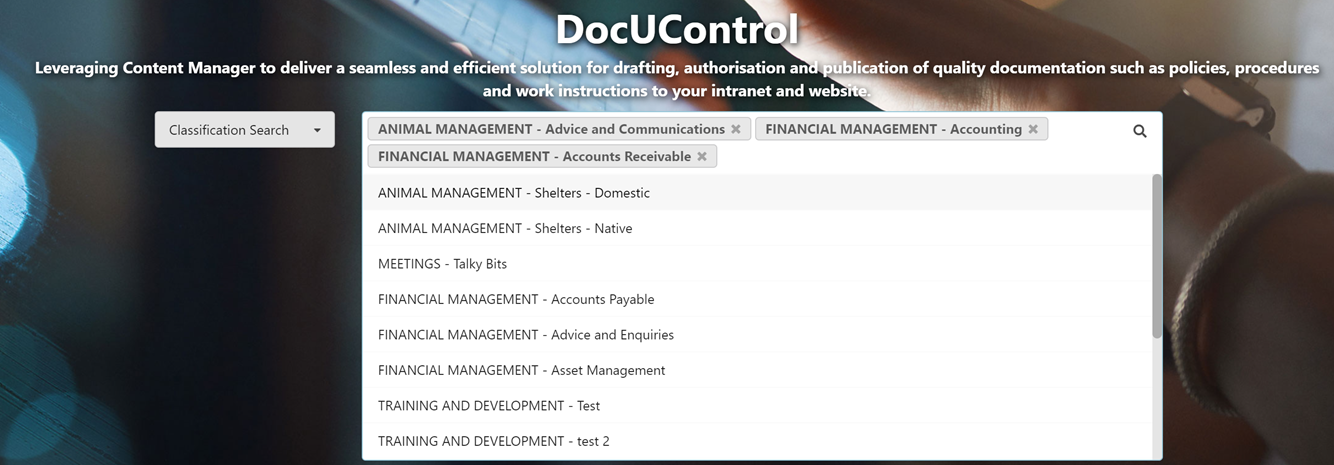
Classification search will search for records via it's Container's Classification
-
Select Classification Search via the dropdown

-
Search for and select one or more Classifications then either press the Enter Key or click on the Magnifying Glass button
-
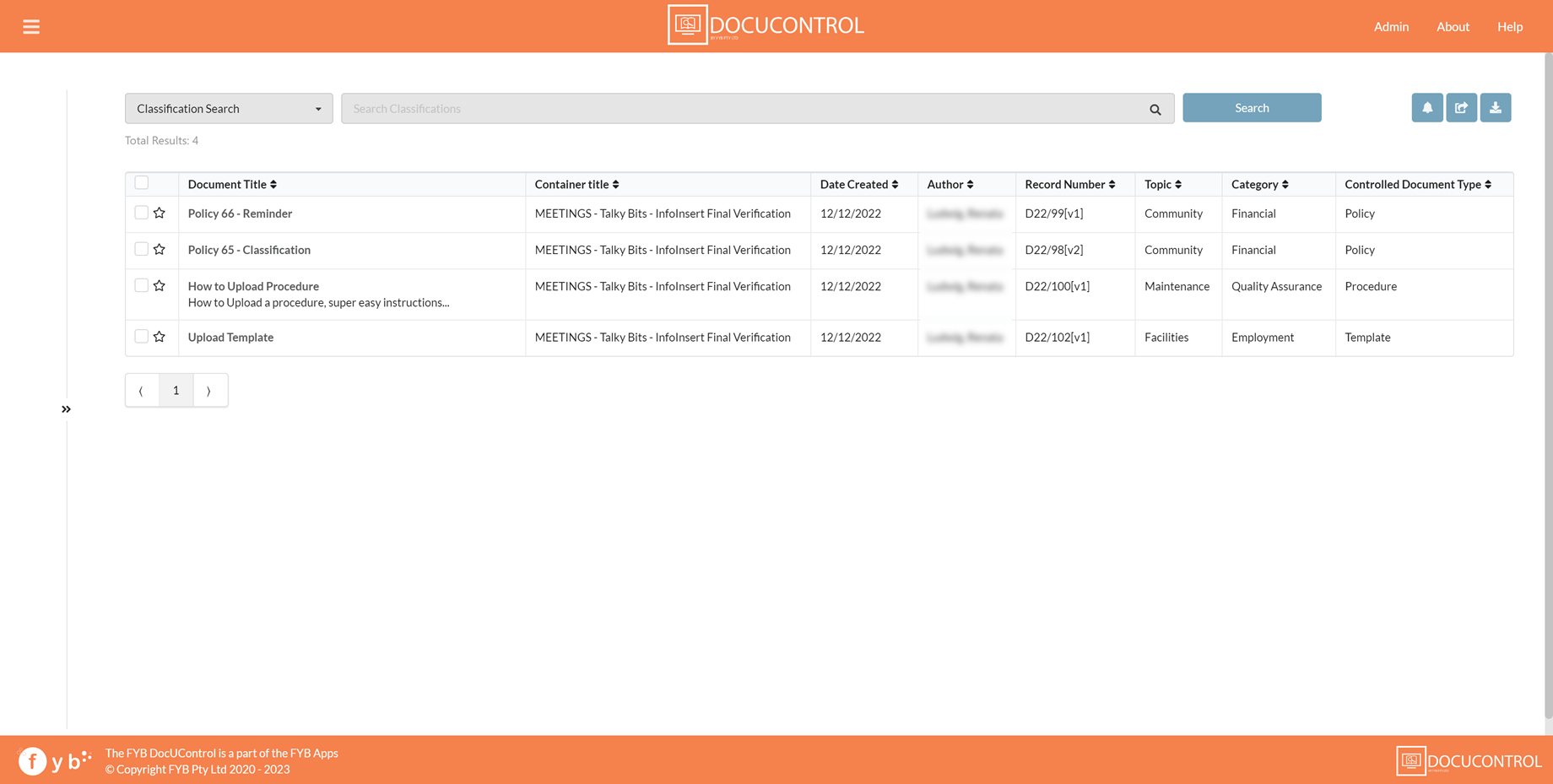
The Search Results Page will be displayed
ADVANCED SEARCH
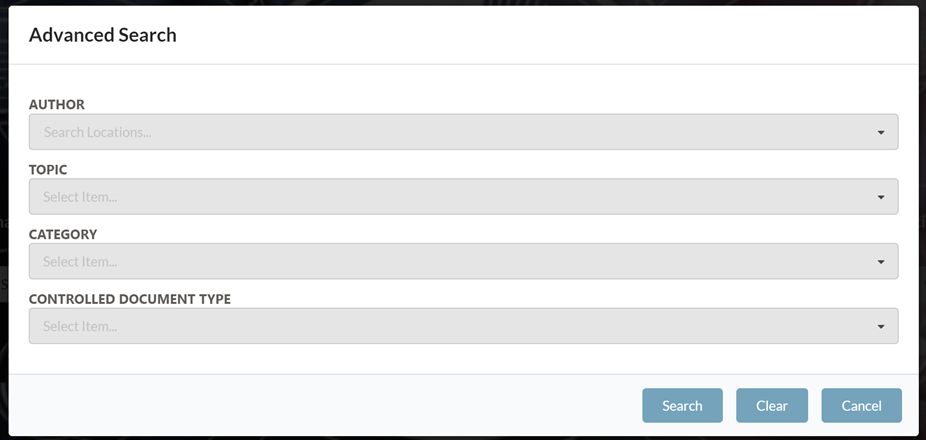
The advanced search lets you search by combining metadata.
Please note that the following options may be different depending on how your Systems Administrator has configured the settings.
-
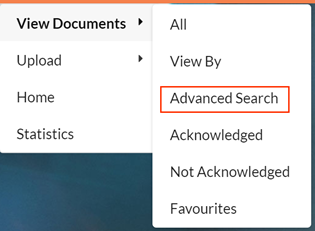
Select the Advanced Search heading from the Drop-down Menu Navigation
-
Enter your search criteria
-
Select Search to run your search
-
Your search results will be displayed
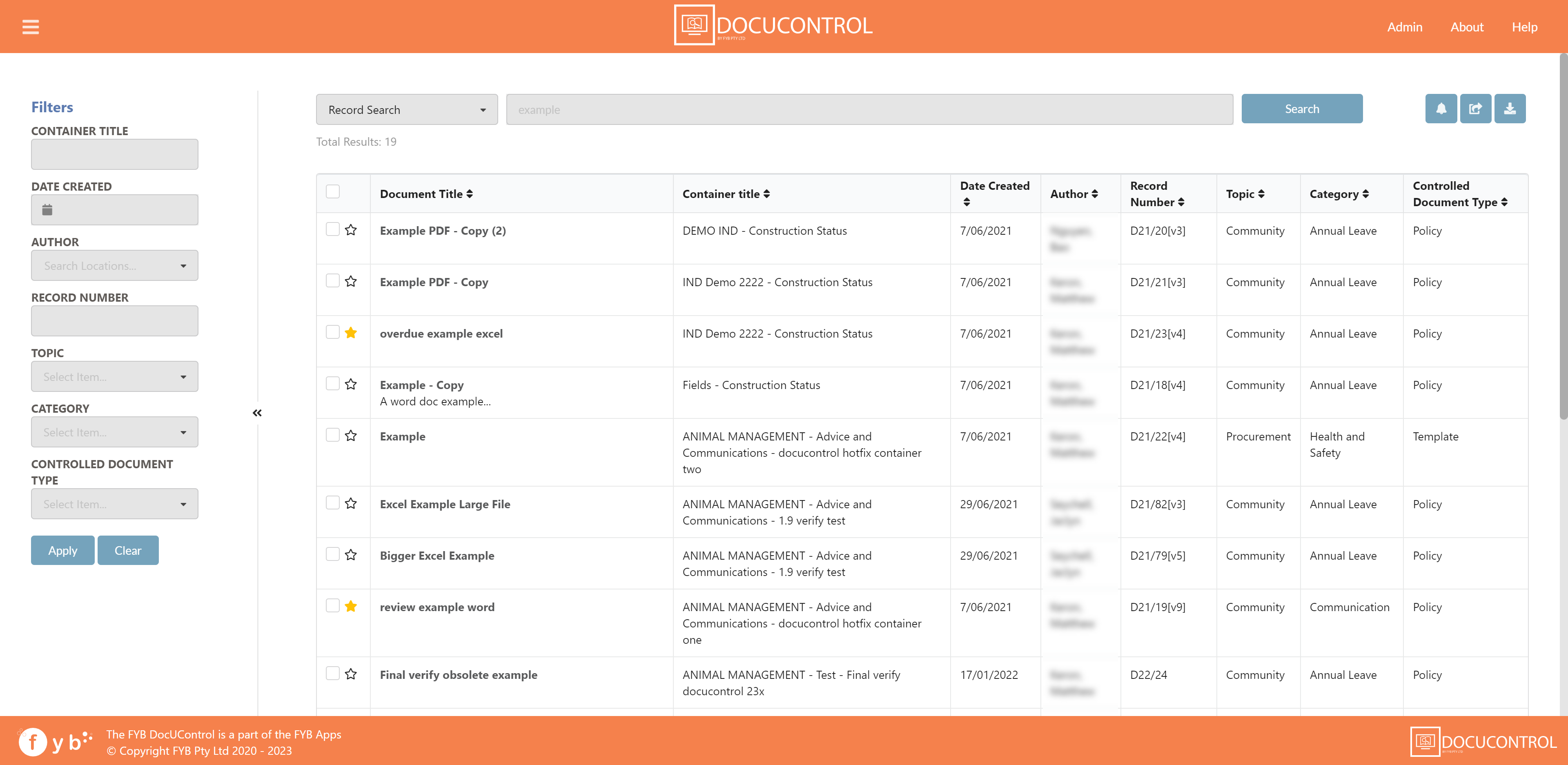
SEARCH RESULTS PAGE
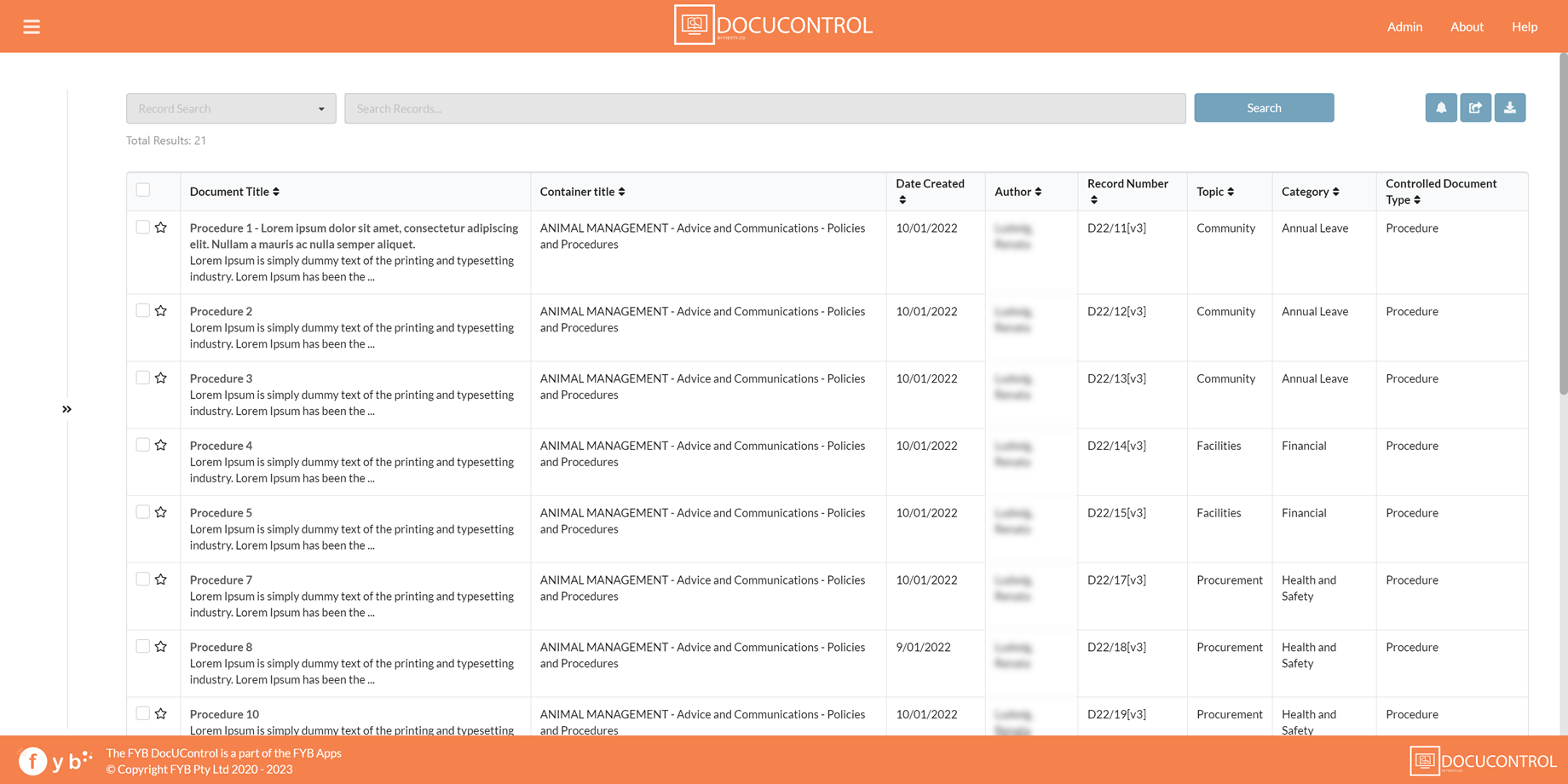
The search results page is displayed when a search is performed in DocUControl.
DRAFT DOCUMENT RECORDS
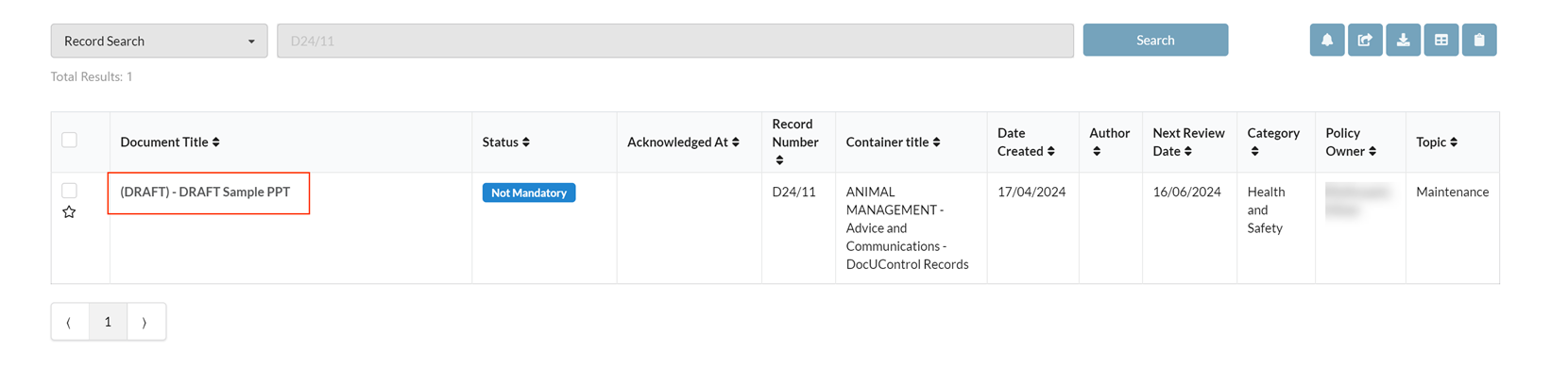
If the Use Draft Relationship Admin option is enabled, then Document Control officers will have their Draft Document Records also displayed in the search results.
Draft Document Records will have (DRAFT) prepended to its title in the Search Results and Document View page.
Filters
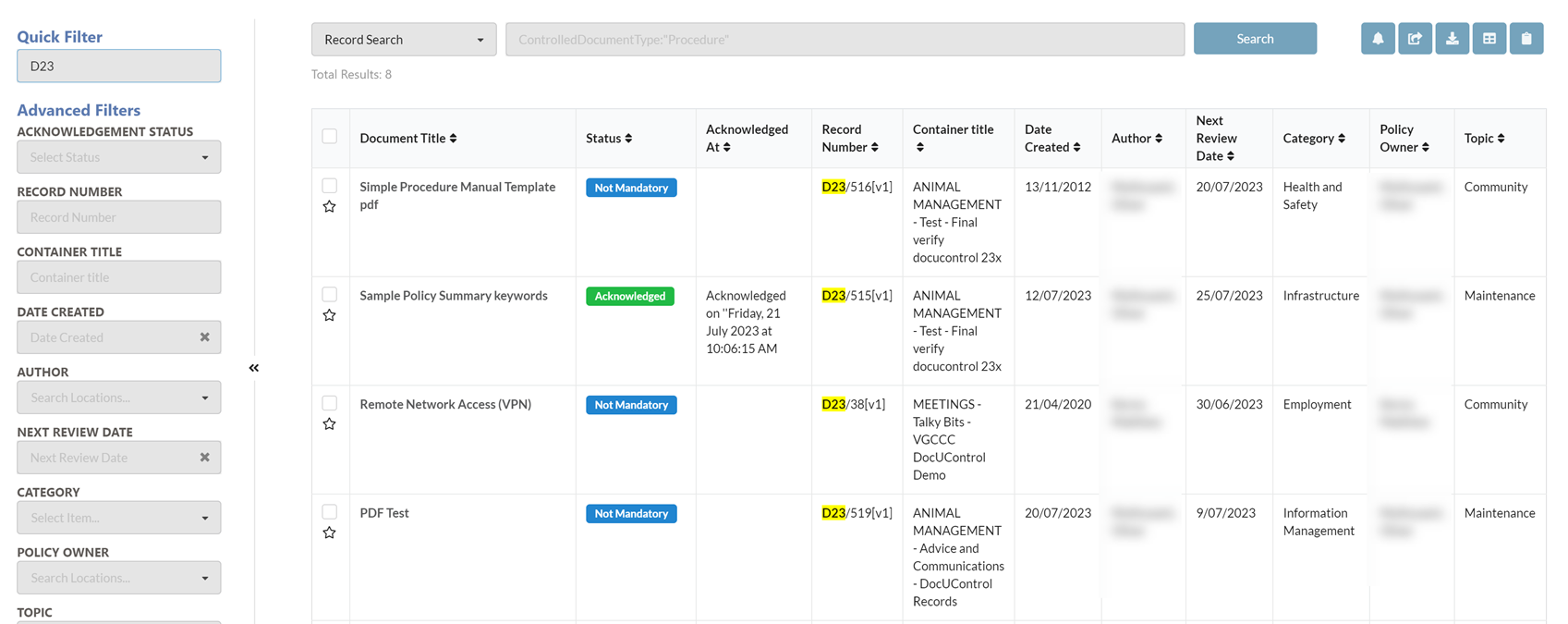
Filter options for refining the current search data. The filter options shown match the Metadata Fields selected by your System Administrator
QUICK FILTER
Use the Quick Filter field to filter the results based on the values within the result table. All column values can be filtered on except the Acknowledgement fields.
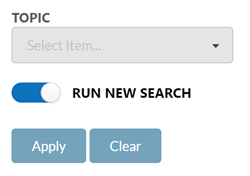
RUN NEW SEARCH
Enabling the RUN NEW SEARCH option will run an ew search based on the current filter options instead of filtering the current results.
Total Results
The total number of results returned from a search
Tag Document
Checkbox for tagging documents
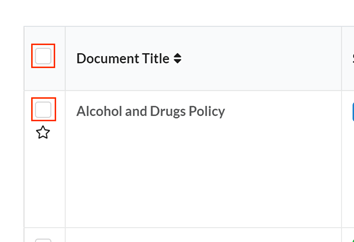
Favourite Icon
Indicates if a Document has been favourited. Clicking the star will either add or remove a Document from the favourite Records

Filter Toggle
Shows/Hides the Filters section

Documents
Documents returned from the search. Each column is populated with the Document's respective metadata. Clicking a Document row will open the Document View Page
Pagination
Paginated results
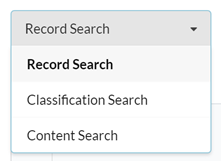
Search Type
Used for specifying either a Record, Classification or Content Search
Search Bar
The search bar for specifying new searches. The placeholder value is the current search query.
Search Button
Click the search button to execute a new search.
Metadata Columns
The metadata columns are specified in the Admin Console. Each column header is clickable to sort the Documents alpha-numerically.
EXPORT CSV
Click this button to export a CSV of the search results.

COPY URL
Click this button to copy the search results URL to the clipboard

SHARE DOCUMENTS
Clicking this will open the Share Documents modal. One or more Documents must be tagged first

To share Documents:
-
In the Search Results page, tag one or more Document(s)

-
Click on the Share Documents button

-
The Share Documents modal will be displayed
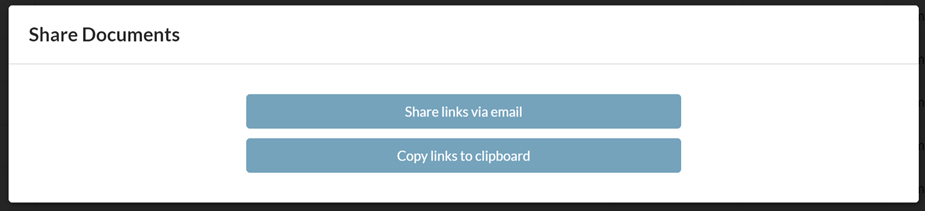
NAME DESCRIPTION Share links via email This will generate a new email with the tagged documents generated as hyperlinks. 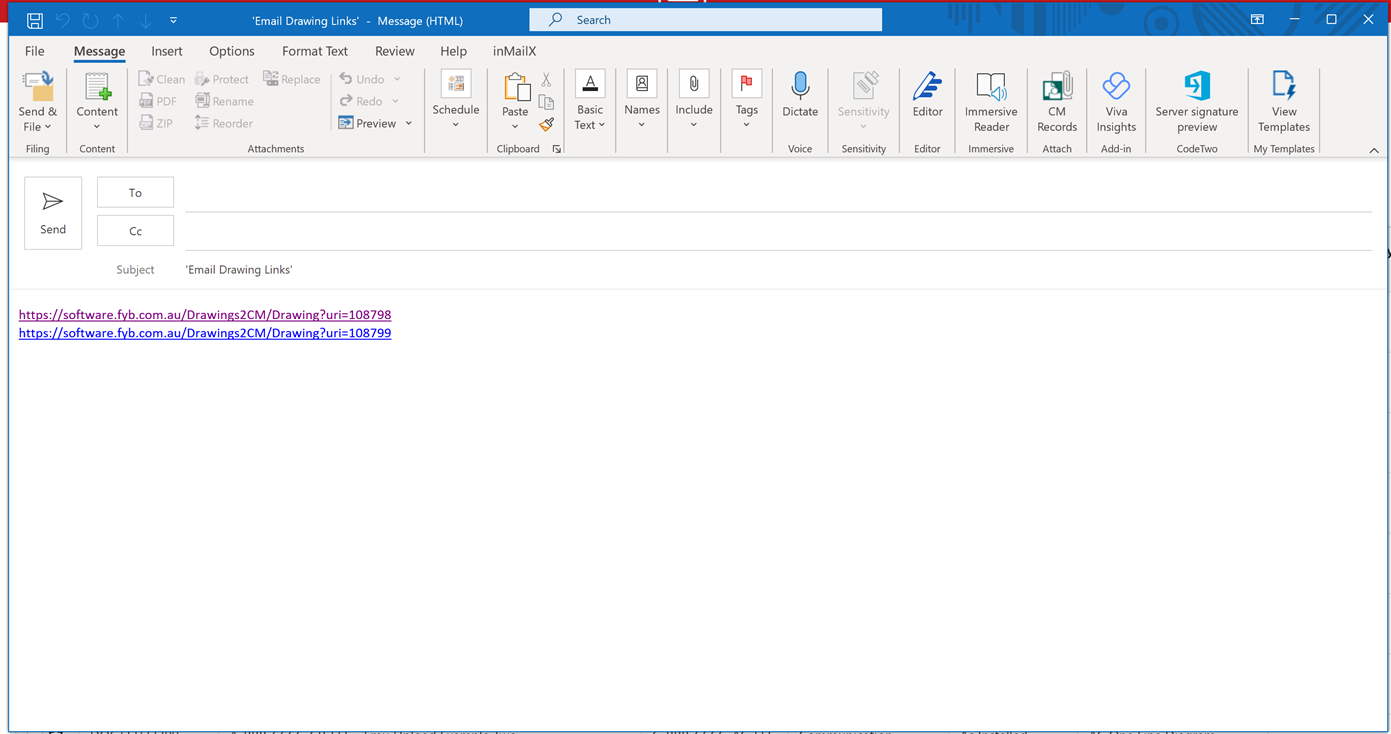
Copy to Clipboard Copys the tagged documents as URLs to your clipboard
DOWNLOAD DOCUMENTS
Clicking this will open the Download Documents modal. One or more Documents must be tagged first
 To download Documents:
-
In the Search Results page, tag one or more Document(s)

-
Click on the Download Documents button

-
The Download Docs modal will be displayed

NAME DESCRIPTION Download PDF Downloads a zip containing the PDF versions of the tagged Documents Download Original Downloads a zip containing the electronic documents of tagged Documents
SEND EMAIL REMINDERS
Clicking this button will send Email Reminders for the tagged documents. See the Send Email Reminders section for more information.

Email reminders can be sent for a document that is either overdue or approaching review to the Policy Owner and Document Control Officer of that document.
To send reminders for Documents:
-
In the Search Results page, tag one or more Document(s)
-
Click on the Reminder button

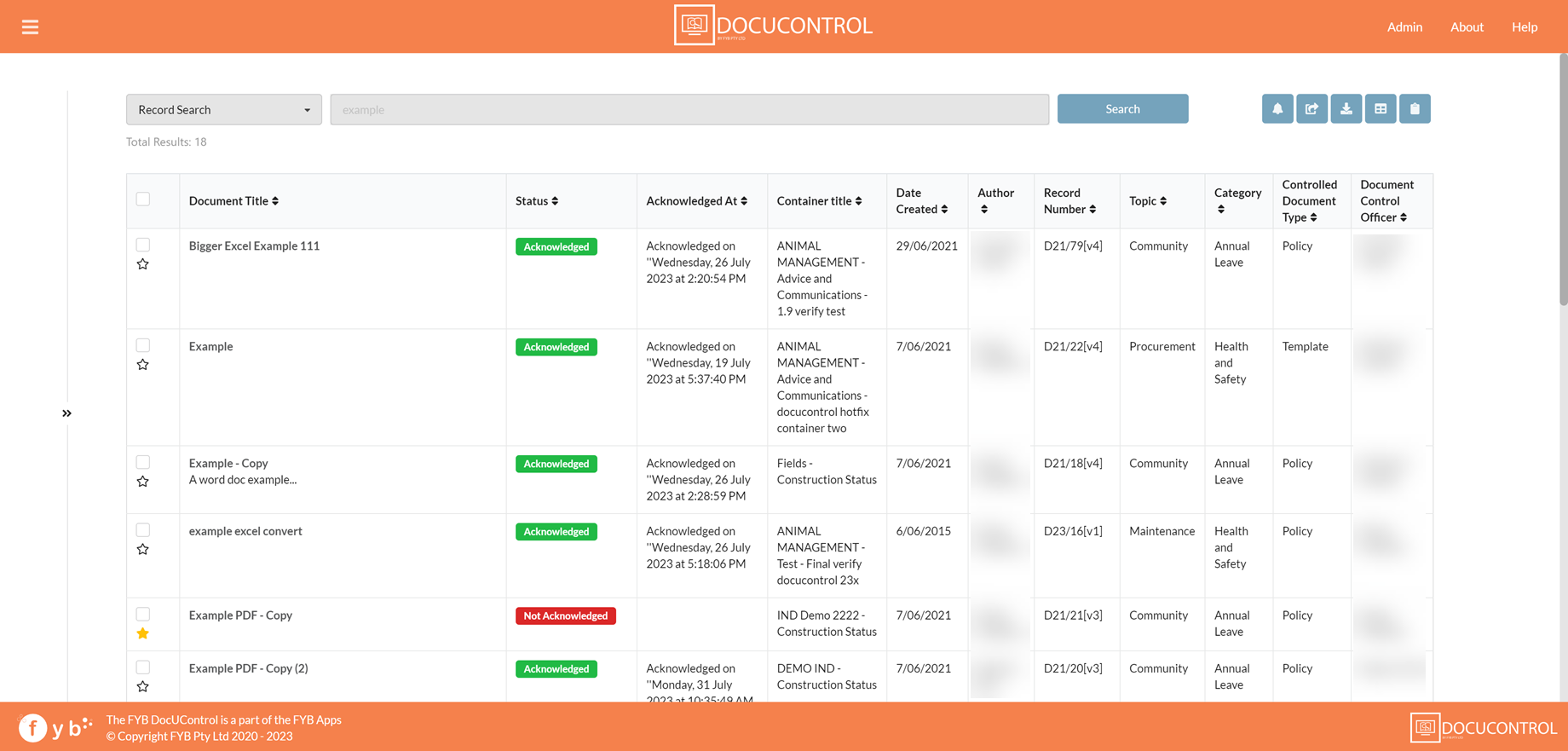
ACKNOWLEDGEMENT
This feature is optional and can be disabled via the Admin Console.
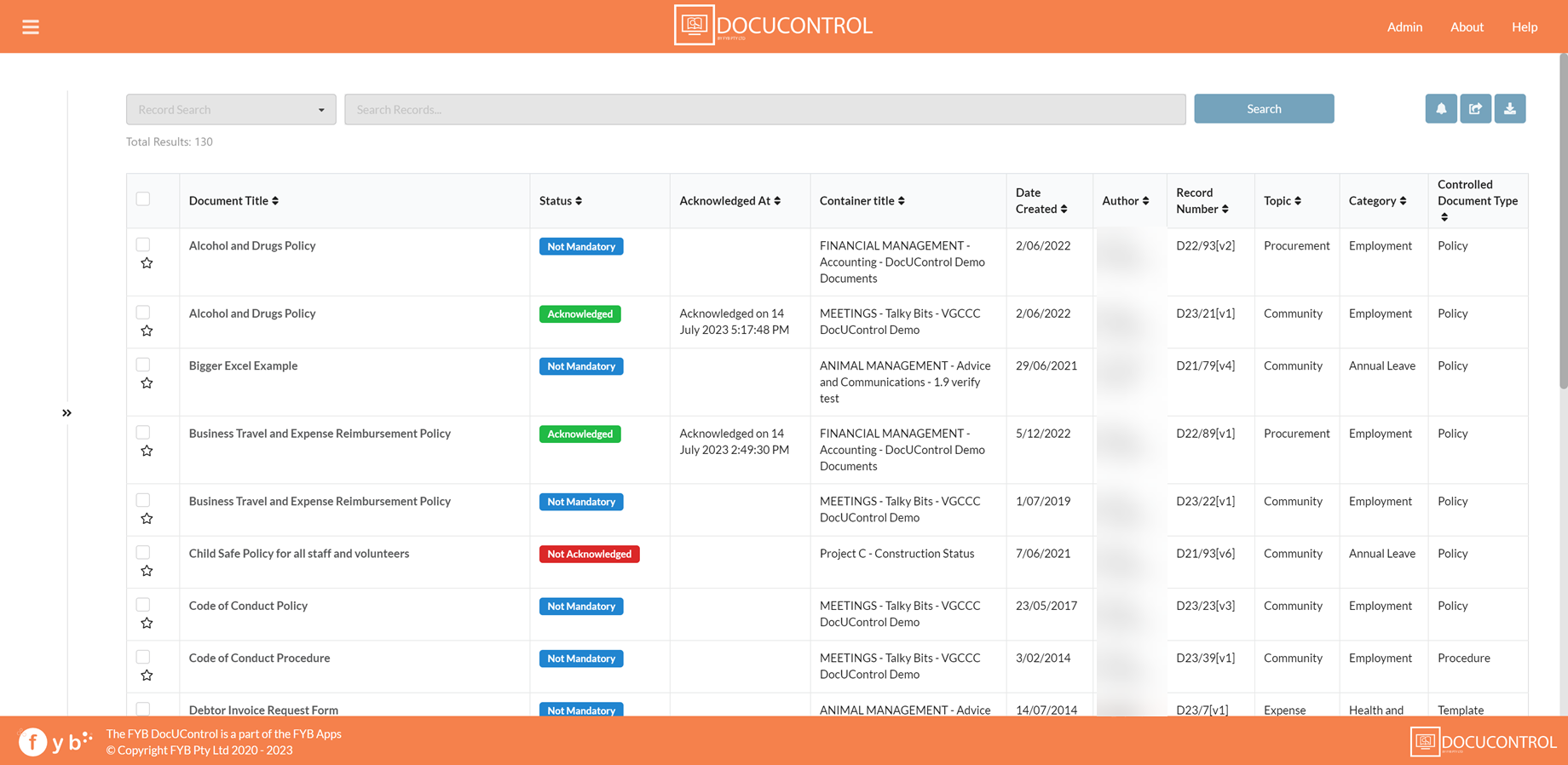
The acknowledgment feature allows Policy owners to specify which documents need to be acknowledged by users.
STATUS
The Status column shows which documents:
- Are required to be acknowledged by the user
- Which documents have already been acknowledged
- Which documents are not mandatory
ACKNOWLEDGED AT
This column shows when the document was acknowledged by the user
DOCUMENT VIEW PAGE
Clicking on a Document in the Search Results will open the Document View Page
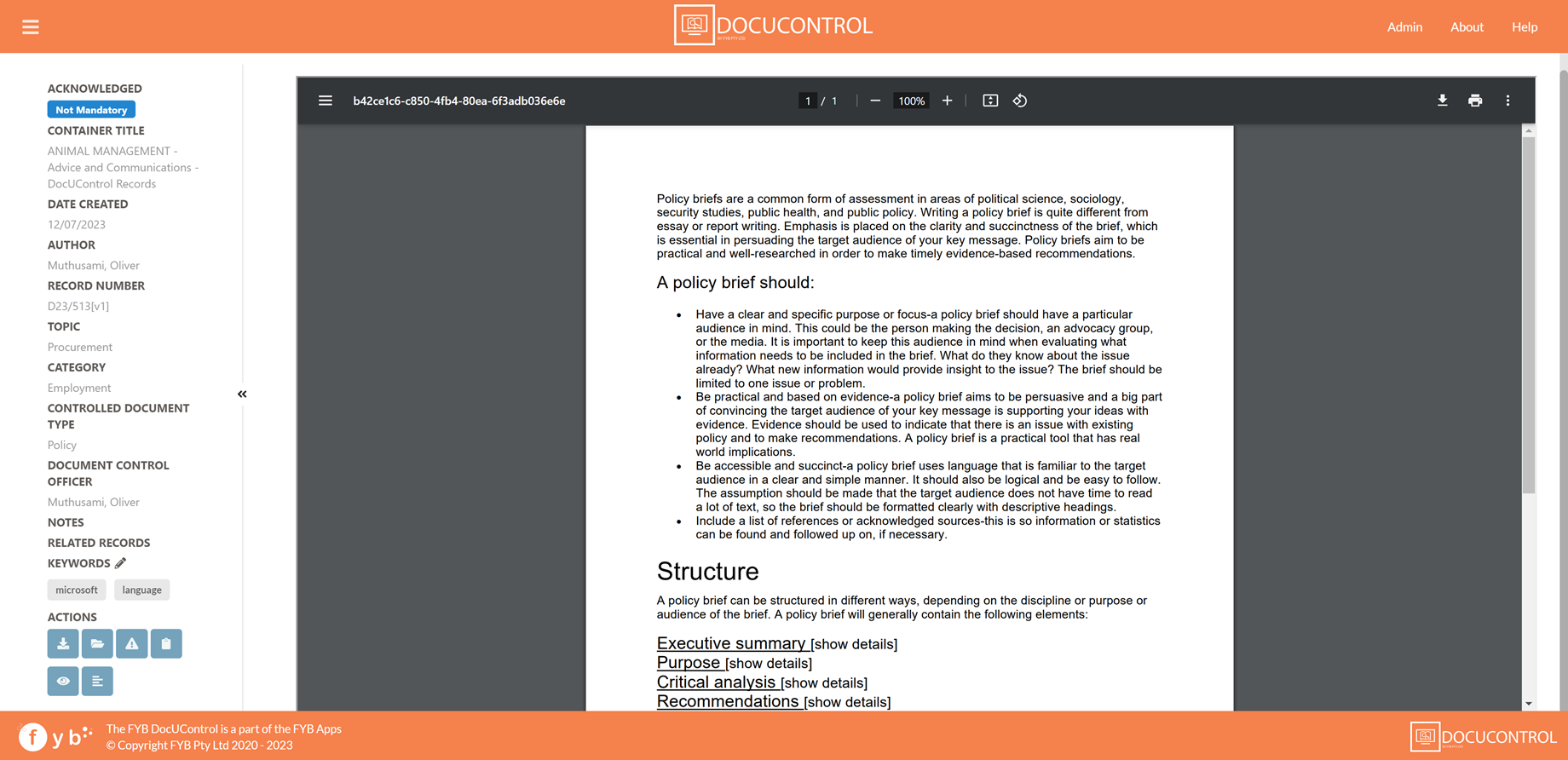
The Metadata displayed in the left column is controlled in the Admin Console. The PDF rendition of the Document is displayed on the right.
KEYWORDS
Each keyword can be clicked on to perform a search to find all policies with the keyword.
Keywords can be edited for the Record, indicated by the edit icon (Editing keywords can be enabled or disabled via the Admin console).

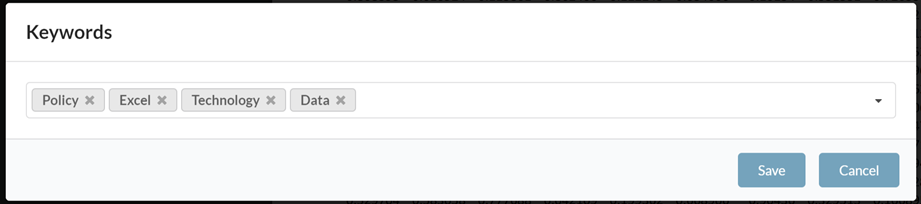
After pressing on the edit keyword icon a window will appear allowing you to either add or remove keywords for the current Record.
ACTIONS
| NAME | DESCRIPTION |
|---|---|
| Download | Opens the Download Document Modal  |
| Show all versions | Opens the Search Results page showing all the Record versions for the Document. If the Use Draft Relationship admin setting is enabled, then all revisions on the Record will also be displayed  |
| Flag Issue with Document | Report an issue to the Document's Control Officer. This button will send an email to the Document Control Officer with the comment made. A note is also added to the Record containing the name of the person making the report and their comment.  |
| Start Document Review | Start the document review/escalation process for the Document. When Use CM Versioning is enabled, a new Record Version is created. When using Use Draft Relationship, a new Record Draft is created.  |
| View Document in CM | Opens Content Manager to the selected Record. FYB CMLauncher is required if the FYB CMLauncher option is enabled in the Admin Console  |
| Summarize Document | Generates a summary of the document using Microsoft AI   |
| Merge Records |  This button is only available for Document Control Officers view Draft Document Recordswhen the Use Draft Relationship admin setting is enabled. Clicking this button will add the electronic document of the 'Draft Of' related Record as a new revision on the main Record. The Next Review date and the Notification value on the main record will be reset. |
ACKNOWLEDGEMENT
This feature is optional and can be disabled via the Admin Console. Users will need the Append to existing notes Record permission to acknowledge documents.
Mandatory documents are required to be acknowledged by the user.
-
Click on the Not Acknowledged button to acknowledge a mandatory document

-
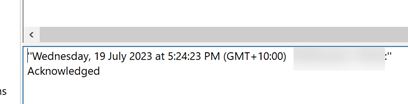
The document will be acknowledged and the notes of the Record will be updated with the user who acknowledged the document

BROWSE BY CATEGORY
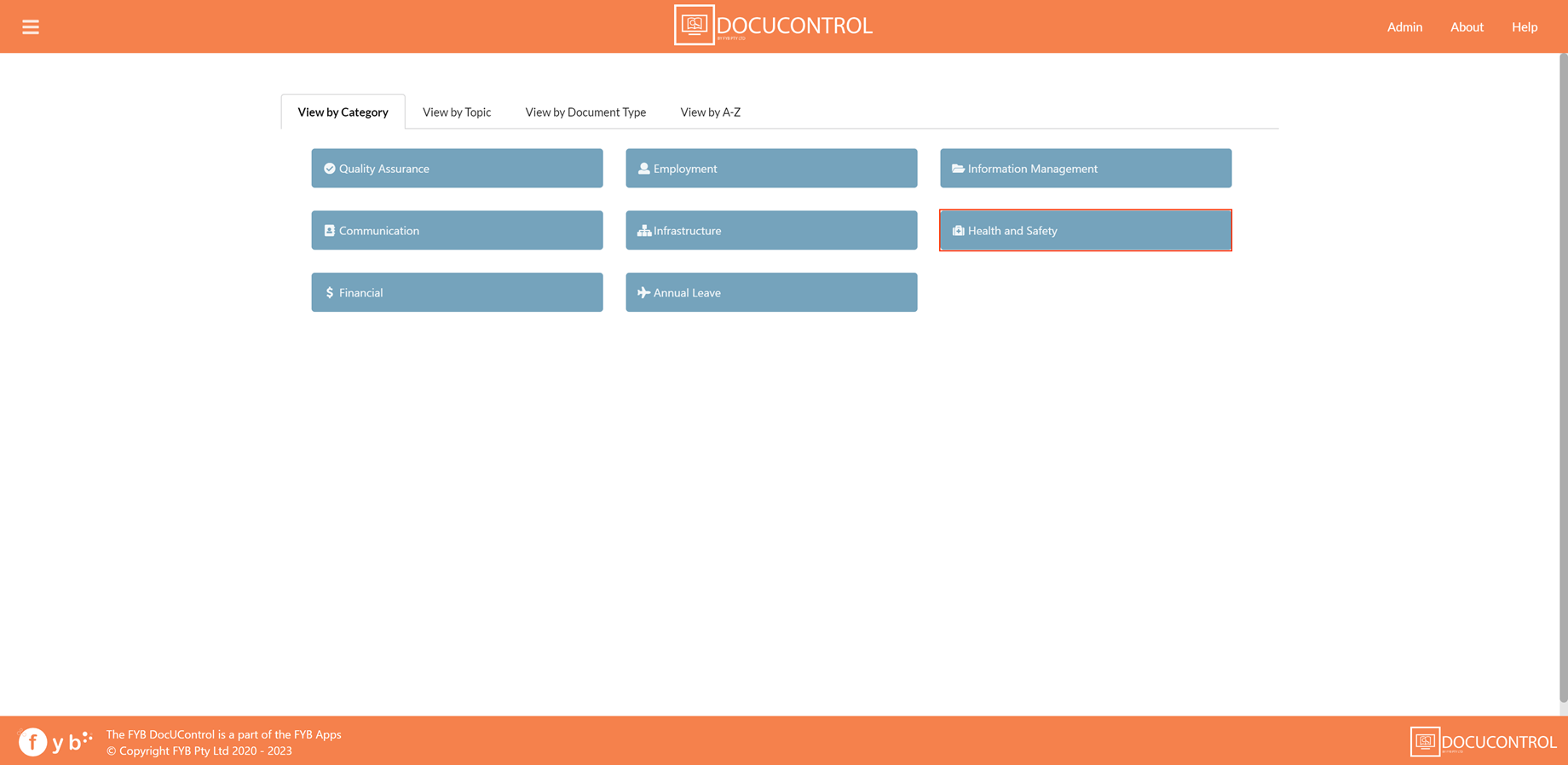
The Browse by Category page displays a list of categories, topics or types. Clicking on a category button will display the Controlled Documents within that category.
UPLOAD PAGE
The Content Manager Modify Record Additional Field permission is required for uploading files using DocUControl
The upload page is used to upload new Controlled Documents to Content Manager.
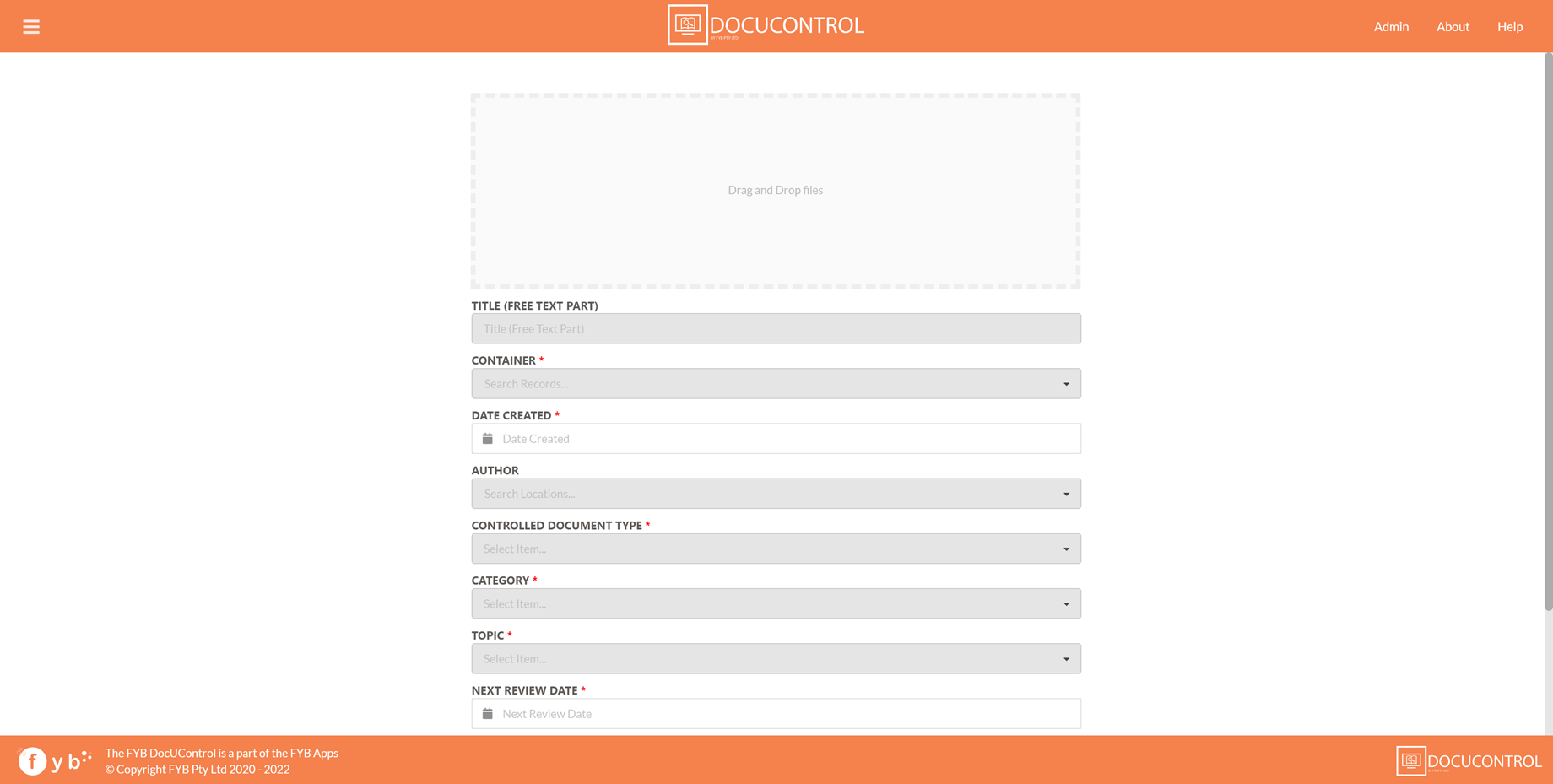
The fields displayed on the upload form are taken from the Controlled Document Record Type. Fields marked with an * symbol are mandatory.
To upload Document(s):
-
Drag and drop one or more files into the File Drop area

-
Fill in the mandatory fields
NoteIf the Title is left blank, the file name will be used as the title
-
Click on the Upload button

-
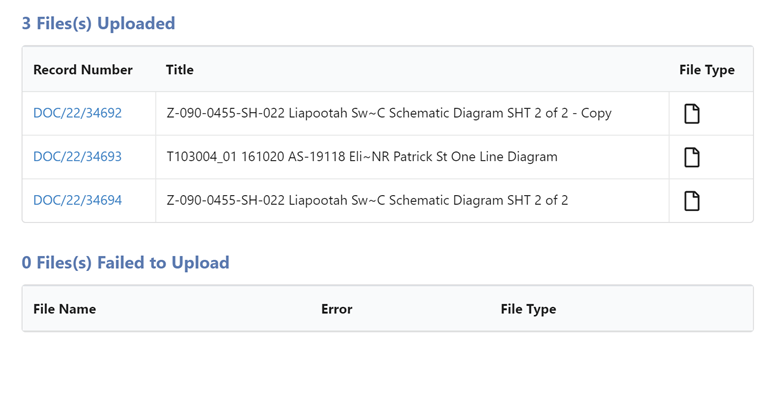
Once the uploads are complete, the Upload Summary page will be displayed. Clicking on a Document's Record Number will open the Document View page for that Document
-
If the Use Draft Relationship admin setting is enabled, then a Draft Record is created and added as a 'Draft Of' relation to the newly uploaded Record.
TRIGGER WORKFLOW
If the Trigger Workflow option is enabled, Workflow Process option (set in the Admin Console) is triggered on the newly created Record after the document has been successfully uploaded.

STATISTICS PAGE
Displays statistics for Controlled Documents.
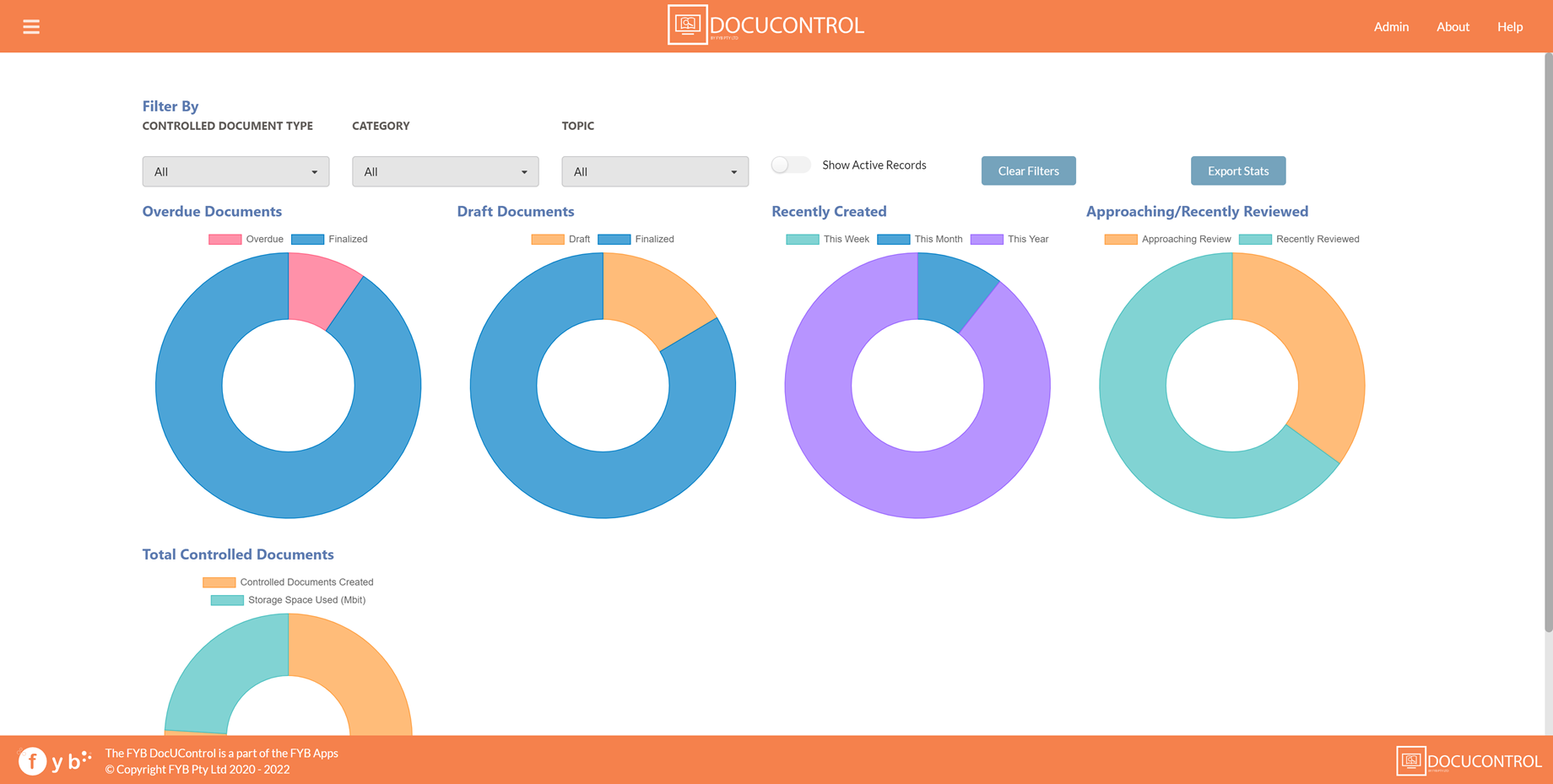
- Published documents are Records that have its Published value set to True.
- Draft documents are unfinalized Records.
All documents shown are published and have a supported electronic document attached.
| FUNCTIONALITY | DESCRIPTION |
|---|---|
| FILTER BY | Allows the user to filter the stats by the chosen categories or topics |
| EXPORT STATISTICS | Exports the current statistics to a CSV file |
| CLEAR FILTERS | Resets all the drop-down filters to "All" |
| OVERDUE DOCUMENTS | These are Unfinalized Records that have its Next Review Date is older than the current Date |
| FINALIZED DOCUMENTS | Finalized Records |
| DRAFT DOCUMENTS | Unfinalized Records |
| RECENTLY CREATED | Displays documents created this week, this month, and this year |
| APPROACHING REVIEW | Records where its Next Review Date is within 3 months |
| RECENTLY REVIEWED | Finalized Records that have been reviewed in the last 3 months |
| TOTAL CONTROLLED DOCUMENTS | Shows a chart displaying the total amount of Controlled Documents created compared to the amount of storage used within Content Manager, in megabits. |
| SHOW ACTIVE RECORDS | Enabling the checkbox will only show active Records |