
DocULink Admin Guide
ADMIN CONSOLE
The admin console for the DocULink external link provides Content Manager System Administrators with a simple interface to quickly set up or update the application settings.
Note
These settings are centrally managed and will affect all users.
To update the application settings please follow the steps below:
-
Open DocULink
-
Click on the Settings button (cog icon)

-
The admin console will be displayed
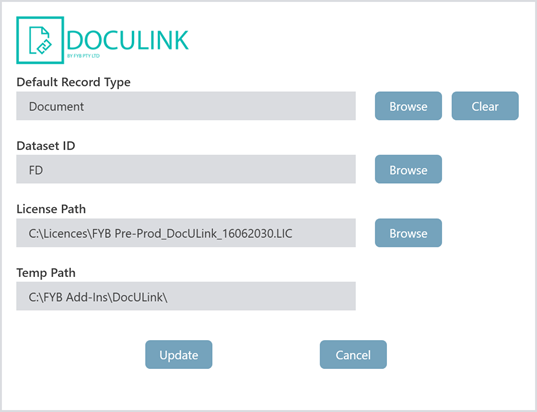
Update the settings as instructed below, and click on the Update button to save any changes
| FUNCTIONALITY | DESCRIPTION |
|---|---|
| Default Record Type | Specify the default record type to use when uploading documents |
| Database ID | The two-character dataset identifier. Clicking Browse will open the Content Manager dataset window. The selected dataset’s ID will appear in the text field. |
| License Path | The path to your license file. Clicking browse will open the Windows File dialogue. The selected file’s path will appear in the text field. This path will need to be a network path |
| Temp Path | The Temp Path of the DocULink external link. This path will need to be a network path and will be used to store the log files for DocULink |