DocUMove OpenID Microsoft Guide
OVERVIEW
To use Microsoft Entra ID with FYB DocUMove, an Entra ID Active Directory App Registration is required. The registration will be used to acquire an access token to make requests to access the FYB DocUMove and the CM Service API.
This configuration is only required if you would like to secure your DocUMove instance using Microsoft Entra ID.
CREATE THE APP REGISTRATION
-
Sign in to Azure web portal using the link below https://azure.microsoft.com/en-gb/features/azure-portal/
-
Once signed in, click on the Microsoft Entra ID button

-
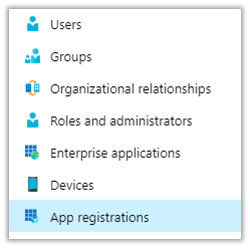
Click on the App Registrations option from the left menu
-
Click on the New Registration option from the options near the top of the page

-
Enter the name you would like to use for the App Registration

-
Within the Redirect URI (Optional) section, select Single-page application for the platform and add the FYB DocUMove URL and click Save
NoteThe redirect URI must be in lowercase

API PERMISSIONS
-
Navigate to the API permissions tab.
-
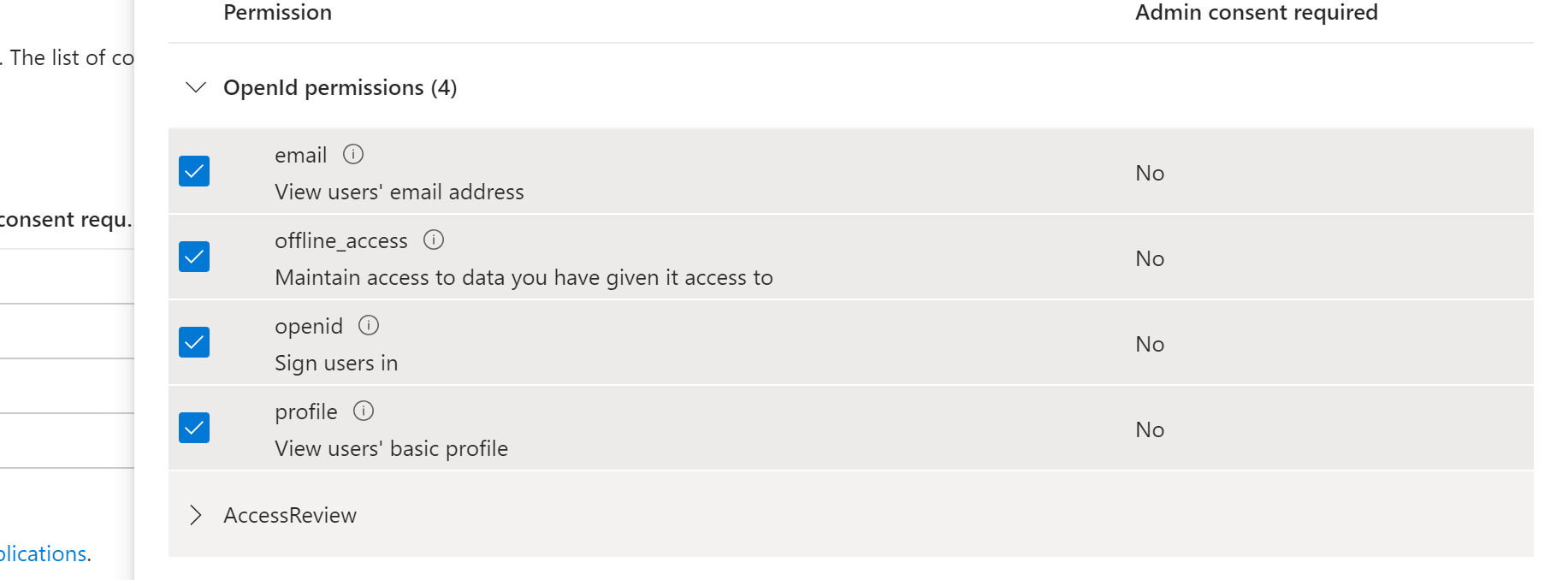
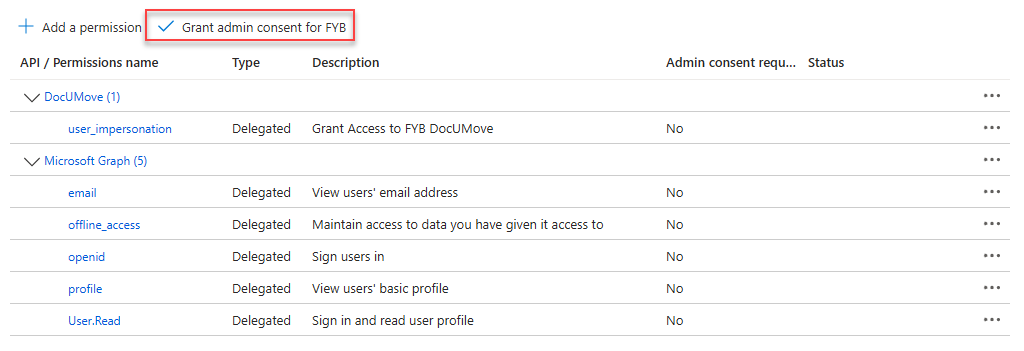
Ensure the following OpenId delegate permissions have been added:

EXPOSE AN API
Applying a custom scope to the registration will prevent unauthorised access to the FYB DocUMove API endpoints.
-
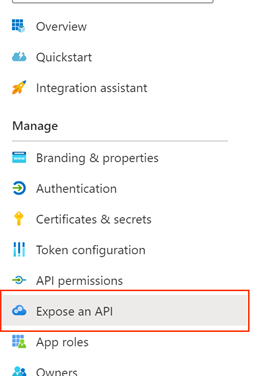
In the Left Menu, click on Expose an API
-
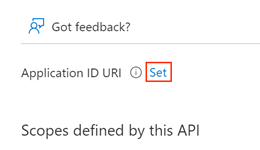
Next to the Application ID URI click on Set
-
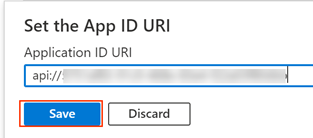
Click Save
-
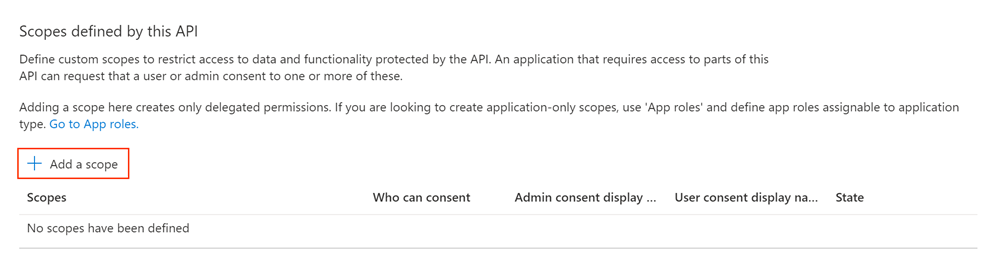
Click Add a scope
-
Specify the values below in the Add a scope window, then click Add scope
NoteThe scope must be named user_impersonation
Field Value Scope Name user_impersonation Who can consent? Admins and users Admin Consent display name Grant Access to FYB DocUMove Admin consent description Grant Access to FYB DocUMove User Consent display name Grant Access to FYB DocUMove User consent description Grant Access to FYB DocUMove State Enabled 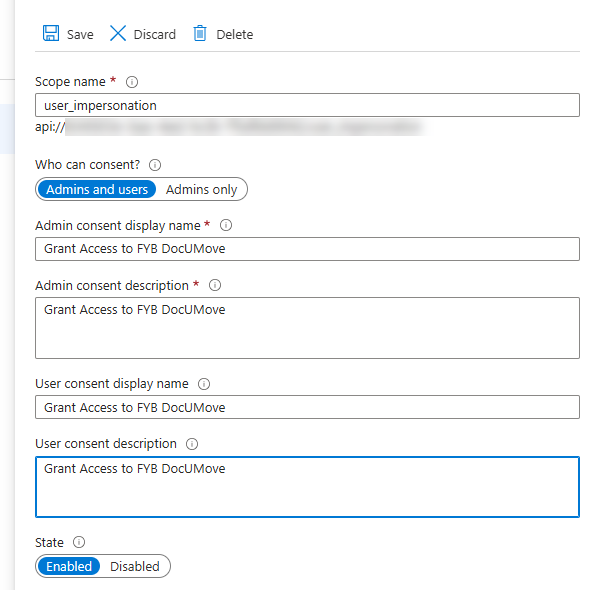
-
Once the scope has been added, click on API permissions
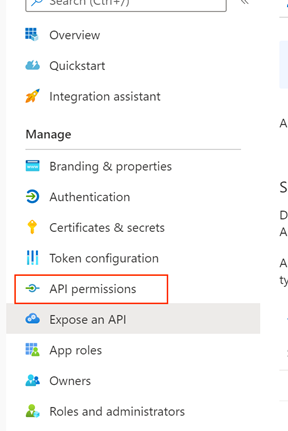
-
Click on Add a permission
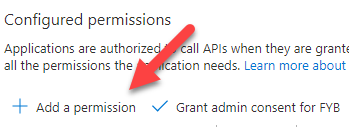
-
Click My APIs

-
Click on the DocUMove app registration
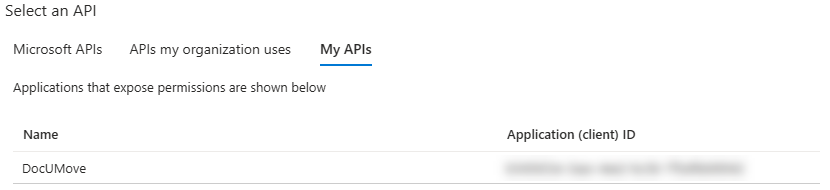 Note
If your app registration is not listed, wait 5-10 minutes or search for the app registration using the within the APIs my organization uses tab
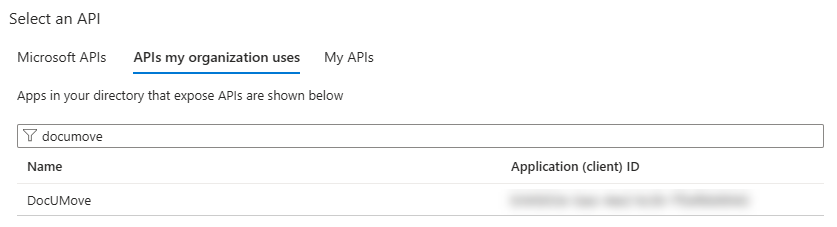
-
Click on the user_impersonation scope and then click Add permissions at the bottom of the screen

-
Click on Grant admin consent
GATHERING APP DETAILS
Please follow the steps below to retrieve the Application ID, Tenant ID and Redirect URL on the Azure portal. These values are required for the installation.
-
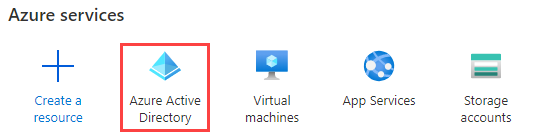
Once signed into the Azure portal, click on Azure Active Directory
-
Click on App registrations

-
Click on your DocUmove App registration

-
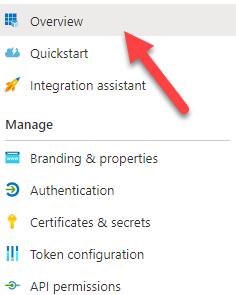
Click on Overview
-
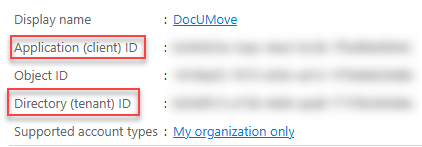
Copy the Application (client) ID and Directory (tenant) ID and note them down.
-
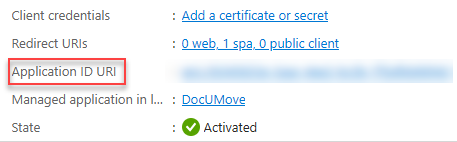
Copy the value of the Application ID URI
-
Click on Redirect URIs from the overview page

-
And then copy and note down the Redirect URI value

VALUES REQUIRED FOR INSTALLATION
The following values will be required for the installation of FYB DocUMove. Please ensure that the person responsible for the installation has these values.
| Name | Description |
|---|---|
| Client ID | Application's unique identifier on AzureAD. |
| Authority URL | https://login.microsoftonline.com/\{Tenant ID} |
| App ID URI | Application ID URI of the registered application. |
| Tenant ID | The organisation tenant unique identifier on Azure Portal. |
ENDPOINTS
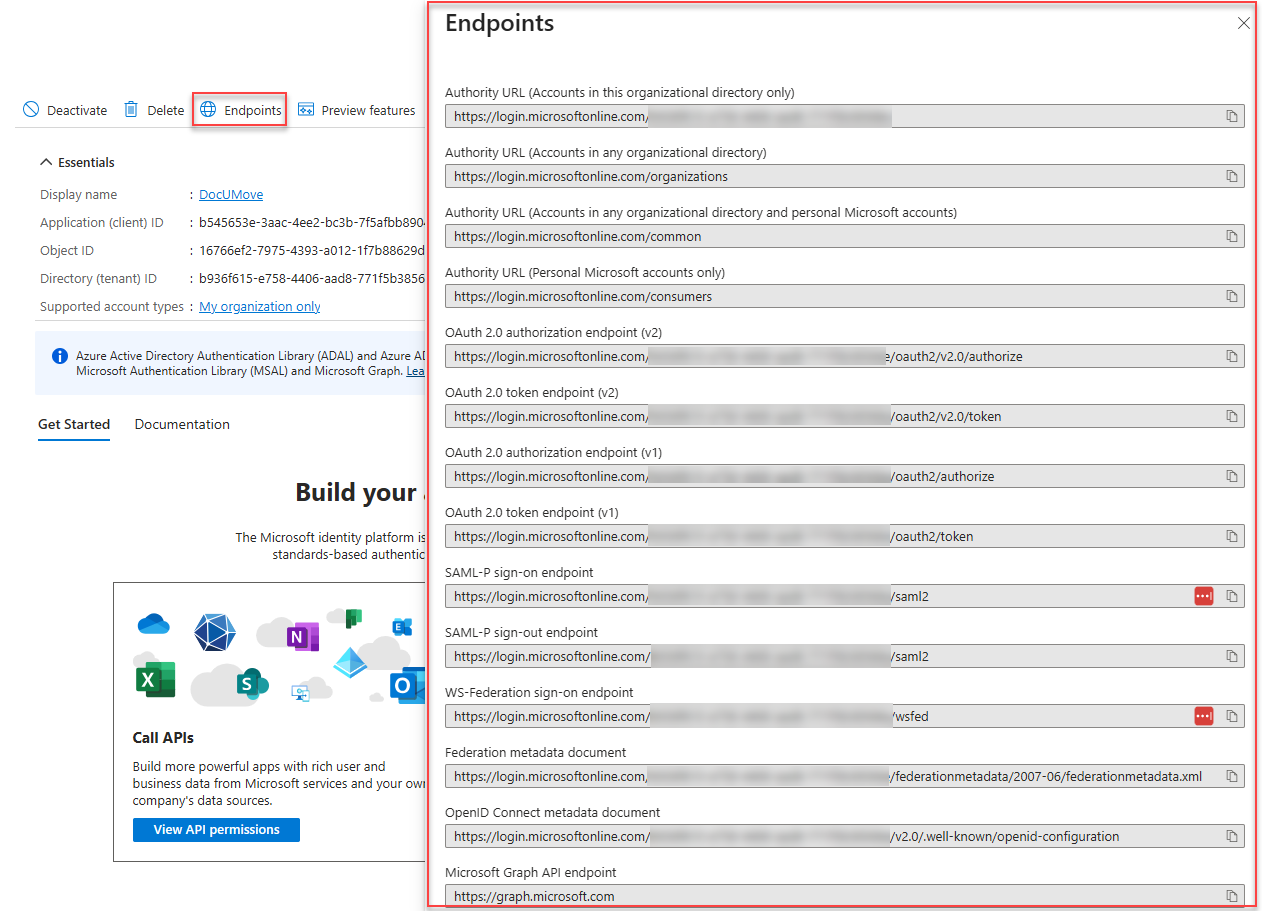
All valid endpoints for the registered application can be seen via the Azure web portal.
-
Select the registered application on Azure
-
From the Overview page select Endpoints