Drawings2CM User Guide
AUTHENTICATION
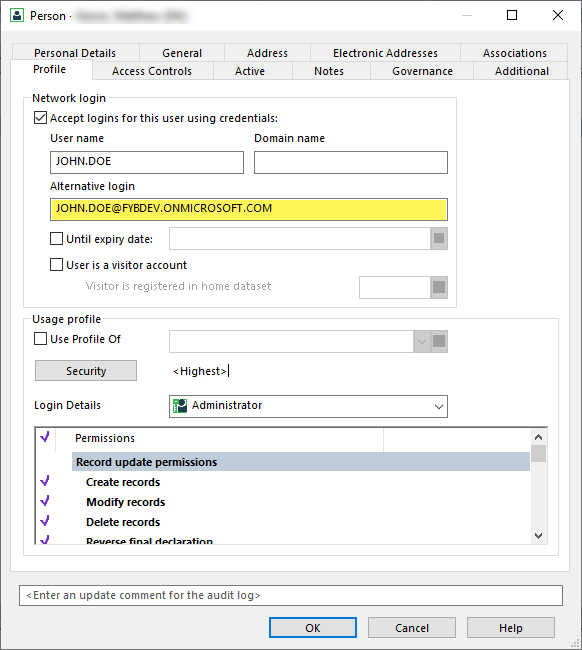
The Drawings2CM application uses Azure AD authentication to validate the user’s credentials. Users must enter their Microsoft 365 login details to sign into the application. The user's 365 login will need to be populated on their Content Manager profile so that the authenticated user can connect to Content Manager, this is done using the alternate login field.
LAUNCHING THE APP
If this is your first time launching the application your browser may be blocking the sign-in pop-up. Check for this icon in the top right of your browser and allow the pop-up.

-
Open a web browser and navigate to the Drawings2CM address
-
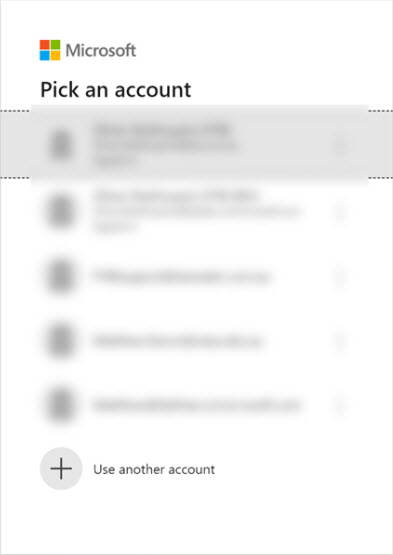
Sign in using your Microsoft Account. This account must belong to the Microsoft Tenant used during the installation of FYB Drawings2CM
-
After a successful sign-in, the app will load

NAVIGATION
DROP-DOWN MENU
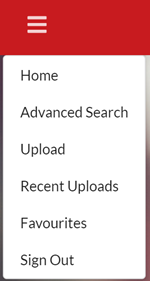
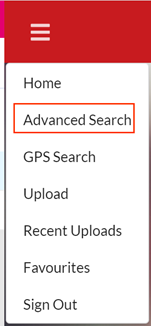
The drop-down menu allows you to navigate to different areas of the application, each navigation item is explained below. Further details can be found under the headings throughout this document.
| NAME | DESCRIPTION |
|---|---|
| Home | Search for Drawings |
| Advanced Search | Advanced Search modal for searching for specific Drawings |
| GPS Search | Search for Drawings using Google Maps. This feature is only available if you have configured a Google Maps API Key. |
| Upload | Upload new Drawings |
| Recent Uploads | Displays Drawings that have been registered to Content Manager in the last week |
| Favourites | Displays Drawings that you have favourited in Content Manager |
| Sign out | Sign out of the application |
TOP-RIGHT MENU ITEMS

| NAME | DESCRIPTION |
|---|---|
| Admin | Opens the Admin page. Only Content Manager Administrators, Record Managers or whitelisted users have access to this page |
| About | Opens the About window |
| Help | Opens the Drawings2CM User Manual in Document 360 |
HOME PAGE

The Home Page allows for searching for the latest versions of Drawings across Content Manager using the search bar.
Drawings can be searched via their:
- Title
- Record Number
- URI
- Drawings Number
- Drawing Type
- Asset ID
- Bay ID
- Project ID
SEARCHING FOR DRAWINGS
To search for Drawings:
-
Enter a search term into the search bar
-
Either press the ENTER key on your keyboard or click the magnifying glass icon

-
The Search Results Page will be displayed
ADVANCED SEARCH
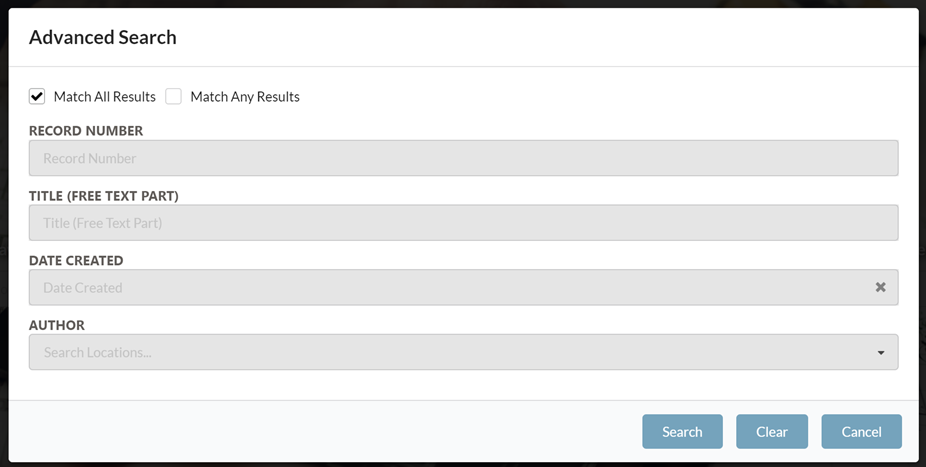
The advanced search lets you search by combining metadata.
-
Select the Advanced Search heading from the Drop-down Menu Navigation
-
Select either Match all Results or Match any results
-
Enter your search criteria
-
Select Search to run your search
-
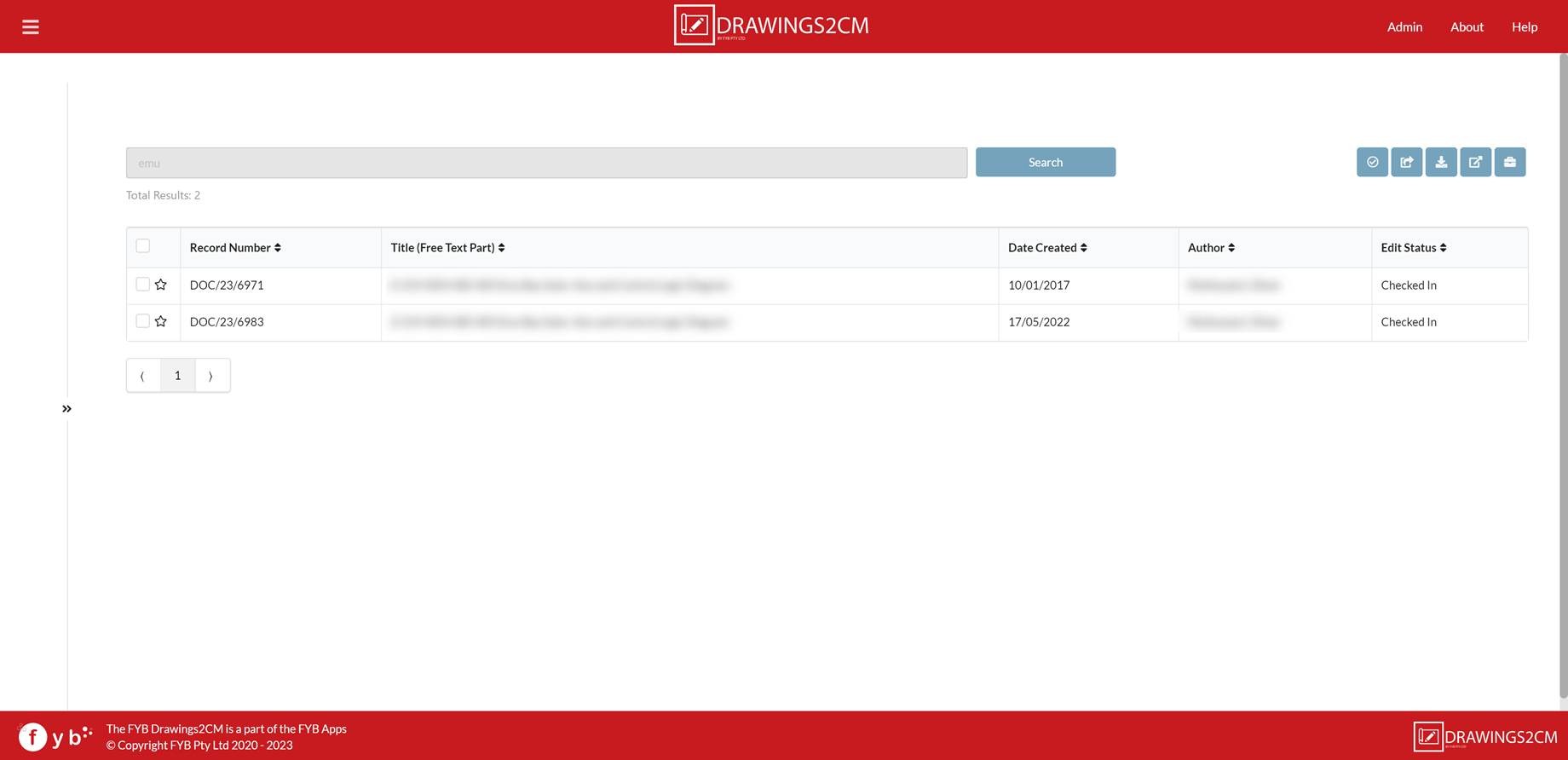
Your search results will be displayed
SEARCH RESULTS PAGE
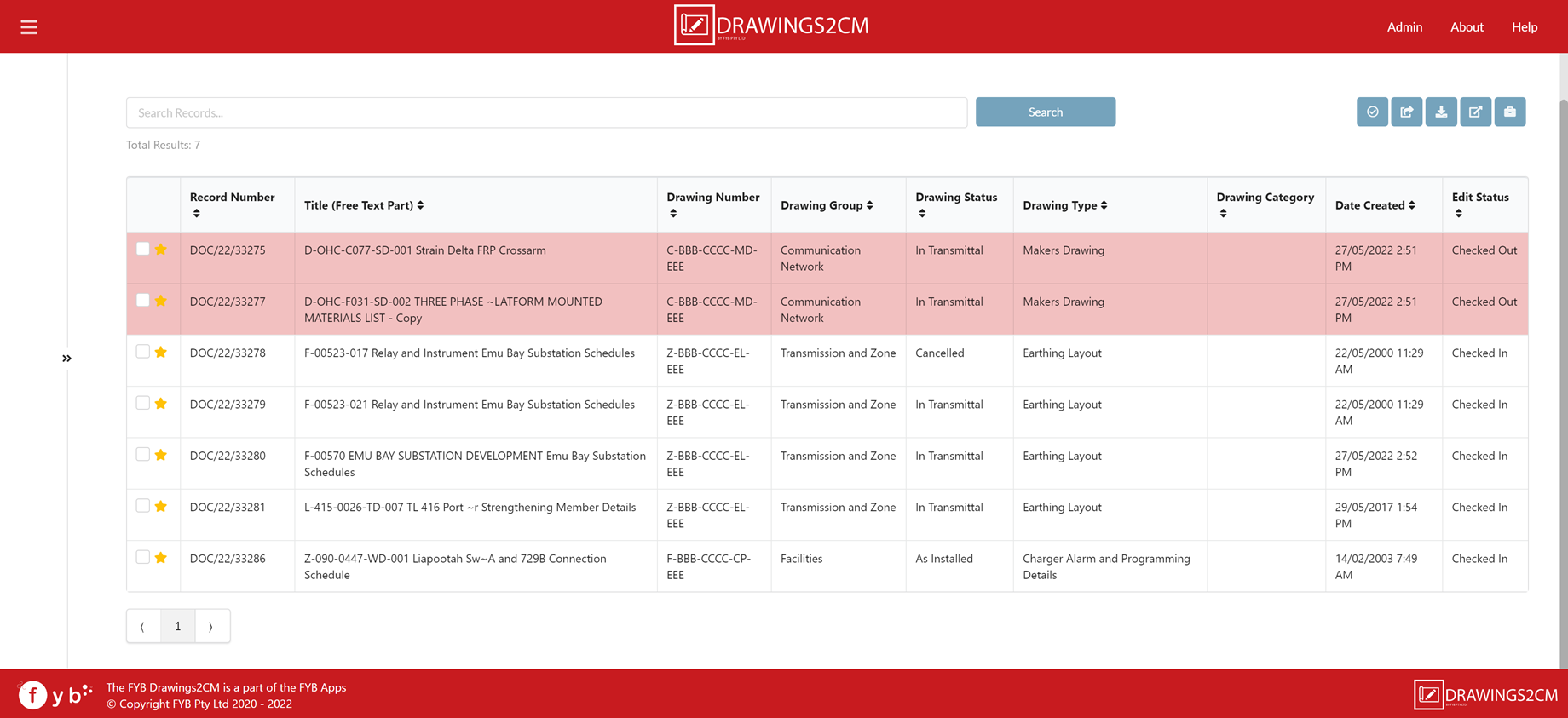
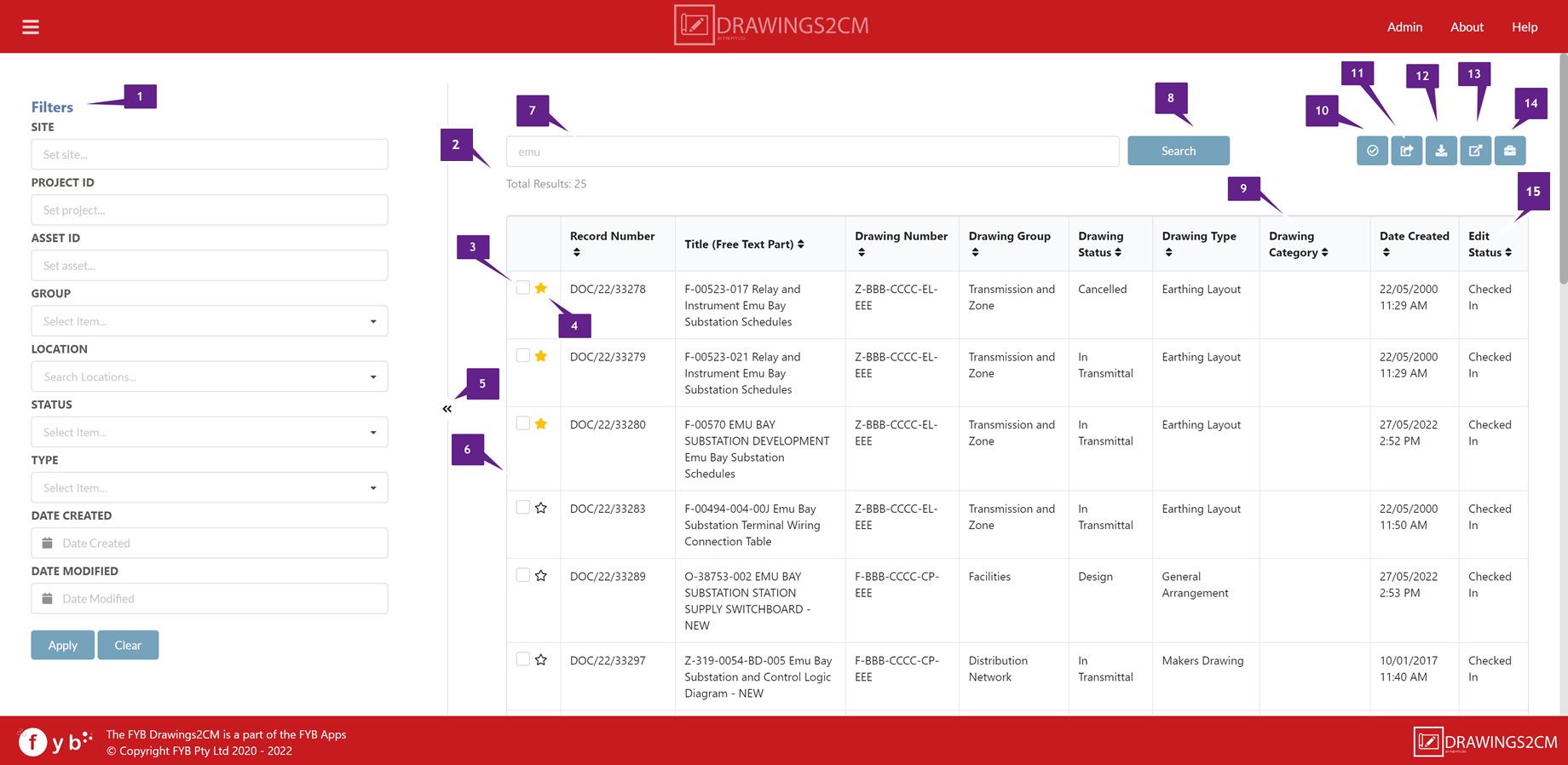
The search results page is displayed when a search is performed in Drawings2CM.
| NUMBER | NAME | DESCRIPTION |
|---|---|---|
| 1 | Filters | Filter options for refining the current search data. The filter options shown match the Metadata Fields selected by your System Administrator |
| 2 | Total Results | The total number of results returned from a search |
| 3 | Tag Drawing | Checkbox for tagging a drawing |
| 4 | Favourite Icon | Indicates if a Drawing has been favourited. Clicking the start will either add or remove a Drawing from the favourite Records |
| 5 | Filter Toggle | Shows/Hides the Filters section |
| 6 | Drawing | Drawings returned from the search. Each column is populated with the Drawing's respective metadata. Clicking a Drawing row will open the Drawing View Page |
| 7 | Search Bar | The search bar for specifying new searches. the placeholder value is the current search query |
| 8 | Search Button | Click the search button to execute a new search |
| 9 | Metadata Columns | The metadata columns are specified in the Admin Console. Each column header is clickable to sort the Drawings alpha-numerically |
| 10 | Review Drawings | Clicking this will open the Review Drawings modal. One or more Drawings must be tagged first |
| 11 | Share Drawings | Clicking this will open the Share Drawings modal. One or more Drawings must be tagged first |
| 12 | Download Drawings | Clicking this will open the Download Drawings modal. One or more Drawings must be tagged first |
| 13 | Send Transmittal | Clicking this will open the Send Transmittal modal. One or more Drawings must be tagged first |
| 14 | Create Project | Clicking this will open the Create Project modal. |
| 15 | Edit Status | Displays the current edit status for the drawing (either Checked In, Checked Out or Final). This column is always shown |
REVIEW DRAWINGS
POWER AUTOMATE FLOW
Drawings can be tagged to be reviewed via the Review Drawings modal.
-
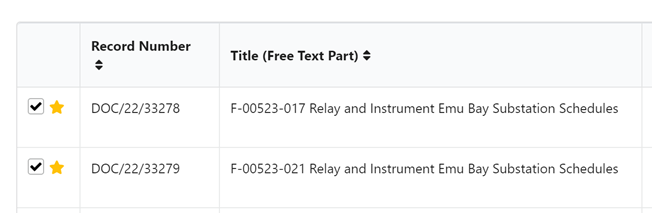
In the Search Results page, tag one or more Drawing(s)
-
Click on the Review Drawings button

-
The Review Drawings Modal will be displayed
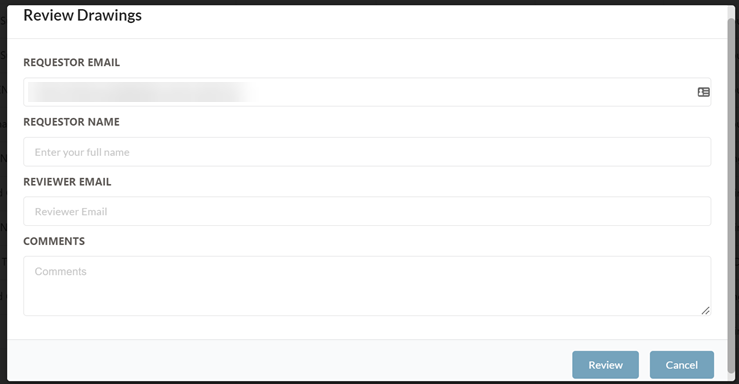
NAME DESCRIPTION Requestor Email The email address of the person requesting the review Requestor Name The full name of the person requesting the review Reviewer Email The email address of the reviewer Comments Comments for the review (optional) Review Clicking this button will start the Adhoc Review Power Automate flow Cancel Closes the Review Drawings modal
CM WORKFLOW
Click Review to initiate the Content Manager Workflow.
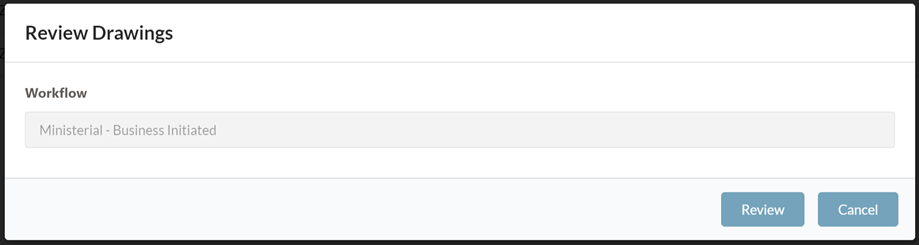
The workflow is set in the Admin Console
CM ACTION
Click Review to initiate the CM Action.
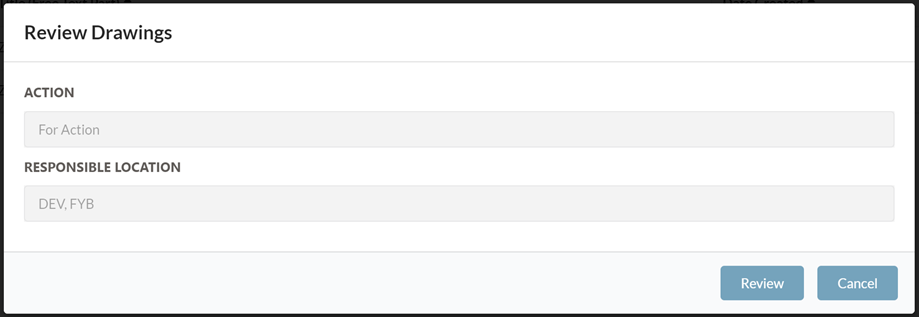
The action and responsible location is set in the Admin Console
SHARE DRAWINGS
To share Drawings:
-
In the Search Results page, tag one or more Drawing(s)
-
Click on the Share Drawings button

-
The Share Drawings modal will be displayed
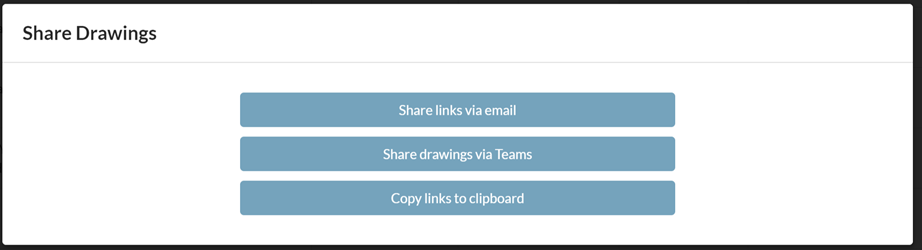
NAME DESCRIPTION Share links via email This will generate a new email with the tagged drawings generated as hyperlinks. 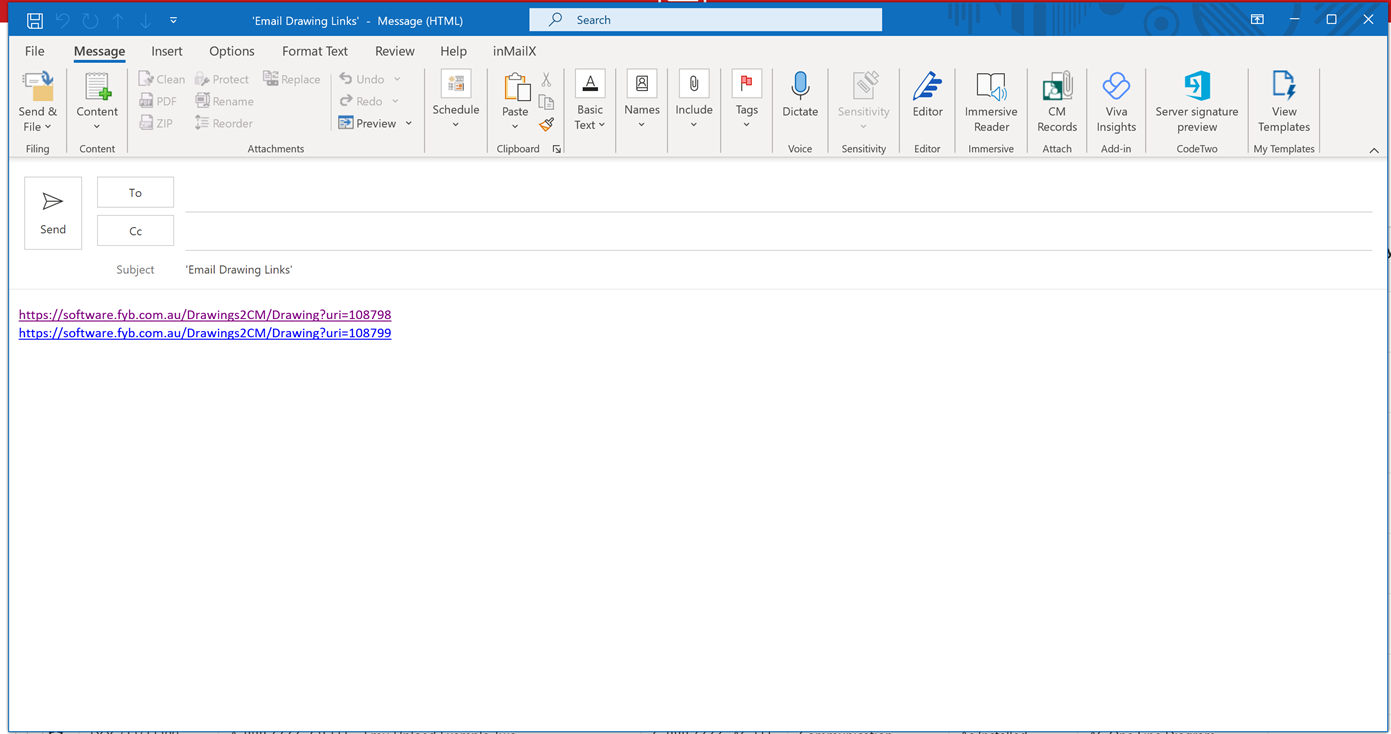
Share drawings via Teams Opens the Send to Teams modal Copy to Clipboard Copys the tagged drawings as URLs to your clipboard
SEND TO TEAMS
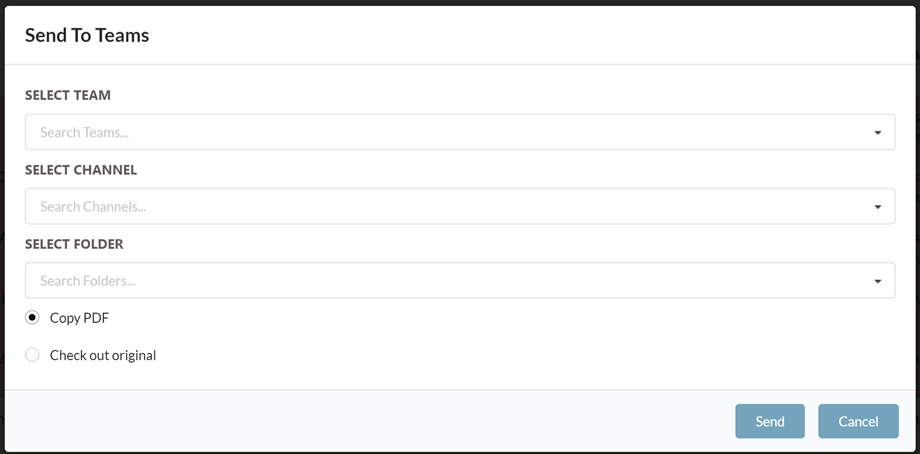
This modal is displayed when the Share drawings via Teams button is clicked.
| Name | Description |
|---|---|
| Select Team | Dropdown displaying a list of Microsoft Teams that the user is a part of. Selecting a Team will populate the Select Channel dropdown |
| Select Channel | Select the channel for sharing the Drawings to |
| Select Folder | Select a folder within the channel to send the Drawings to. If no folder is selected, the Drawings are sent to the root directory of the selected Channel |
| Copy PDF | This option will send PDF copies of the tagged Drawings to the selected Channel within the selected Team |
| Checkout Original | This option will send the electronic file of the tagged Drawings to the selected Channel within the selected Team. The tagged Drawings will be checked out in Content Manager |
| Send | Clicking this button will send the Drawings to Teams |
| Cancel | Click this button to close the Send to Teams modal |
DOWNLOAD DRAWINGS
To download Drawings:
-
In the Search Results page, tag one or more Drawing(s)
-
Click on the Download Drawings button

-
The Download Drawings modal will be displayed

NAME DESCRIPTION Download PDF Downloads a zip containing the PDF versions of the tagged Drawings Download Original Downloads a zip containing the electronic documents of tagged Drawings
SEND TRANSMITTAL
The Send Transmittal modal will allow users to tag and send Drawings to a Microsoft Teams Channel along with a Transmittal CSV document. Drawings sent to Teams are also checked out in Content Manager.
-
In the Search Results page, tag one or more Drawing(s)
-
Click on the Send Transmittal button

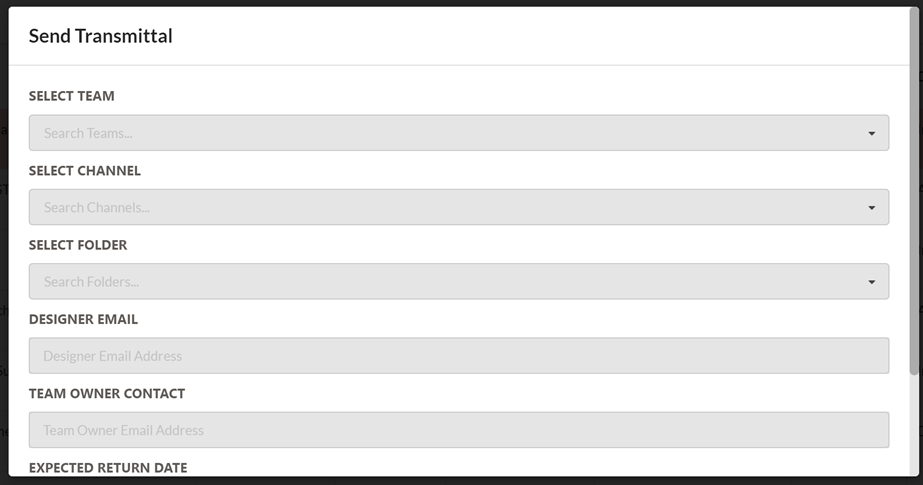
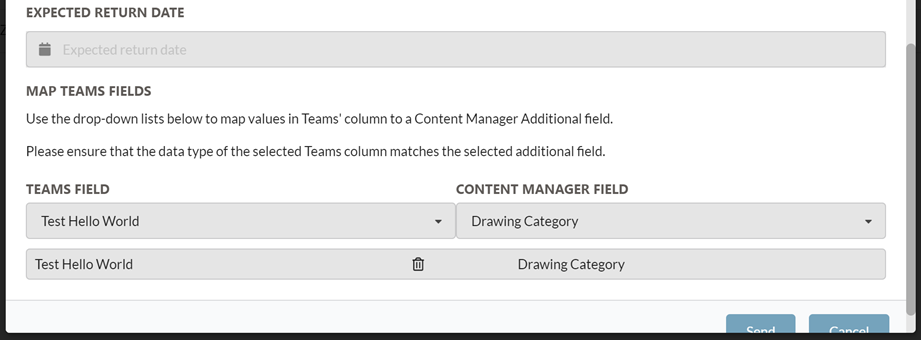
NAME DESCRIPTION Select Team Dropdown displaying a list of Microsoft Teams that the user is a part of. Selecting a Team will populate the Select Channel dropdown Select Channel Select the channel for sharing the Drawings to Select Folder Select the folder within the Channel to transfer the Drawings to Designer Email Email address of the designer Team Owner Contact Email address of the owner of the Team Expected Return Date The date that the drawings are expected to return to Content Manager Map Team Fields (Optional) Specify the Content Manager fields you wish to map to Teams fields. See the Map Teams Field section for more info. Send Send the Drawings to Teams Cancel Closes the Send Transmittal modal
MAP TEAMS FIELDS
To Map CM fields to Teams:
-
Specify the Content Manager fields you wish to map to the Teams field
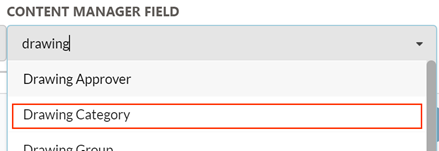
-
Select the Teams Field
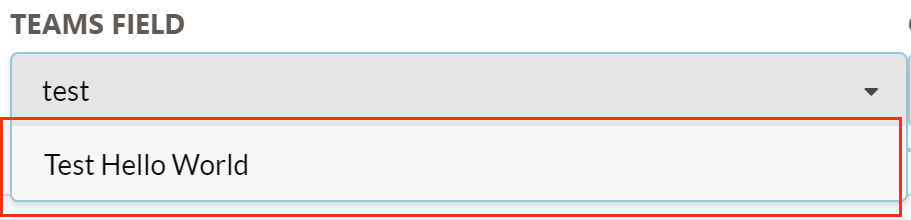
-
The mapping is added to the table
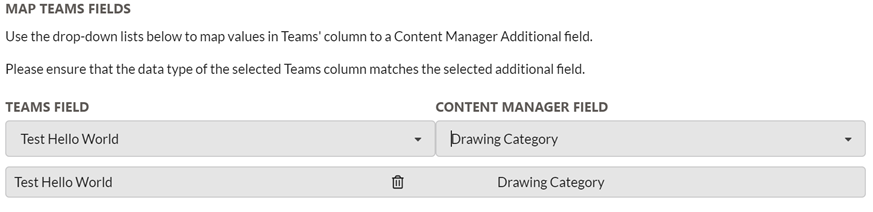

CREATE PROJECT
The Create Project modal allows users to create a new project folder structure in Content Manager as well as Teams.
If Drawings have been tagged, they will be alternatively contained within a Reference Materials folder in the Project Structure.
-
Click on the Create Project button

-
The Create Project modal will be displayed
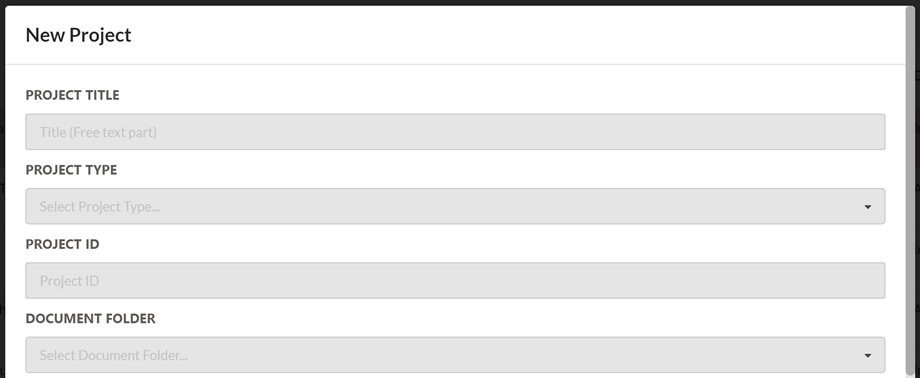
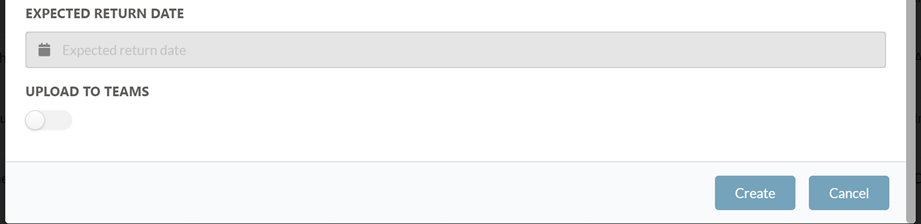
NAME DESCRIPTION Project Title Title of the project folder structure Project Type Dropdown for selecting the project type. Project Types are created/configured in the Admin Console Project ID Id for the Project Document Folder The folder that the tagged Drawings will be sent to when the Project is created in Content Manager and Teams Expected Return Date The date that the drawings are expected to return to Content Manager Upload To Teams If enabled, the project folder structure will be created in the General Channel of the Selected Team Select Team Specify the Team to create a project in Send Transmittal If enabled, a Transmittal CSV document will be generated for the tagged records Create Clicking this button will create the project on Content Manager as well as Teams (if enabled) Cancel Clicking this button will close the Create Project modal
DRAWINGS VIEW PAGE
Clicking on a Drawing in the Search Results will open the Drawings View Page
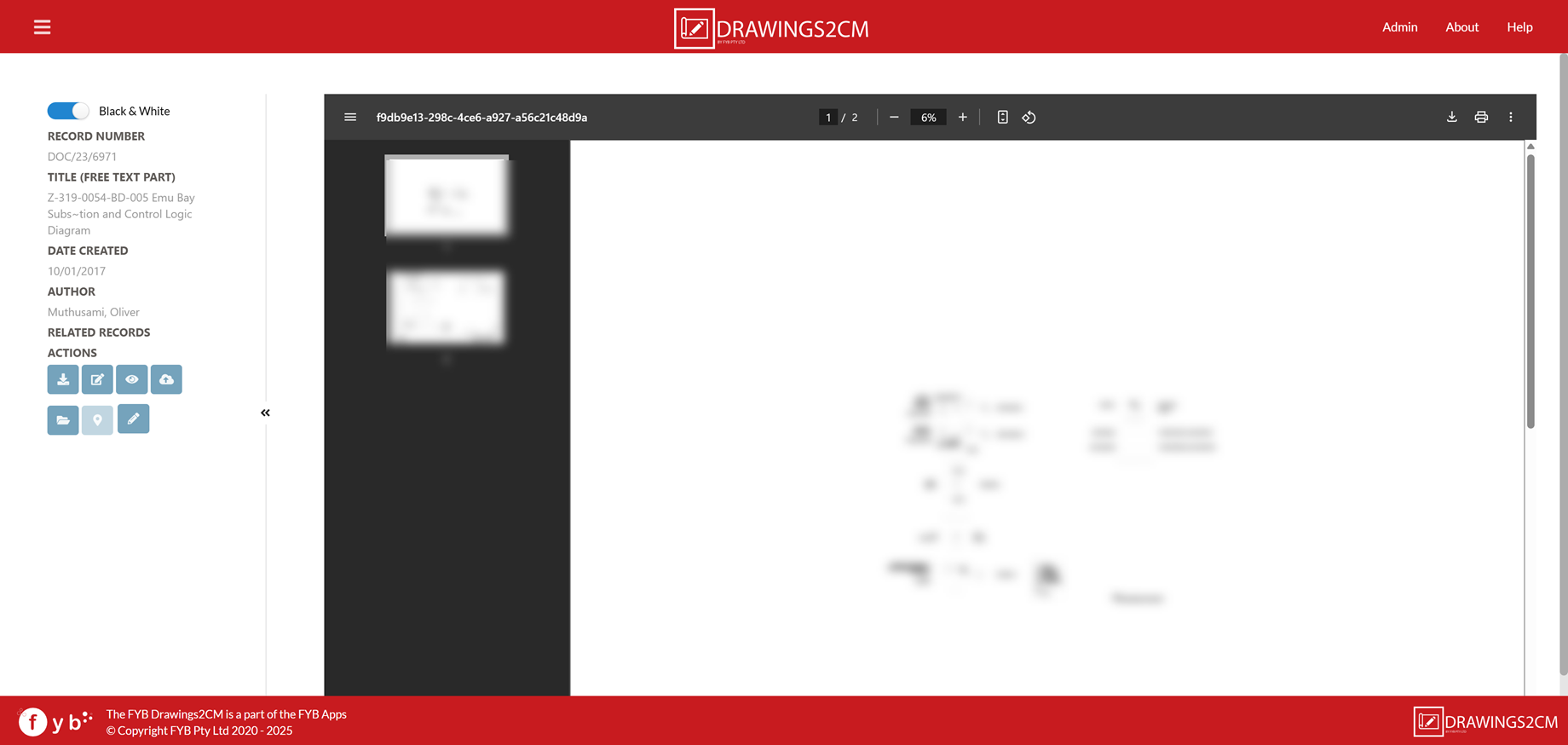
The Metadata displayed in the left column is controlled in the Admin Console. The PDF rendition (if available) of the Drawing is displayed on the right. Clicking on a related Record will open the Drawings View page for that record.
ACTIONS
| NAME | DESCRIPTION |
|---|---|
| Black & White | If enabled, the PDF will be in black and white |
| Download | Opens the Download Drawing Modal  |
| Edit Drawing | Opens the Drawing in the default program in edit mode. The drawing is checked out and is checked in once the program is closed  |
| View Drawing | Opens the Drawing in the default program in read-only mode  |
| Update Drawing | Launches the Update Drawing modal |
| Show all versions | Opens the Search Results page showing all the Record versions for the Drawing  |
| Show in Google Maps | Opens Google Maps to the location of the Drawing in a new tab. The GPS Record field must have a value for this feature to work.  |
| Edit Metadata | Opens a modal to edit the Record's metadata.  |
UPDATE DRAWING MODAL
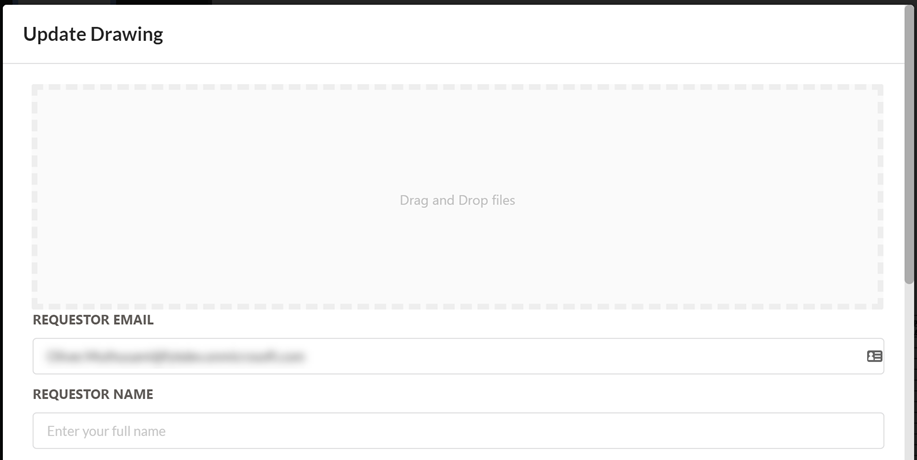
The File uploaded is initially attached as a new annotated rendition on the Record.
| NAME | DESCRIPTION |
|---|---|
| File Drop area | Drag and drop the updated drawings file. This file will be added to the Drawings Record as a new version |
| Requestor Email | The email address of the person requesting the update |
| Requestor Name | The full name of the person requesting the update |
| Reviewer Email | The email address of the reviewer |
| New Status | The new Drawing status to be set for the Drawing after it has been approved for update |
| Comments | Comments for the update (optional) |
| Update | Clicking this button will start the Redline Update Power Automate flow |
| Cancel | Closes the Update Drawings modal |
CM WORKFLOW
Click Update to initiate the Content Manager Workflow.
The workflow is set in the Admin Console
CM ACTION
Click Update to initiate the CM Action.
The action and responsible location is set in the Admin Console
GPS SEARCH
The GPS Search page allows for searching for Drawings via their GPS Location. It is accessed via the main hamburger menu in the top right.
This feature is only enabled if a Google Maps API Key has been configured in the Admin Console
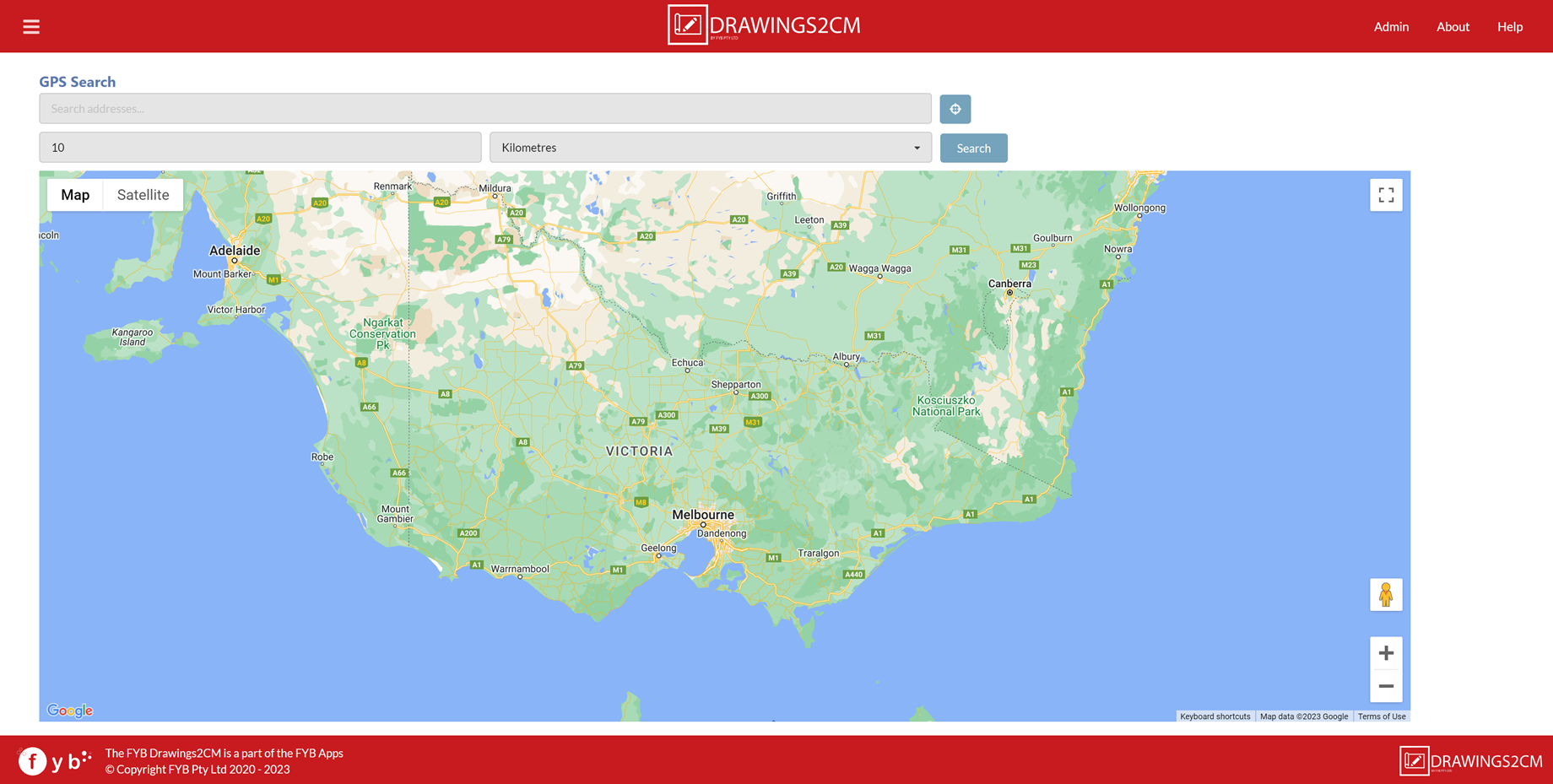
SEARCHING FOR DRAWINGS NEAR AN ADDRESS
-
Enter an address into the search bar and select the auto-complete suggestion

-
Specify a radius for Drawings2CM to locate drawings near the address, and click on the Search button

-
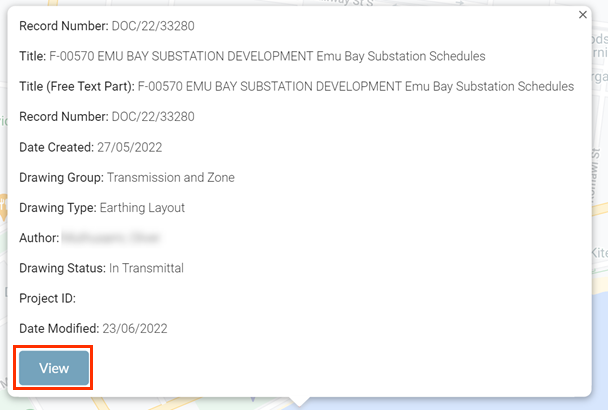
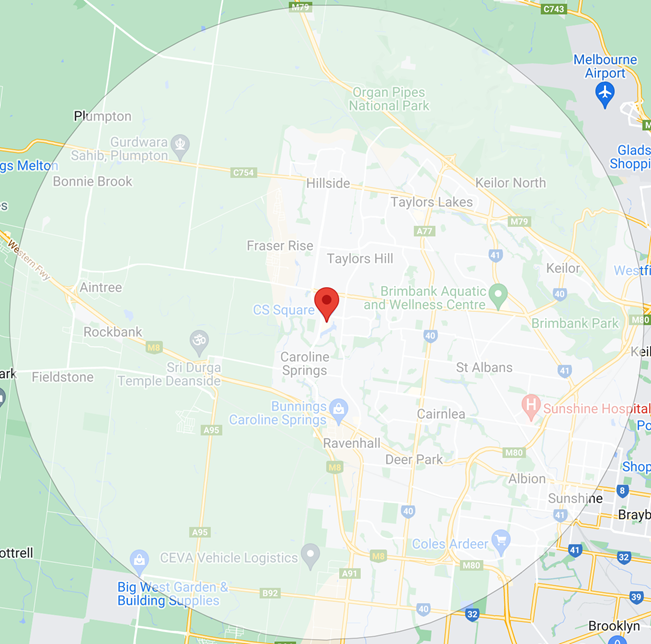
Drawings2CM will draw a radius around the specified address and will drop Markers at the location of the Drawings within the given radius.
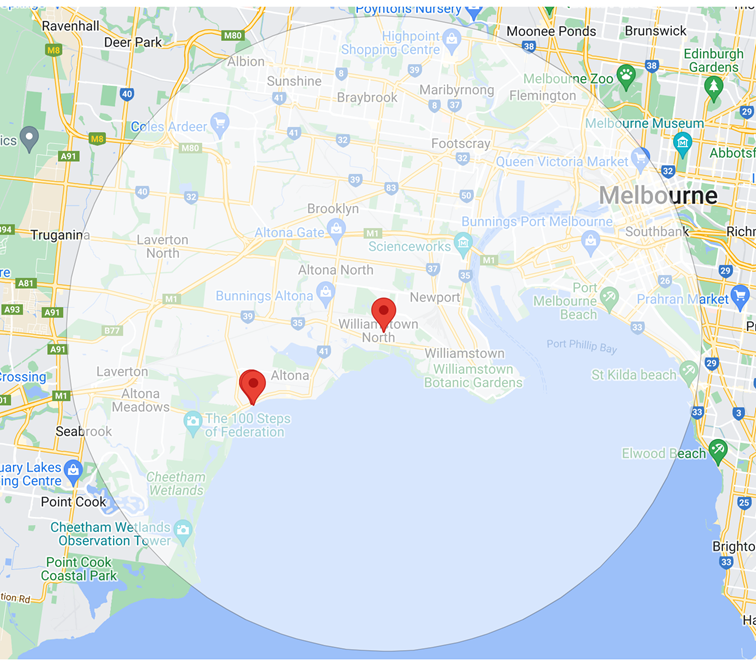
-
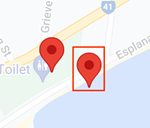
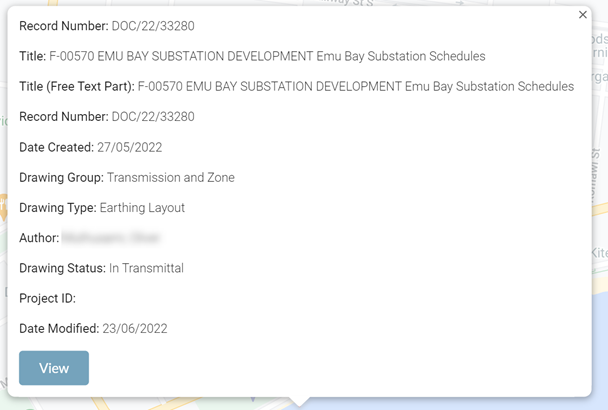
Click on a Marker to view the metadata of the drawing
-
Clicking on the View button will open the Drawing in the Drawings2CM View page in a new tab
SEARCHING FOR DRAWINGS NEAR YOUR CURRENT LOCATION
-
Click on the Current Location button

-
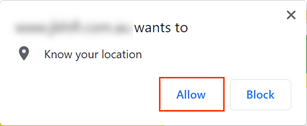
Consent to the browser knowing your current location by clicking Allow
-
Drawings2CM will locate Drawings near your current location using the specified Radius
-
The radius can be increased or decreased before doing a Current Location search by using these fields

UPLOAD PAGE
The upload page is used to upload new Drawings to Content Manager and is accessed via the main hamburger menu in the top right.
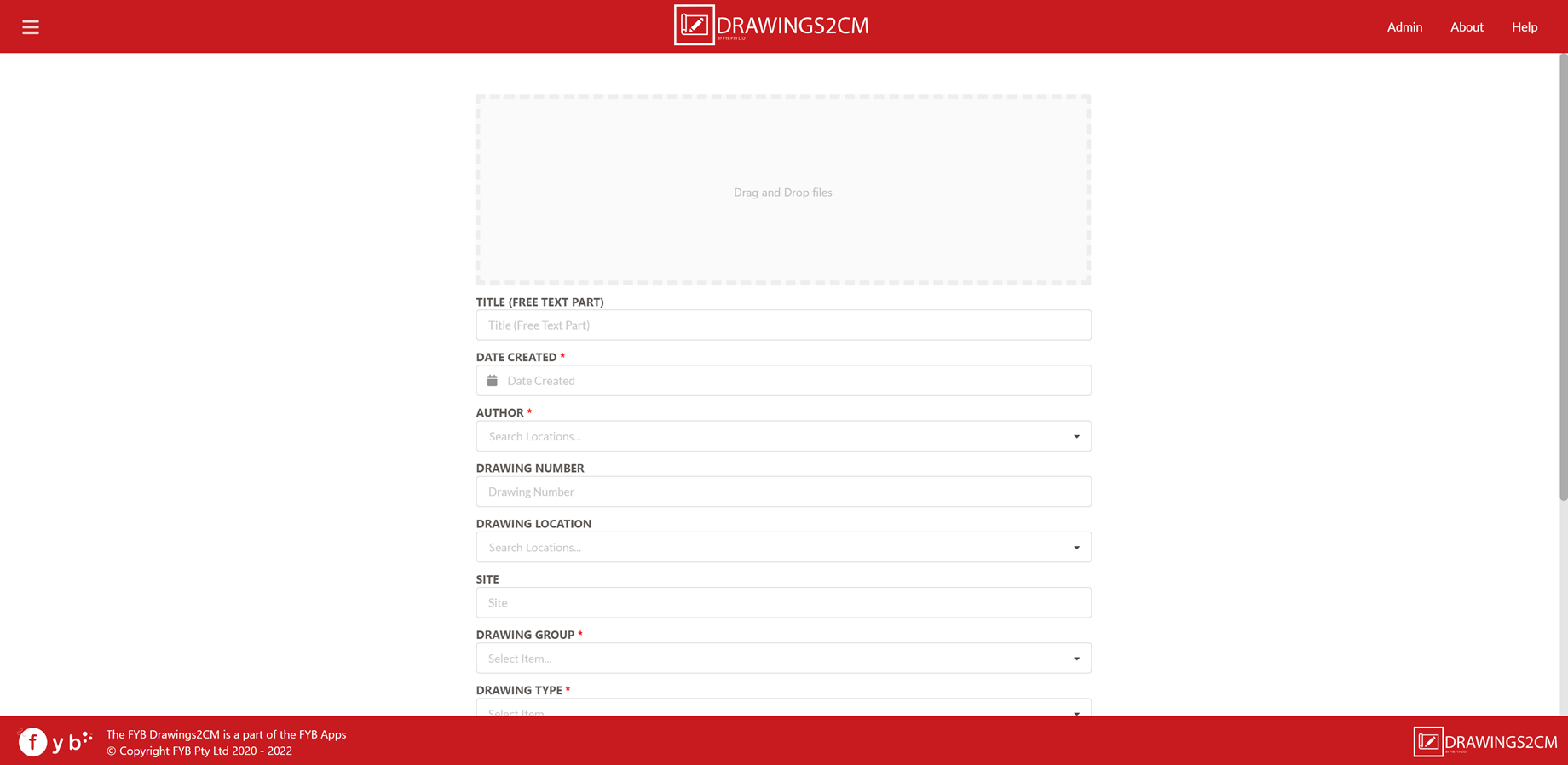
The fields displayed on the upload form are taken from the Drawings Record Type. Fields marked with an * symbol are mandatory.
To upload Drawing(s):
-
Drag and drop one or more files into the File Drop area

-
Fill in the mandatory fields
NoteIf the Title is left blank, the file name will be used as the title
-
Click Upload

-
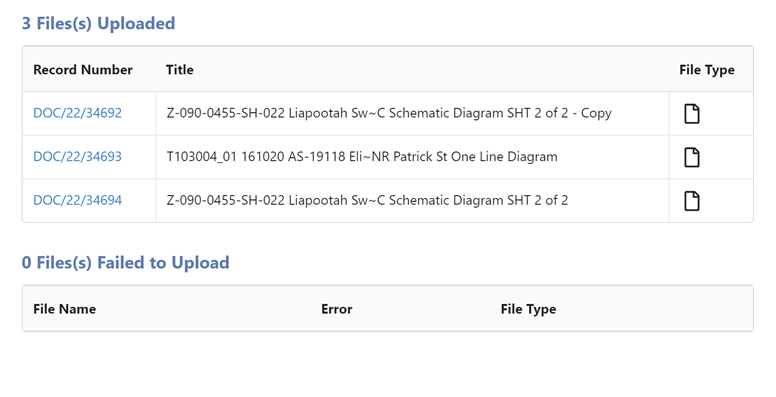
Once the uploads are complete, the Upload Summary page will be displayed
TRIGGER UPLOAD WORKFLOW
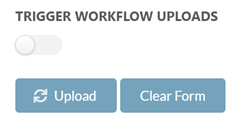
If the Trigger Workflow Uploads option is enabled, the specified upload workflow option will be triggered after the Record has been successfully uploaded to Content Manager.
MANUAL RECORD NUMBERING
If the record type selected has manual Record Numbering, a record number must be supplied on upload.
SINGLE FILE UPLOADS
Fill in the field below with a Record Number that matches the pattern before clicking the Upload Button.

MULTIPLE FILE UPLOADS
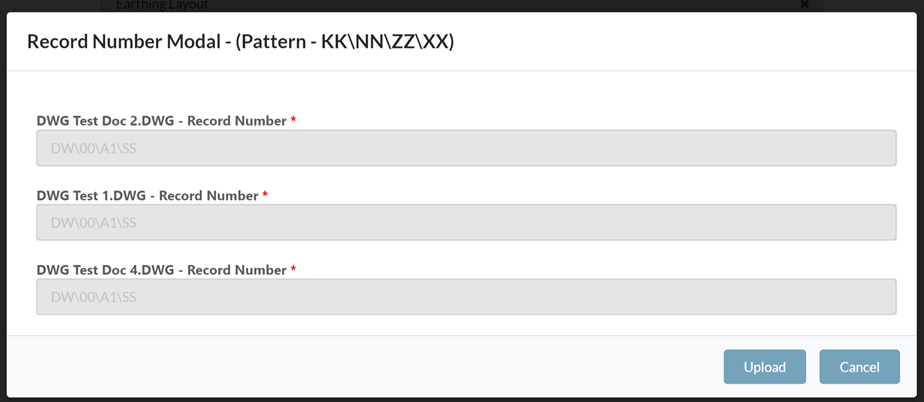
Fill in all mandatory fields then click the Upload Button. The Record Number Modal will appear with a Record Number field per file uploaded. All fields must be filled in.
FAVOURITES PAGE
This page displays the user's favourite drawings and is accessed via the main hamburger menu in the top right.