
Explorezel CSS Theme Styling Guide
TABLE STRUCTURE
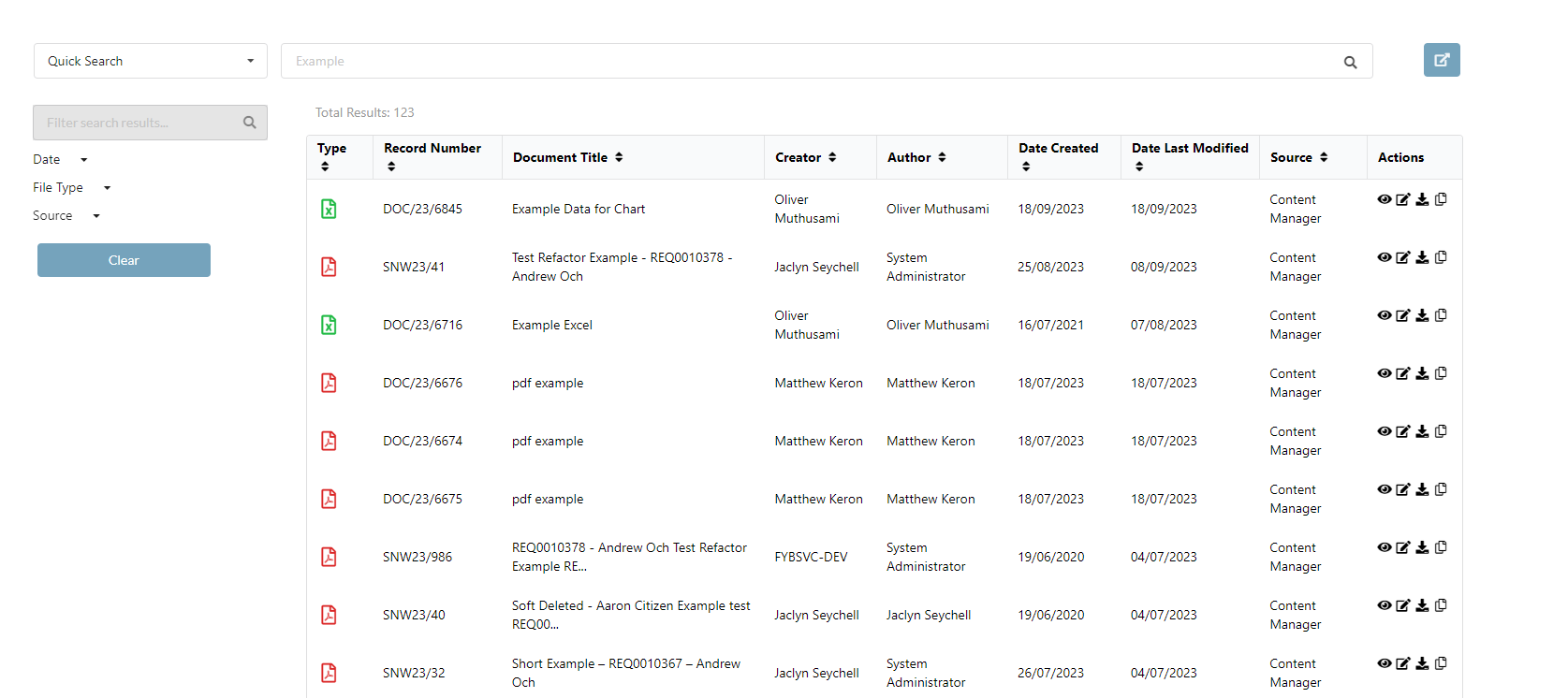
The default search result and theme of a Explorezel table displays as the following:
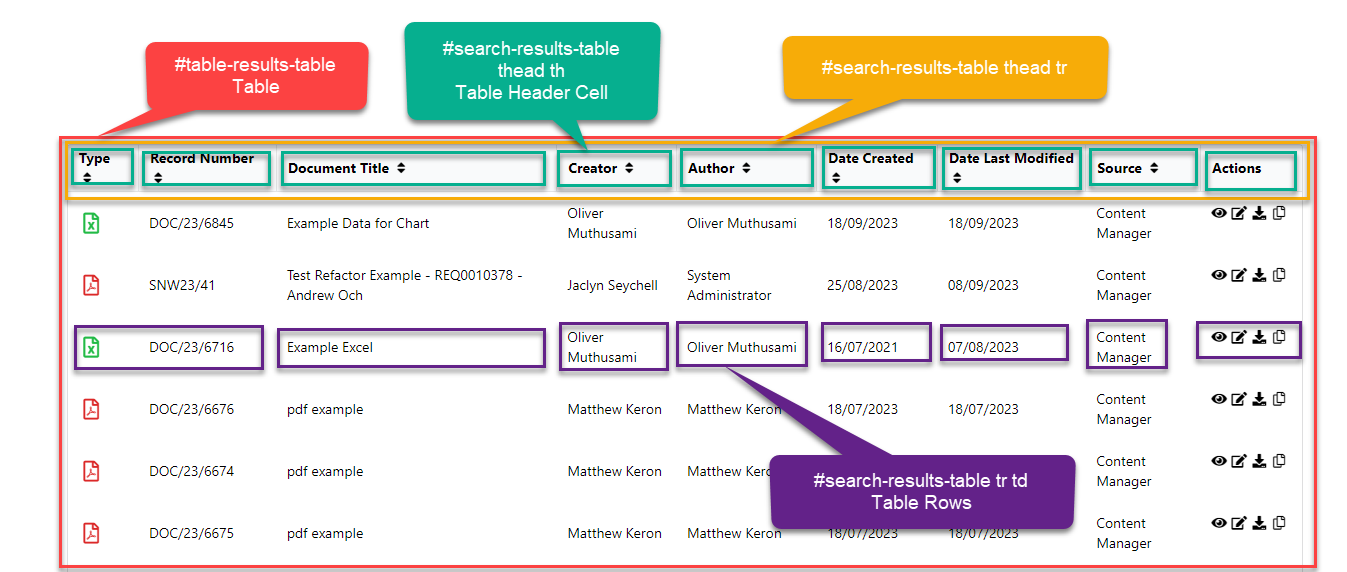
A Explorezel table can be broken down into the following structure
| Element | Purpose |
|---|---|
| #table-results-table | This is the outer shell of the table. Any configuration changes will affect the whole table. This includes background colours, default fonts, borders and more. |
| **#search-results-table thead th ** | The table header allows for the header elements to be configured specifically including colours, fonts, padding and more. |
| #search-results-table thead tr | The table header row allows for the header row to be configured specifically including colours, fonts, padding and more. |
| **#search-results-table tr td ** | The table body rows. Allows for the update of the colour, font and styling on the body of the table. |
| #records-table | The table body is the outer shell of the table, excluding the header. Everything inside the table is within the table body. This allows for the body of the table to be configured with borders, background colours, font size, font colours and more. |
STYLING TEMPLATE
You can use the Explorezel theme styling template and add your features to ensure the correct elements are being targeted. The template is accessible on the FYB Document360 portal.
If you wish to use your own template, please ensure to add the bottom section that has been marked in the template to ensure full functionality of the Explorezel results.
Explorezel can support multiple custom themes. Themes are stored in the Custom Theme folder located in the Temp Path set for Explorezel.
STYLING TIPS
To ensure that the custom theme configuration is overriding the default settings, ensure to use !important at the end of each CSS element added as shown in the template. This will allow for the new styles to override the importance of the default settings.