
Folder Template Creator Admin Guide
ADMINISTRATION CONSOLE
The administration console is restricted to Content Manager Administrators and Records Managers or whitelisted users. Administrators can grant selected users administration privileges or basic access for Folder Template Creator.
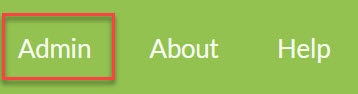
You can gain access to the Administration Console using the Admin tab.
The Administration Console will load as follows:
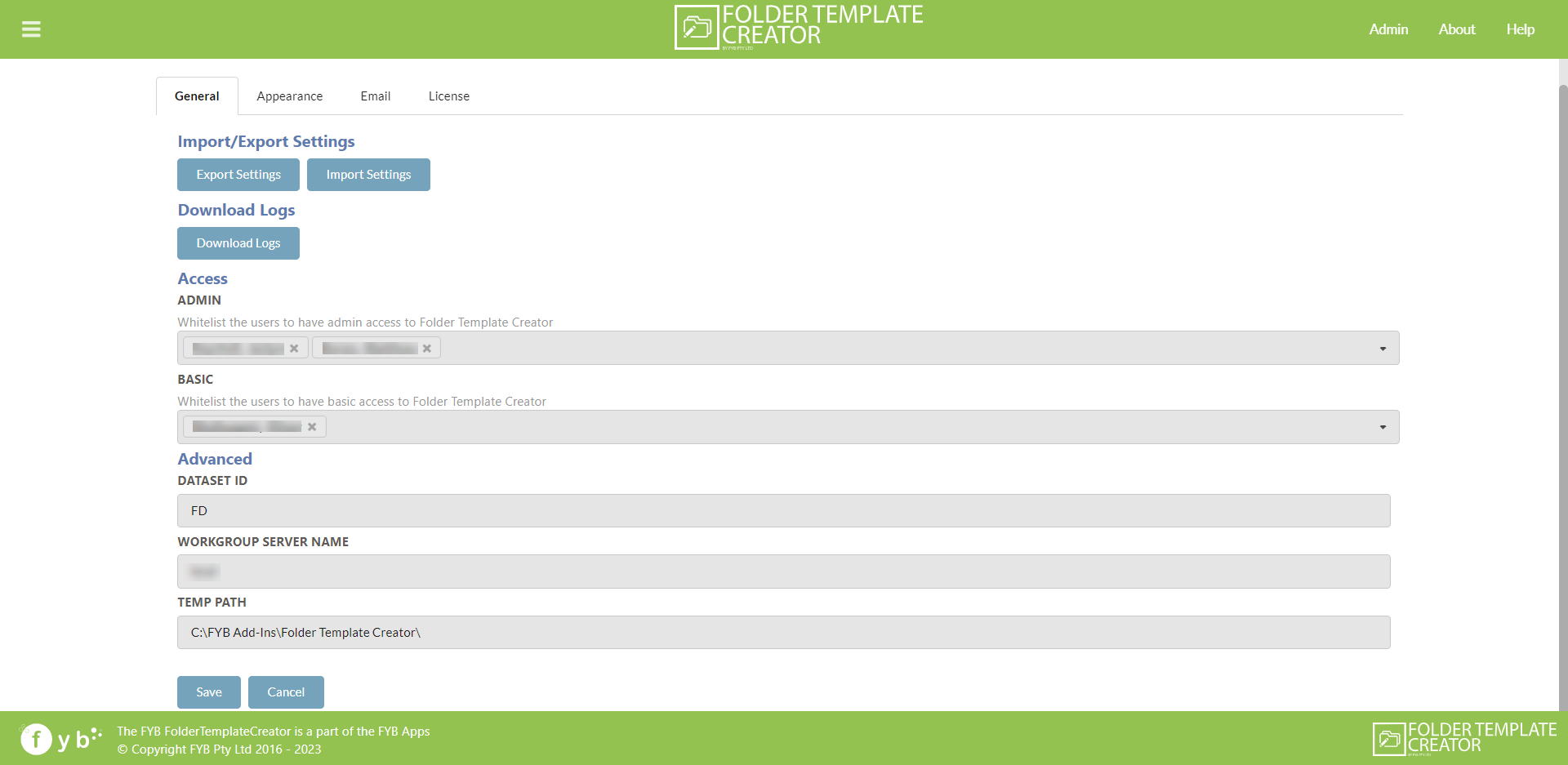
There are four fundamental areas of configuration:
- General Settings
- Appearance Settings
- Email Settings
- License Settings
GENERAL SETTINGS
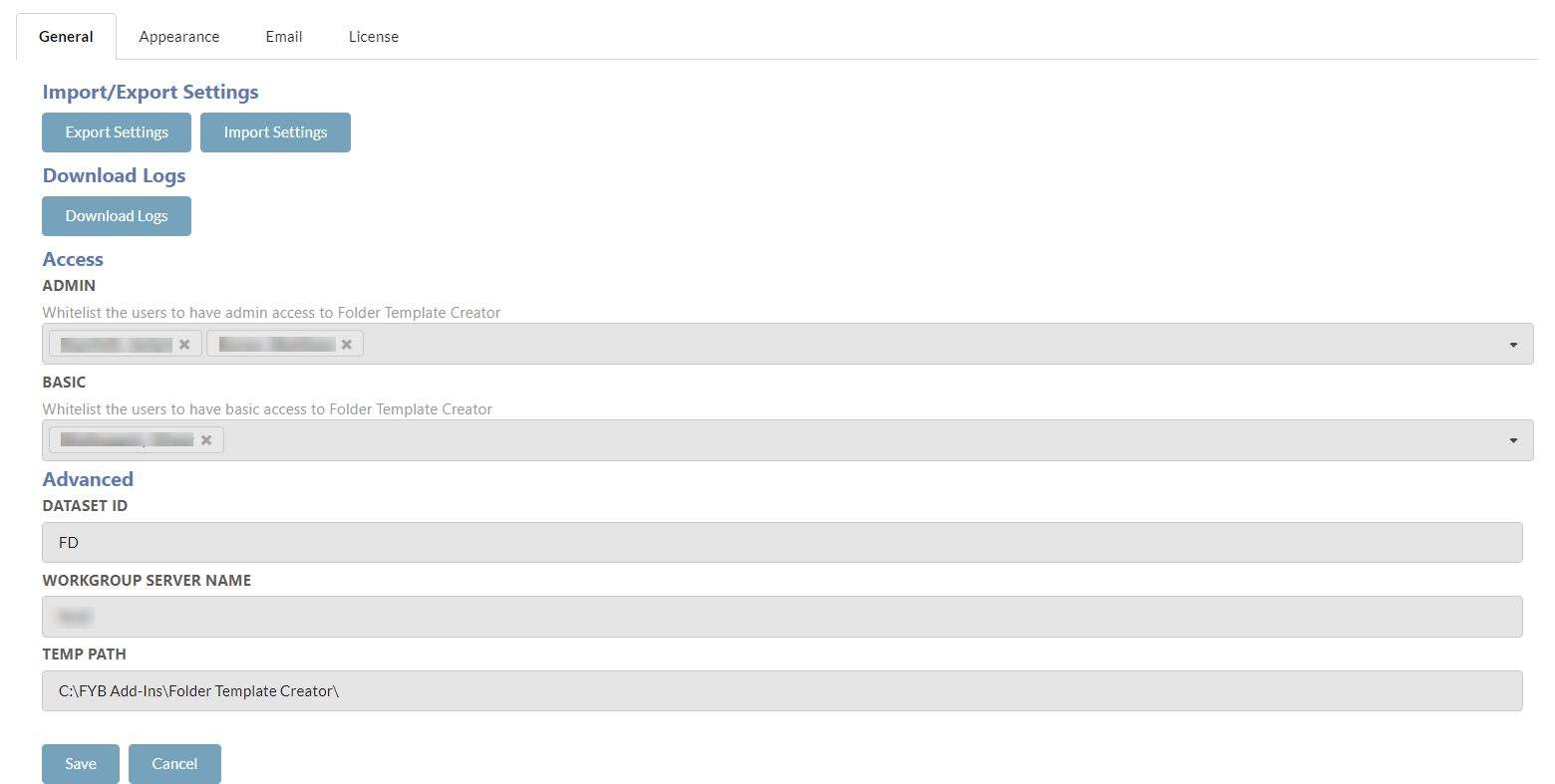
The following settings can be configured:
EXPORTING SETTINGS

Exporting settings allows for the download of all JSON settings for Folder Template Creator.
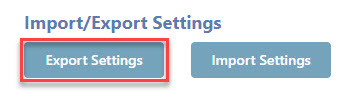
Click the Export Settings button to automatically download all settings files.
IMPORTING SETTINGS

Importing settings allows for uploading new or legacy settings to Folder Template Creator.
JSON files from previous versions between 2.1.10 and 2.3.12 can be successfully imported into Folder Template Creator including all templates.
Please note there is additional settings that might need to be configured for templates to successfully run in Content Manager, such as mandatory fields on a record type.
It is recommended checking the templates upon Importing to ensure all mandatory fields are populated.
Click the Import Settings button, select the setting file to upload.
The settings will be automatically updated.
DOWNLOADING LOGS
All log files from Folder Template Creator can be downloaded. Click on Download logs to automatically download a zip file containing all log files.
This will include all transactions and error log files created.
BASIC ACCESS

A whitelist that allows anyone added on the list access to Folder Template Creator to create and archive templates. Multiple locations can be added to the access list.
ADMIN ACCESS

A whitelist that allows anyone added on the list administrative access to Folder Template Creator, including the Administration Console. Multiple locations can be added to the access list.
DATASET ID

The Content Manager database ID to specify the database to connect to.
WORKGROUP SERVER NAME

The name of the Content Manager workgroup server.
TEMP PATH

The temporary path used by Folder Template Creator.
SAVING SETTINGS
Configure the General Settings as needed. When complete click on the Save button.

CANCEL CHANGES
To cancel current changes, click on the Cancel button.

APPEARANCE SETTINGS
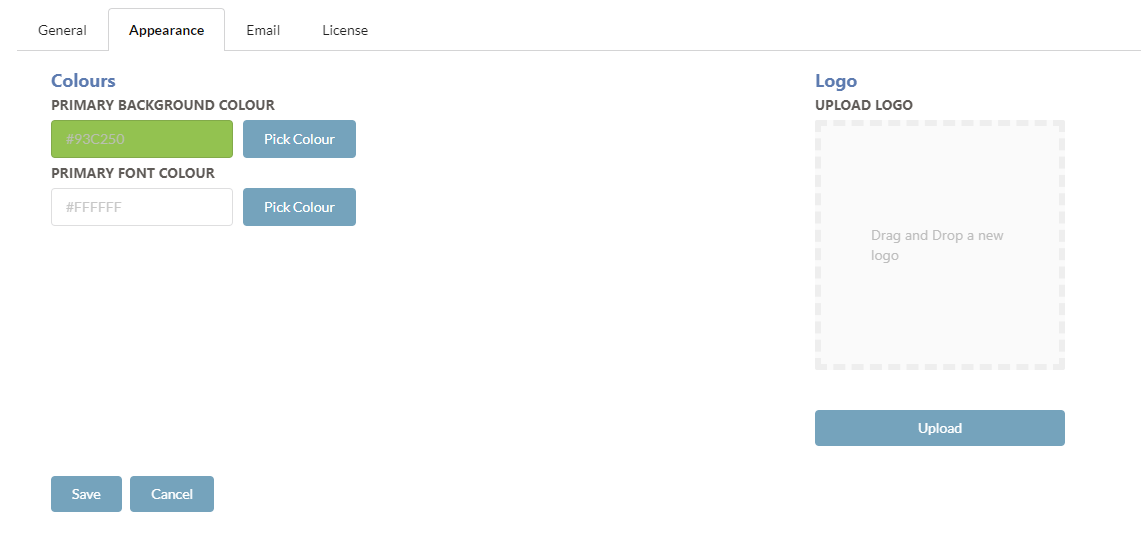
The appearance settings allow for the Folder Template Creator interface to be changed. The following can be configured:
PRIMARY BACKGROUND COLOUR
The primary background colour will change the header and footer colours.
To select a new colour, click on the Pick Colour button or click on the colour within the input box.
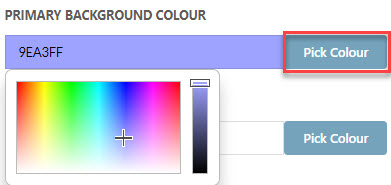
Use the colour picker to select a new colour.
PRIMARY FONT COLOUR
The primary font colour will change the header and footer's font colours. To select a new colour, click on the Pick Colour button or click on the colour within the input box.
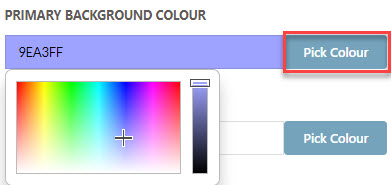
Use the colour picker to select a new colour.
LOGO
The logo can be updated to an appropriate image.
To upload a new logo, drag and drop an image into the logo drop zone.
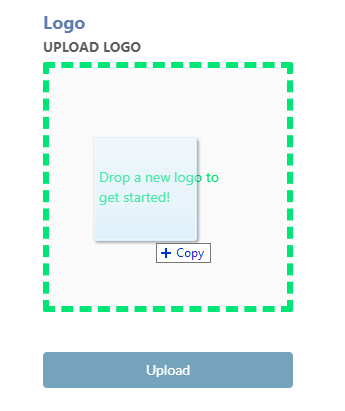
Click the Upload button to upload the new logo.

EMAIL SETTINGS
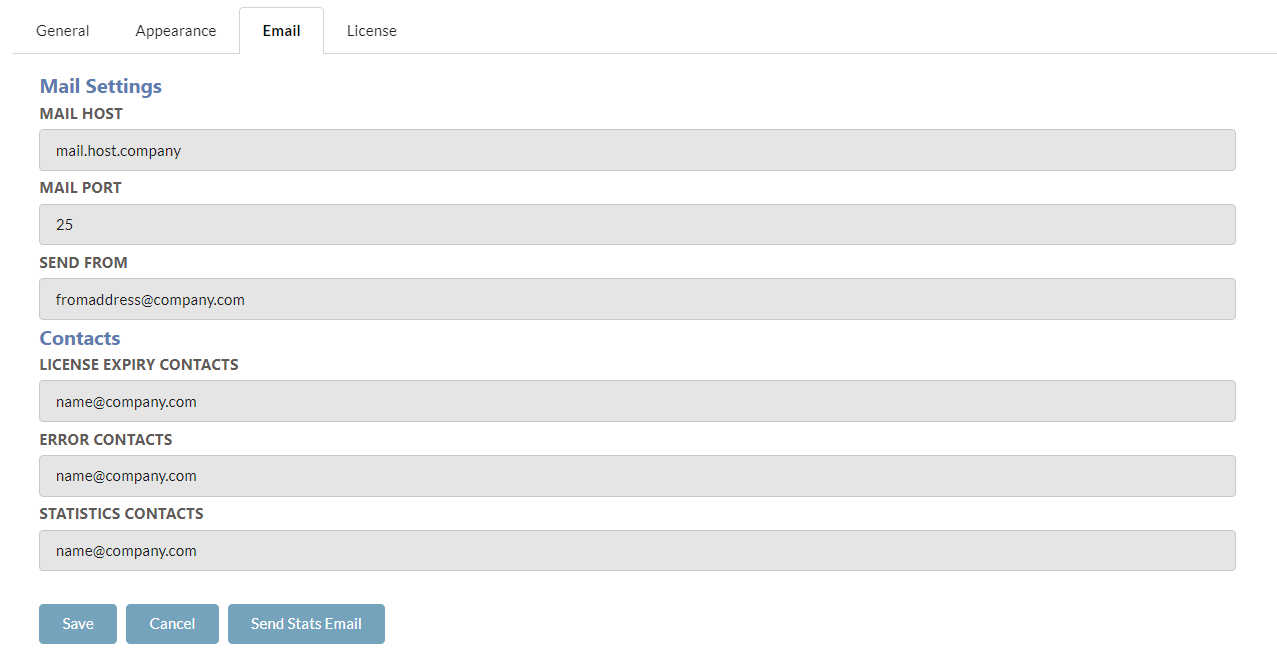
The Email settings are used for providing an email notification to all License Expiry Contacts when the current license on Folder Template Creator has less than 10 days left until expiry.
The following settings can be configured:
LICENSE EXPIRY CONTACTS

A list of email addresses of all the people that should receive an email notification for when the Folder Template Creator license is about to expire. If you require multiple email addresses, place ';' between each address as displayed in the above example.
ERROR CONTACTS

A list of email addresses of all the people that should receive an email notification for when the Folder Template Creator application logs any errors. If you require multiple email addresses, place ';' between each address as displayed in the above example.
STATISTICS CONTACTS

A list of email addresses of all the people that should receive an email notification for the monthly Folder Template Creator usage statistics. If you require multiple email addresses, place ';' between each address as displayed in the above example.
SEND FROM

The email addresses the email notification is sent from.
MAIL HOST

The email host that will send the notification.
MAIL PORT

The Simple Mail Transfer Protocol (SMTP) port to assist in sending the email notification.
SAVING EMAIL SETTINGS
Configure the Email Settings as needed. When complete click on the Save button.

LICENSE SETTINGS
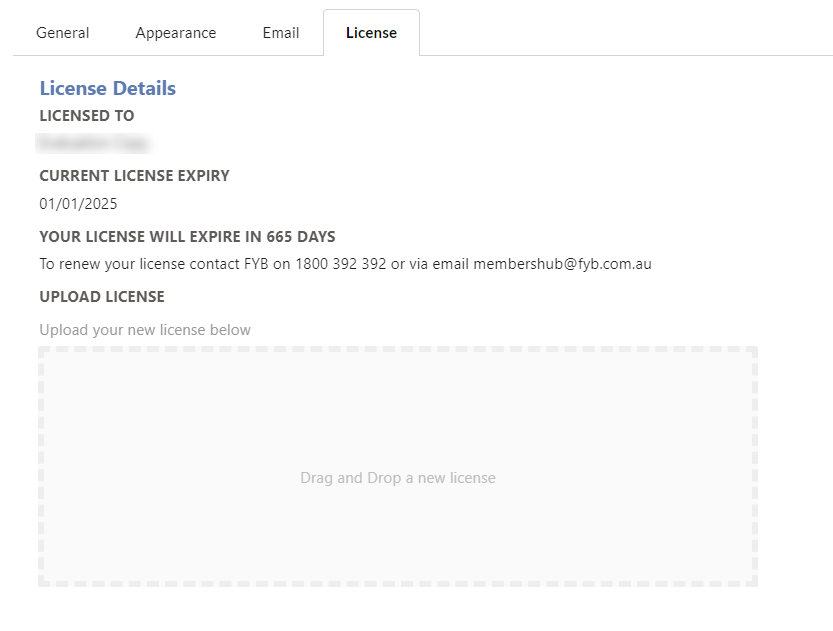
Allows you to upload your new license for Folder Template Creator. For detailed steps on how to complete this please see the License Update Guide.
AUTHENTICATION
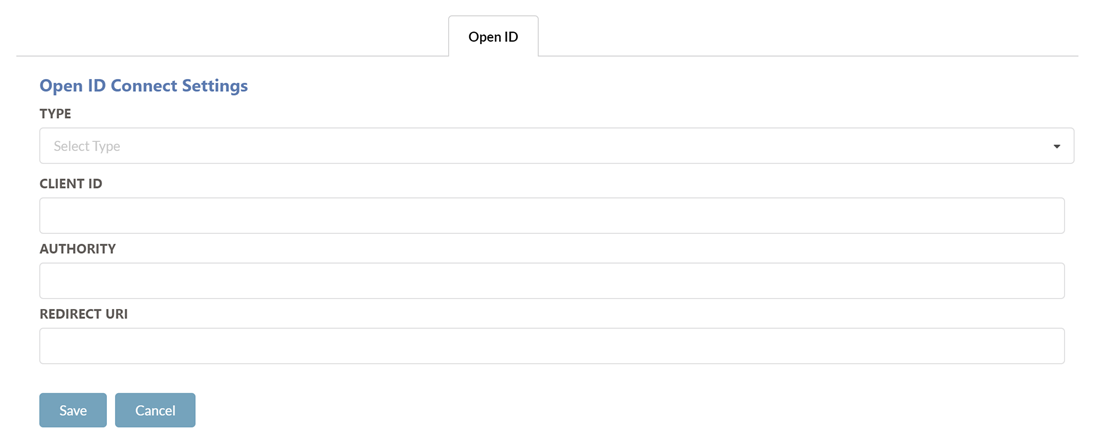
The Authentication tab allows you to specify the authentication method for Folder Template Creator.
WINDOWS
To enable Windows Authentication:
-
Set the Type field to None.
-
Click on the Save button
-
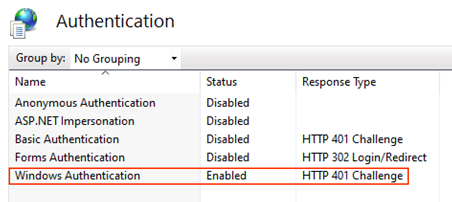
Navigate to the Folder Template Creator application in IIS
-
Ensure Windows Authentication is the only authentication method enabled for Folder Template Creator
-
Perform an app pool restart for Folder Template Creator
MICROSOFT OPEN ID AUHTENTICATION
To enable Microsoft Open ID Authentication:
-
Set the Type field to Microsoft.
-
Enter the values for all the provided fields. The values can be found in the Folder Template Creator OpenID Microsoft Guide
-
Click on the Save button
-
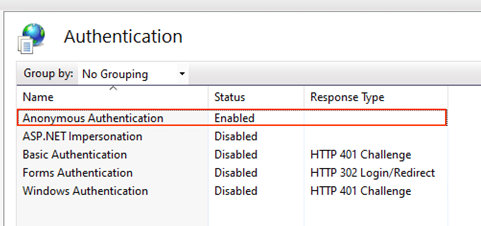
Navigate to the Folder Template Creator application in IIS
-
Ensure Anonymous Authentication is the only authentication method enabled for Folder Template Creator
-
Perform an app pool restart for Folder Template Creator
OKTA OPEN ID AUHTENTICATION
To enable Okta Open ID Authentication:
-
Set the Type field to Microsoft.
-
Enter the values for all the provided fields. The values can be found in the Folder Template Creator OpenID Okta Guide
-
Click Save
-
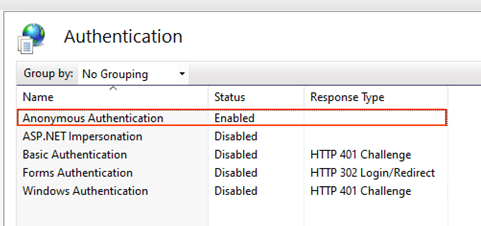
Navigate to the Folder Template Creator application in IIS
-
Ensure Anonymous Authentication is the only authentication method enabled for Folder Template Creator
-
Perform an app pool restart for Folder Template Creator