
PDF Generator User Manual
SUPPORTED FILE TYPES FOR PDF
| PRODUCT | FILE EXTENSION |
|---|---|
| WORD | DOC, DOCX, RTF, DOT, DOTX, DOTM, DOCM, FLATOPC, ODT, OTT, WORDML, HTML, MHTML, TXT |
| EXCEL | XLS, XLSX, XLSB, XLT, XLTX, XLTM, XLSM, XML, ODS, CSV, TSV |
| EML, MSG, PST, OST, OFT, EMLX, MBOX, ICS, VCF, HTML, MHTML | |
| POWERPOINT | PPT, POT, PPS, PPTX, POTX, PPSX, PPTM, POTM, ODP, OTP |
| DIAGRAM | VSDX, VDX, VSD, VSX, VTX, VSSX, VSTX, VSDM, VSSM, VSTM |
| IMAGE | BMP, CGM, DICOM, EMF, GIF, JPG, SVG, TIFF, VSSM, VSTM |
| AUTOCAD | DWG, DWF, DWFX, DXF, 3DS, DAE, DXB, FBX, STP, SVG, IGS, PLT, CF2 |
| PUBLISHER | PUB |
GENERATING A PDF RENDITION
-
Select the record (or tag multiple records) in Content Manager that you would like to generate a PDF rendition

-
Click on the Generate PDF Rendition button within the Ribbon

Or alternatively, perform a Right Click > Send To > Generate PDF Rendition

If you are using the Web Client version click on the MORE dropdown menu and select Generate PDF Rendition
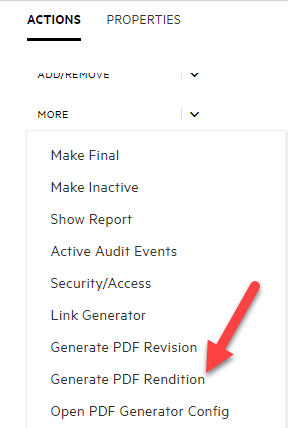
-
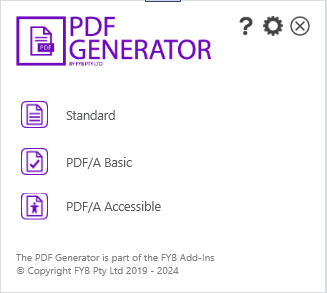
If PDF Generator is configured to allow users to select the PDF format, then the format menu will appear. Otherwise please skip to step 5
-
Select the PDF format you want to generate
-
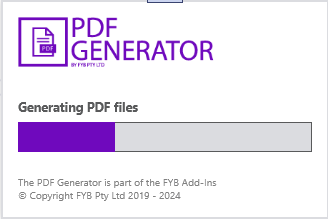
A progress bar will be displayed while the PDF files are generating
-
A notification will appear confirming the renditions have attached to the corresponding records
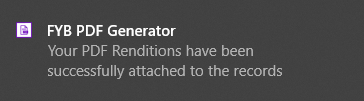
If PDF Generator has been configured to finalise after generating then the record will be finalised at the end of this process.
WHAT IS A RENDITION?
The Renditions tab on a record's properties dialogue appears when the record has an electronic attachment.
The Renditions tab enables you to add, modify and remove additional renditions of the selected record's electronic attachment.
For example, the original rendition may be in Microsoft Word format (*.docx) while other renditions may be in different formats, for example, *.txt, *.rtf, *.pdf. The FYB PDF Generator automates the creation of a *.pdf rendition.
GENERATING A PDF REVISION
-
Select a record (or tag multiple records) in Content Manager that you would like to generate a PDF revision
-
Click on the Generate PDF Revision button on the Ribbon

Or alternatively perform a Right Click > Send To > Generate PDF Revision

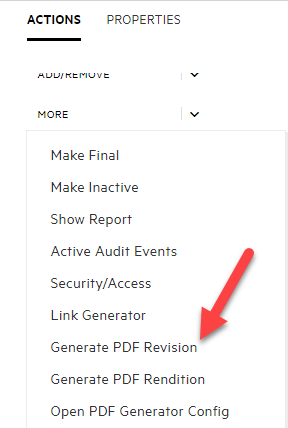
If you are using the Web Client version click on the MORE dropdown menu and select Generate PDF Revision
-
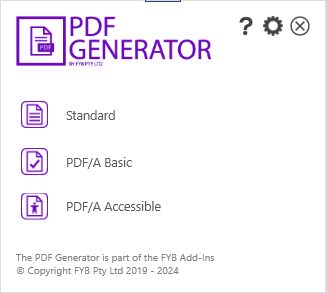
If PDF Generator is configured to allow users to select the PDF format, then the Format Menu will appear. Alternatively it will skip to step 5
-
Select the PDF format you want to generate
-
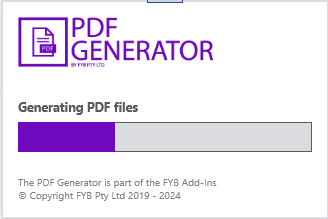
A progress bar will be displayed while the PDF files are generating
-
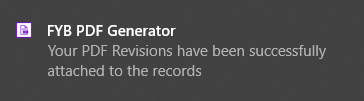
A notification will appear confirming a PDF revision of the document has been generated
-
The latest revision on the document will now appear within Content Manager as a PDF
 Note
If PDF Generator has been configured to finalise after generating revisions then the record will be finalised at the end of this process.
GENERATING A PDF TO SEND VIA EMAIL
This feature is not available in the web version.
-
Select the record (or tag multiple records) in Content Manager that you would like to generate a PDF to send via email
-
Click on the Send PDF via Email button on the Ribbon

Or alternatively, perform a Right Click > Send To > Send PDF via Email

-
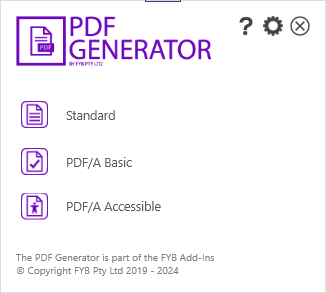
If PDF Generator is configured to allow users to select the PDF Format, then the Format Menu will appear. Otherwise skip to step 5
-
Select the PDF format you want to generate
-
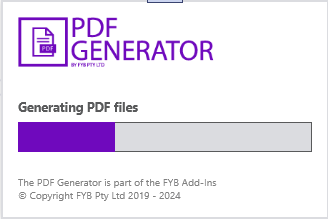
A progress bar will be shown while the PDF files are generating
-
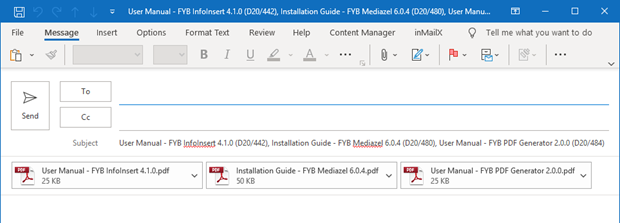
A new email window will appear with the selected documents attached as PDF's. The corresponding Title and Record Numbers will be inserted into the email subject. If the inMailX tag feature has been enabled, an inMailX tag will also be added to the end of the subject.
If PDF Generator has been configured to finalise after generating emails then the record will be finalised at the end of this process.
GENERATING AND MERGING PDFS
This feature is not available in the web version.
Formatting may not be consistent when merging multiple records with different file types together (i.e. Word with Auto Cad). The record will be created, but some formatting may be lost in the merge.
-
Tag multiple records in Content Manager that you would like to merge into a single PDF record.
-
Click on the Merge Documents to PDF button on the Ribbon
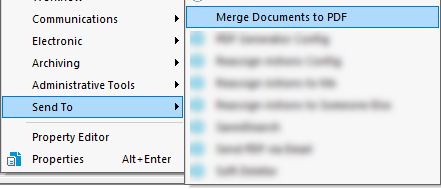
 Or alternatively perform a Right Click > Send To > Merge Documents to PDF
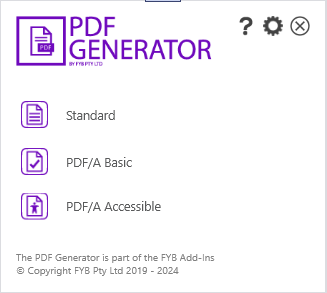
 3. If PDF Generator is configured to allow users to select the PDF format, then the Format Menu will appear. Otherwise skip to step 5
-
Select the PDF format you want to generate
-
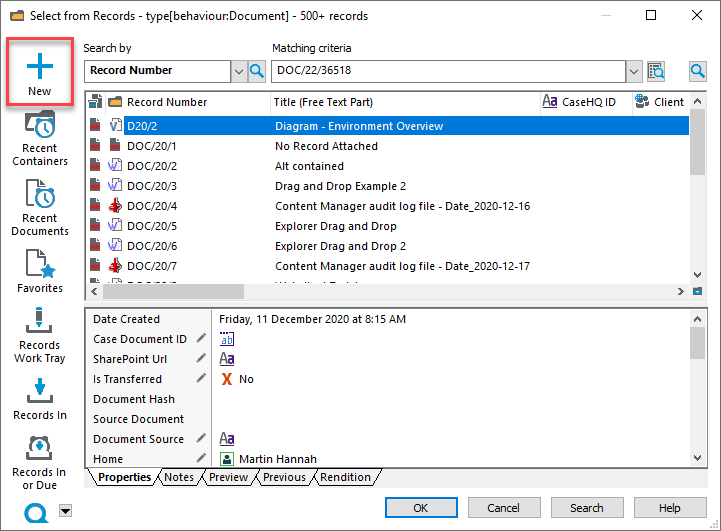
A prompt will appear to assist with creating a brand new record or selecting an existing one that the merged PDF record will be attached to. Simply search and select an existing record or click on the New button to create a brand new record
-
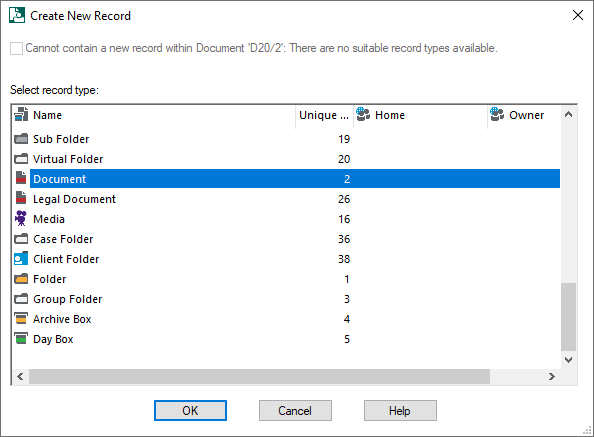
If the new option was selected you can now select the record type, and fill out the record details
-
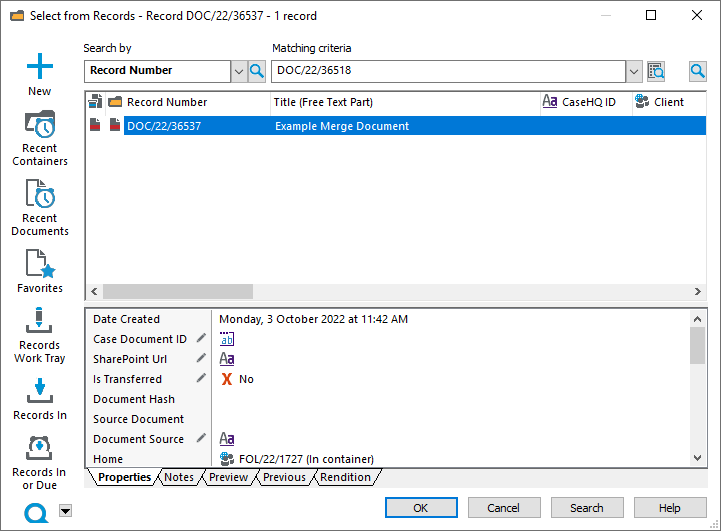
Select the newly created record
-
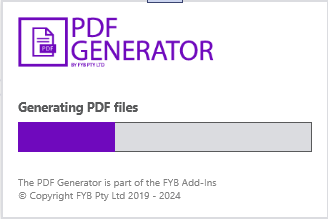
A progress bar will be displayed while the PDF files are generating
-
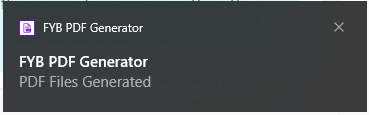
A notification will appear confirming the PDF merge is complete
-
The merged pdf document will be attached to the selected record
 Note
If PDF Generator has been configured to finalise after generating revisions then the record will be finalised at the end of this process.