
Reassign Actions User Manual
USING REASSIGN ACTIONS TO ME
-
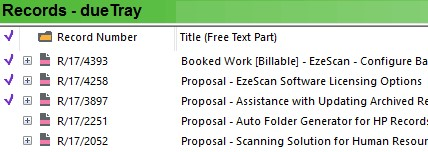
Select the record (or tag multiple records) in Content Manager that you would like to reassign the current actions
-
Click on the Reassign Actions to Me button within the Ribbon

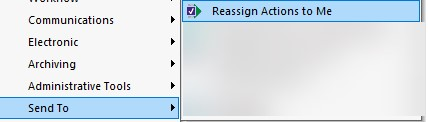
Alternatively. perform a Right Click > Send To > Reassign Actions to Me
-
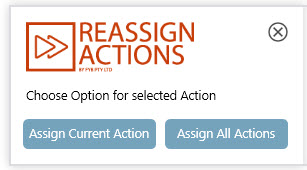
A window will display to provide the option if the current action or all actions should be reassigned to you
 Note
If you have multiple records ticked, this option will run for all records
-
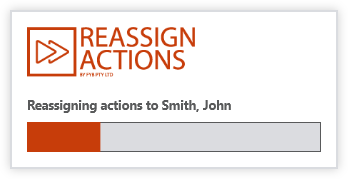
A progress bar will appear showing the progress of action reassignment
-
A notification will appear stating the action reassignment is complete
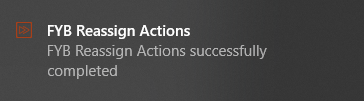
-
The records notes will be automatically updated

USING REASSIGN ACTIONS TO SOMEONE ELSE
-
Select the record (or tag multiple records) in Content Manager that you would like to reassign the current actions
-
Click on the Reassign Actions to Someone Else button on the Ribbon

Alternatively, perform a Right Click > Send To > Reassign Actions to Someone Else
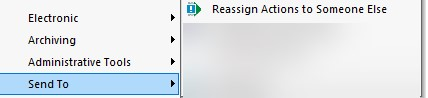
-
A window will display to provide the option if the current action or all actions should be reassigned to a location
NoteIf you have multiple records ticked, this option will run for all records
-
A locations search dialogue will appear
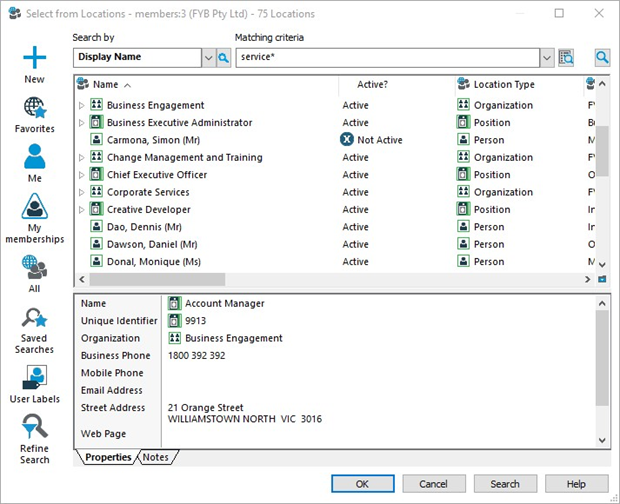
-
Search for the location you wish to reassign the actions to
-
Highlight the suitable location and click on the OK button
-
A progress bar will appear showing the progress of action reassignment
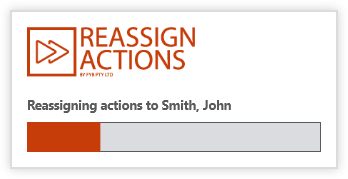
-
A notification will appear stating the action reassignment is complete
-
The records notes will be automatically updated
USING COMPLETE CURRENT ACTION
-
Select the record (or tag multiple records) in Content Manager that you would like to complete the currently applied action for
-
Click on the Complete Current Action button on the Ribbon

Alternatively, perform a Right Click > Send To > Complete Current Action

-
The Complete Current Action window will display
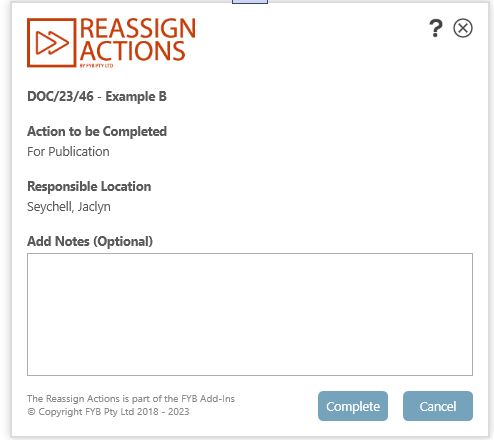
The window shows the current action available for the selected record and who is currently responsible for that action. Two options are provided:
- Complete - Complete the current action.
- Cancel - Cancel the process and close the application. Notes can be added to the Record, if no notes are added when reassigning an action, a default set of notes are appended to the record.
-
If there are additional actions available, the option to reassign the next current action is available
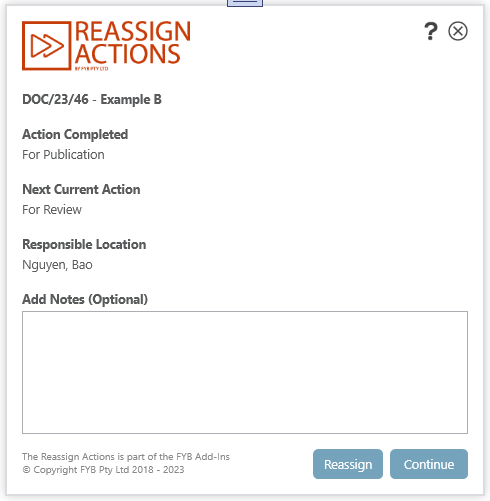
The window shows the next action available and who is currently responsible for that action. Two options are provided:
- Reassign - Reassign the action (to me or someone else)
- Continue - Accept that the action is okay and does not require any changes. This will continue to the next record selected. Notes can be added to the Record, if no notes are added when reassigning an action, a default set of notes are appended to the record.

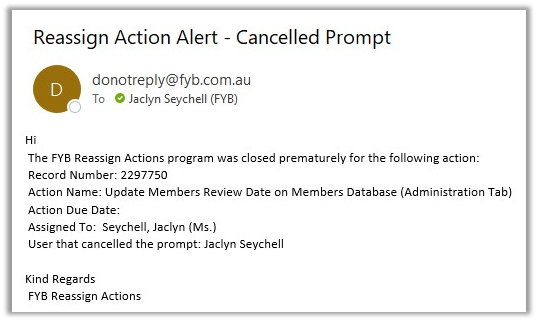
If the pop-up window is closed before choosing an option, a notification email is sent to the assigned recipient as set within the configuration file. This notifies that the program was stopped early.
- If there are no additional actions, the pop-up window will not display