
CMLauncher Azure App Registration
REGISTERING CM LAUNCHER ON AZURE
The Azure app registration is required if using CMLauncher with the following applications:
- 365|2CM
- Explorezel
This is so that CMLauncher can check out/check in Documents from SharePoint.
Please follow the steps below on how to register the application Azure:
- Sign in to the Microsoft Azure web portal using the link below https://azure.microsoft.com/en-gb/features/azure-portal/
- Once signed in, click on Azure Active Directory
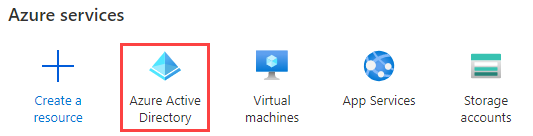 3. Click on App Registration from the left menu
 4. Click on the New Registration button

-
Enter FYB CM Launcher (this is optional you can supply and name) into the name input field

-
Under Supported account types section enabled Accounts in this organizational directory option
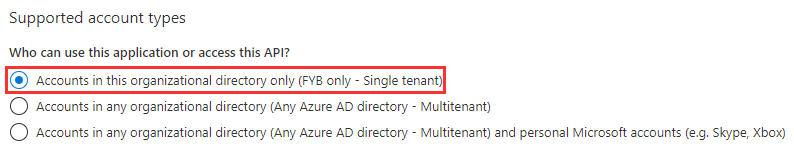
-
Select Public client/native (mobile & desktop) from the drop-down menu and type in the redirect value as shown below using your tenant name.
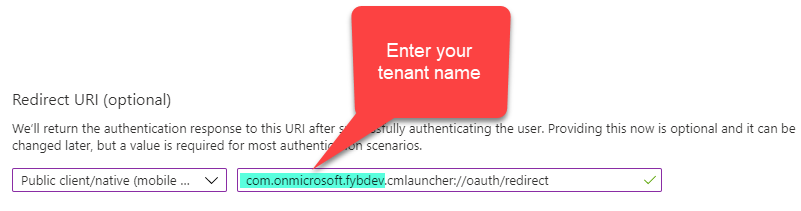
-
Click on the Register button
 Note
Note if users are receiving the below message upon the first login then an Azure Administrator will need to complete the first login and grant consent from the Microsoft login pop-up.
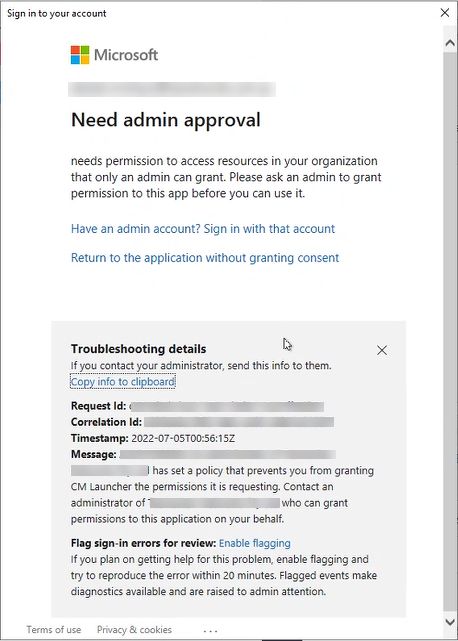
VALUES REQUIRED FOR INSTALLATION
The following values will be required for the installation of CMLauncher. Please ensure that the person responsible for the installation has these values.
- Redirect URI
- Application ID
- Tenant Id