
CMLauncher Installation Guide
DISCLAIMER
Any advice FYB provide in relation to setting up any FYB App, FYB Add-in, FYB Connector and or advice in relation to opening access to your on-premise or in the cloud systems will be general advice only. This means that the advice is of a general nature and will not take into account your network setup, network infrastructure or any security requirements that you may have or in fact need. It is highly advised that you seek advice from internal or external providers to ensure that they are comfortable with what is required prior to going ahead with any deployment, setup or configuration for external access.
LICENSE DETAILS
Please contact FYB for a valid license if you are yet to obtain one for your App.
INSTALLATION COMPONENTS
The following installation components are required to ensure full functionality of FYB CMLauncher:
- FYB CMLauncher - this is a client-side component
INSTALLING THE CM LAUNCHER
INSTALLATION
-
The CM Launcher needs to be installed on each users’ machine
-
Launch CMLauncher.msi
-
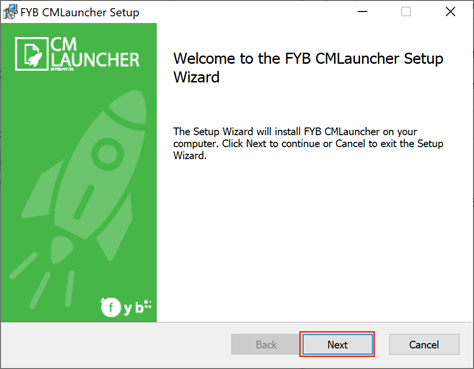
Click Next
-
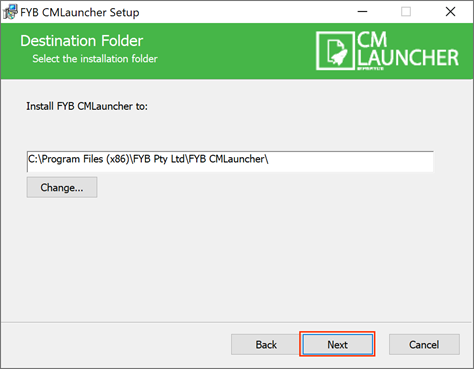
Select the installation folder and click Next
-
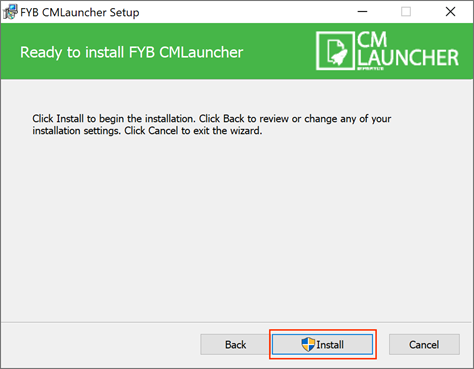
On the Confirm Installation screen, click Install
-
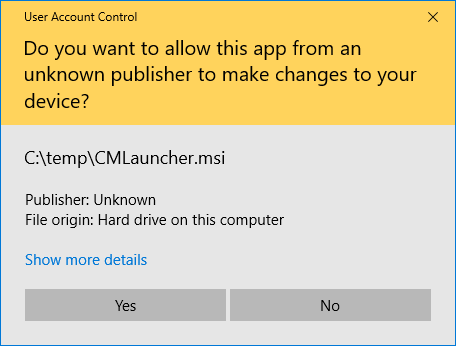
If a security alert appears, click Yes
-
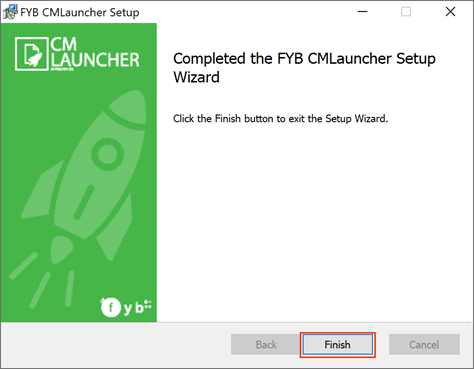
Once the installation is complete click Finish
CONFIGURATION
If CMLauncher is being used with either of the below applications then some additional configuration is required:
- Explorezel
- 365|2CM
Prior to completing the configuration you will need to have completed the CMLAUNCHER AZURE APP REGISTRATION guide.
This is so that CMLauncher can check out/check in Documents from SharePoint.
-
Once installed, navigate to C:\Program Files (x86)\FYB Pty Ltd\FYB CMLauncher and edit the CMLauncher.exe.config
-
Within the CMLauncher.exe.config file update the Tenant, ClientID and redirect values

NAME DESCRIPTION TENANT The organisation tenant Id on Azure Portal APPLICATION ID Application ID of the registered app on Azure REDIRECT URI The redirect uri of the registered app on Azure
UNINSTALLING CM LAUNCHER
-
Navigate to the control panel

-
Click on Uninstall a program

-
Locate FYB CM Launcher in the list of programs and features and right click > Uninstall

-
If a warning Prompt appears, click on the Continue button

-
Click the Yes button

-
The uninstallation process will commence