
DocUMove Admin Guide
GENERAL
The general tab allows you to specify general settings for the application such as the workgroup server and dataset.
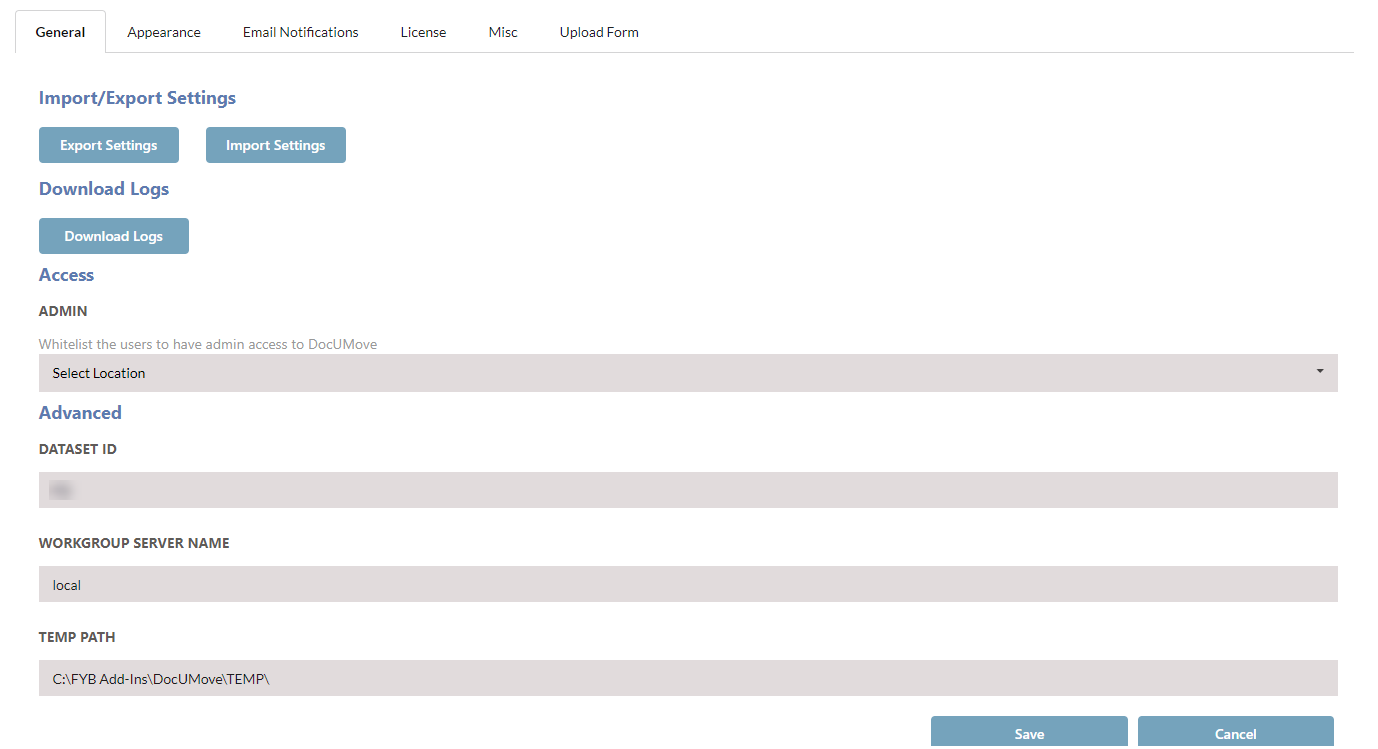
| FUNCTIONALITY | DESCRIPTION |
|---|---|
| EXPORT/IMPORT SETTINGS |  Export existing configuration settings or import previously configured settings. See the EXPORTING AND IMPORTING SETTINGS section of this guide. |
| DOWNLOAD LOGS |  Download a zip file containing all the DocUMove log files |
| WHITELIST ADMIN ACCESS |  This field allows you to whitelist Content Manager users who are not an Administrator or Records manager to allow them access to DocUMove's admin section. |
| DATASET ID |  The ID of the Content Manager Dataset. |
| WORKGROUP SERVER NAME |  The Workgroup server name of your Content Manager Dataset. Changes to this field will require an App Pool restart. |
| TEMP PATH |  The Temp directory for DocUMove. This directory will also contain the folder of DocUMove log files. Changes to this field will require an App Pool restart. |
EXPORTING AND IMPORTING SETTINGS
You can either export the current configuration settings or import existing settings using the buttons below.

EXPORTING SETTINGS
To export DocUMove's current settings, click the Export Settings button. This will automatically download the zip file containing the DocUMove configuration files. These files can be imported back into DocUMove when required.
IMPORTING SETTINGS
To import existing settings, follow the steps below.
Only import json files that were previously taken from the DocUMove's App_Data folder or exported from DocUMove.
If incorrect values are imported, such as additional fields that do not exist, the values will need to be updated manually in the JSON files within the App_Data folder in DocUMove's install directory.
-
Click the Import Settings button

-
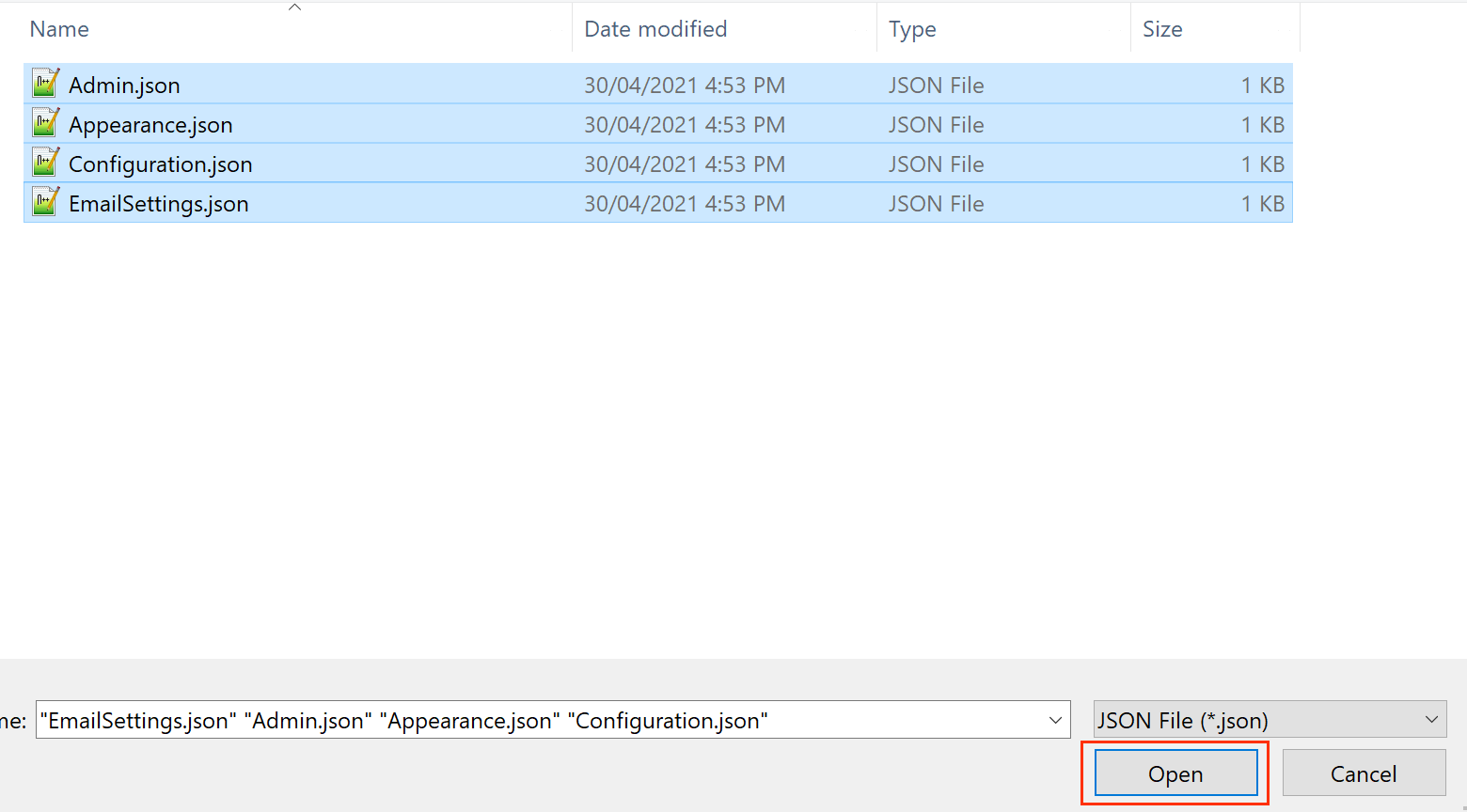
Select the Admin.json, Appearance.json, Configuration.json and/or the EmailSettings.json files and click the Open button
-
A success message will appear once the settings files have been updated and the admin page will reload shortly afterwards

APPEARANCE
The appearance tab allows some minor customization over the solution.
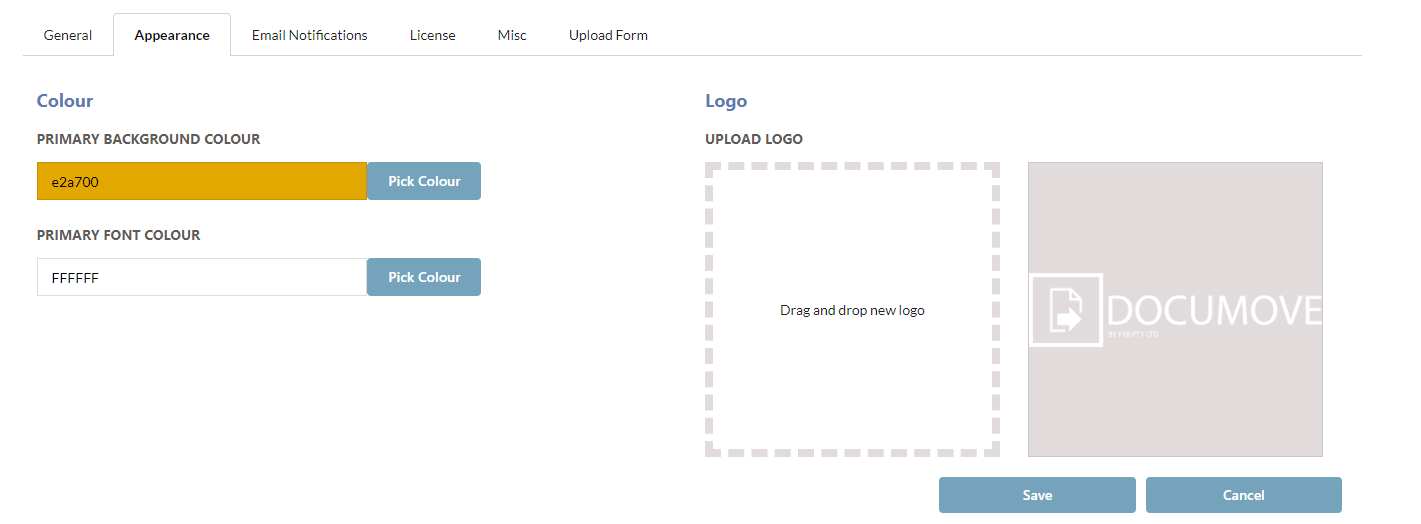
| FUNCTIONALITY | DESCRIPTION |
|---|---|
| PRIMARY BACKGROUND COLOUR | Controls the colour of the header and footers for the application |
| PRIMARY FONT COLOUR | Controls the font colour of the header and footers for the application |
| UPLOAD LOGO | Allows the administrator to set the logo for the application.See the SETTING THE LOGO AND BACKGROUND IMAGES section for further details |
SETTING THE LOGO IMAGE
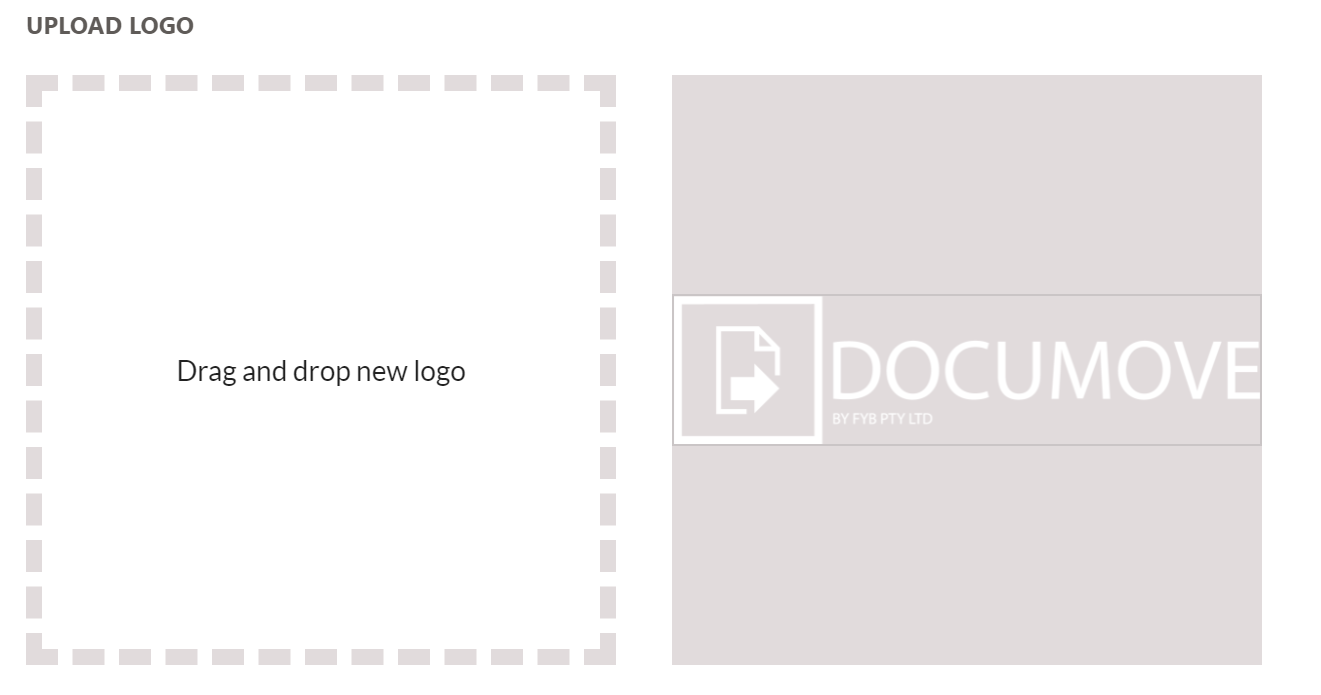
To change the Logo, simply drag and drop the image to the Upload new logo box. Please note that we would recommend that image dimensions and file size are optimised to ensure there are no long load times introduced for excessively large images.
EMAIL NOTIFICATIONS
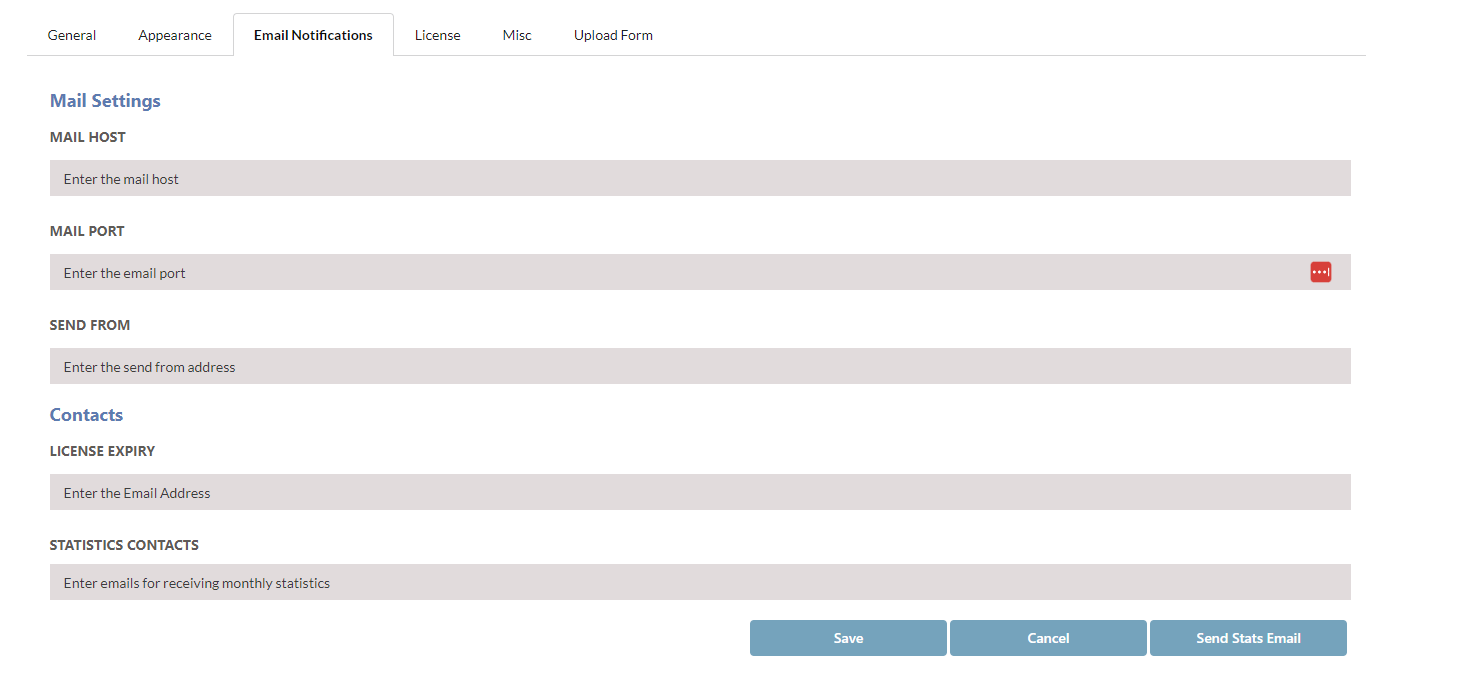
The Email Notifications page allows you to specify the mail settings to allow DocUMove to send automated license expiry emails to the specified email addresses
| FUNCTIONALITY | DESCRIPTION |
|---|---|
| MAIL HOST | Your organisation's Email server address |
| MAIL PORT | The Email server port |
| SEND FROM | Nominated sender e-mail address |
| LICENSE EXPIRY | Specify email address (separated by a semi-colon) to be notified when DocUMove is about to expire |
| STATISTICS CONTACTS | Specify email address (separated by a semi-colon) to be notified of DocUMove's monthly statistics email |
| SEND STATS EMAIL | Instantly send the DocUMove stats email for the current month to the users listed in the STATISTICS CONTACTS field |
RECORD
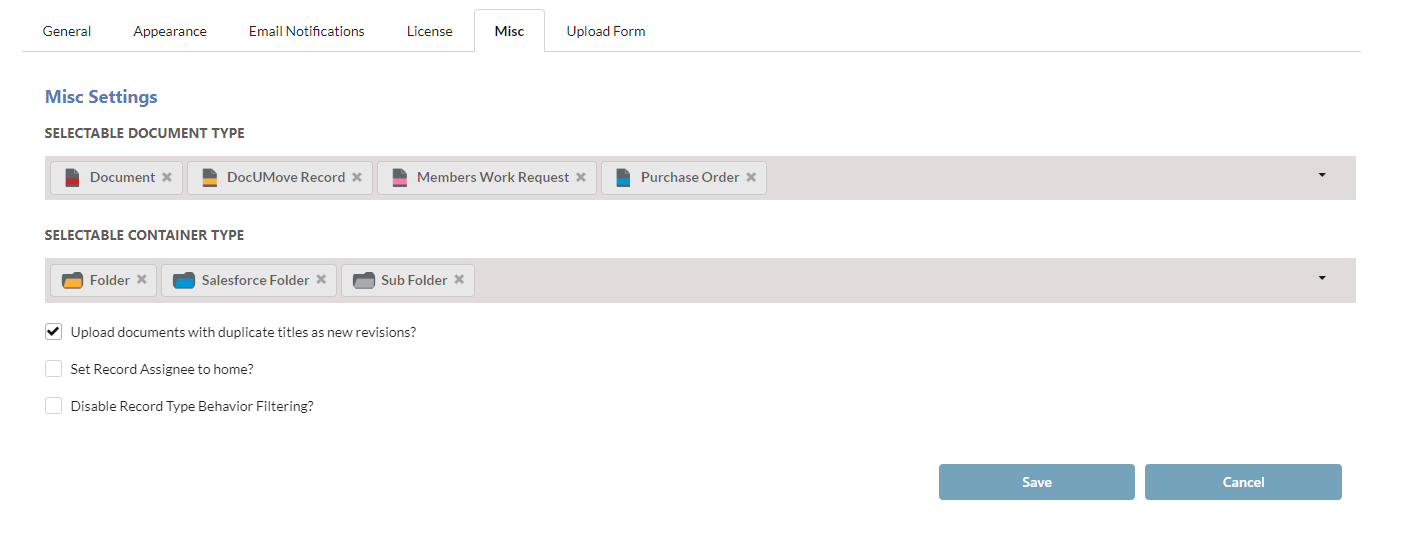
The record tab allows control over settings that are specific to your Content Manager configuration (e.g. document record type).
DOCUMENT RECORD TYPE SELECTION
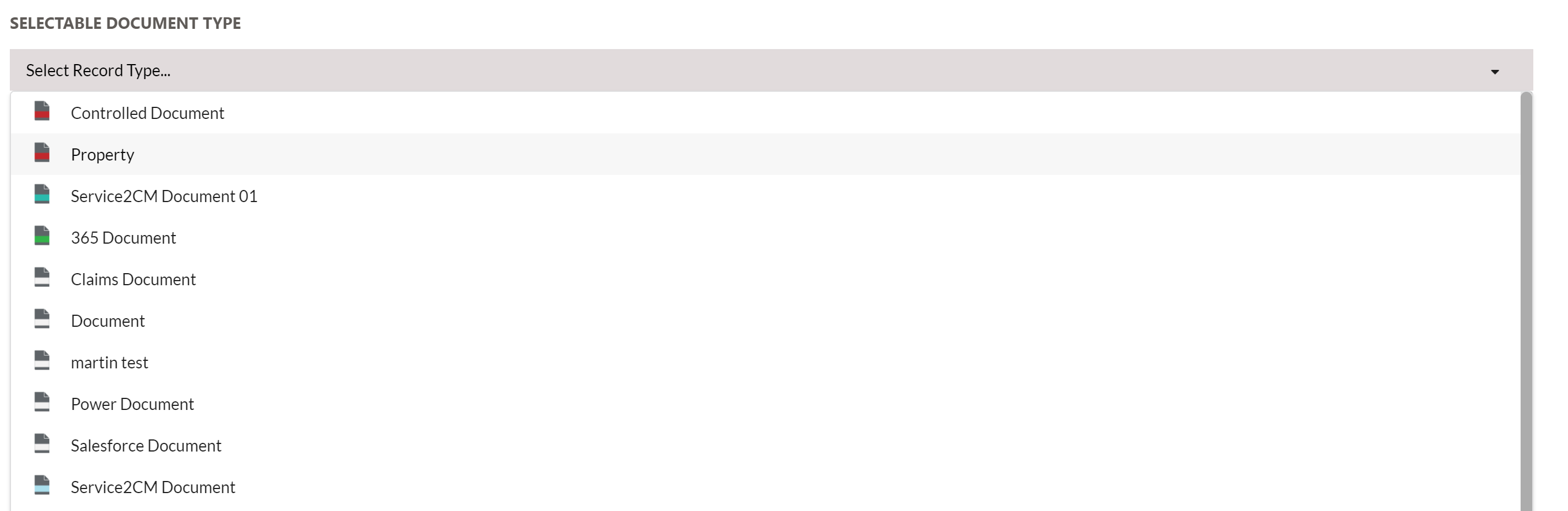
Click on the Select Record Type field to choose Content Manager Record Types that can be allowed for use within DocUMove.
Click the Save button to save your changes.
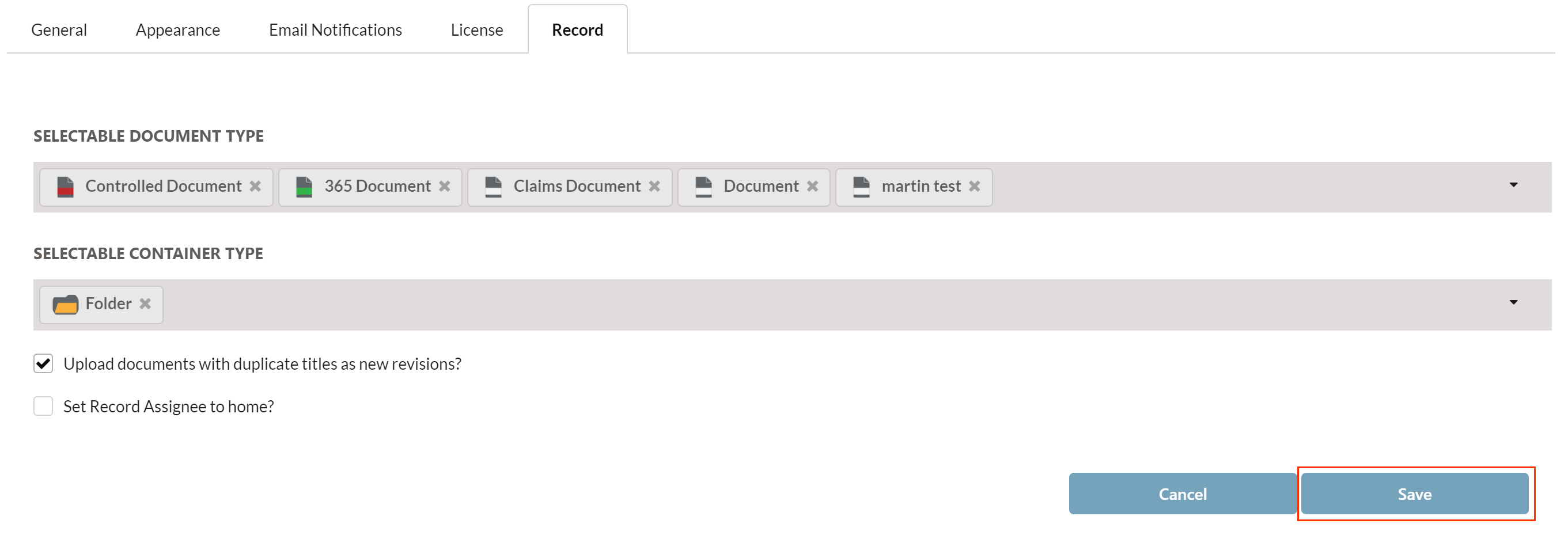
These record types will then be available from the Record Type dropdown on the upload form.
CONTAINER RECORD TYPE SELECTION
Click on Select Container Type
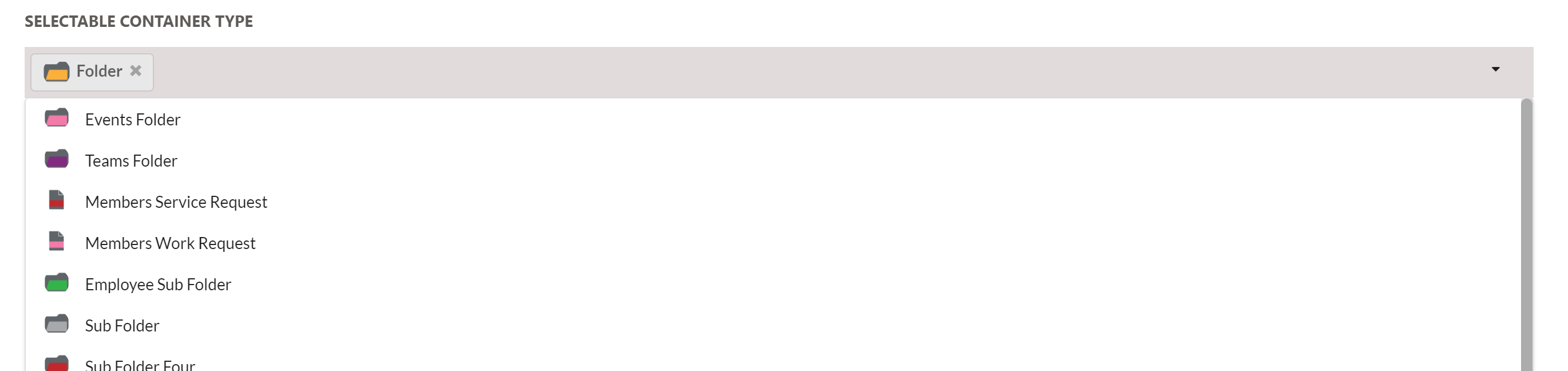
Click on the Save button to save your changes.
Any container search field will be filtered to only show containers of the record types selected.
UPLOAD BEHAVIOUR OPTIONS
When uploading new documents to Content Manager the following upload behaviour can be configured:
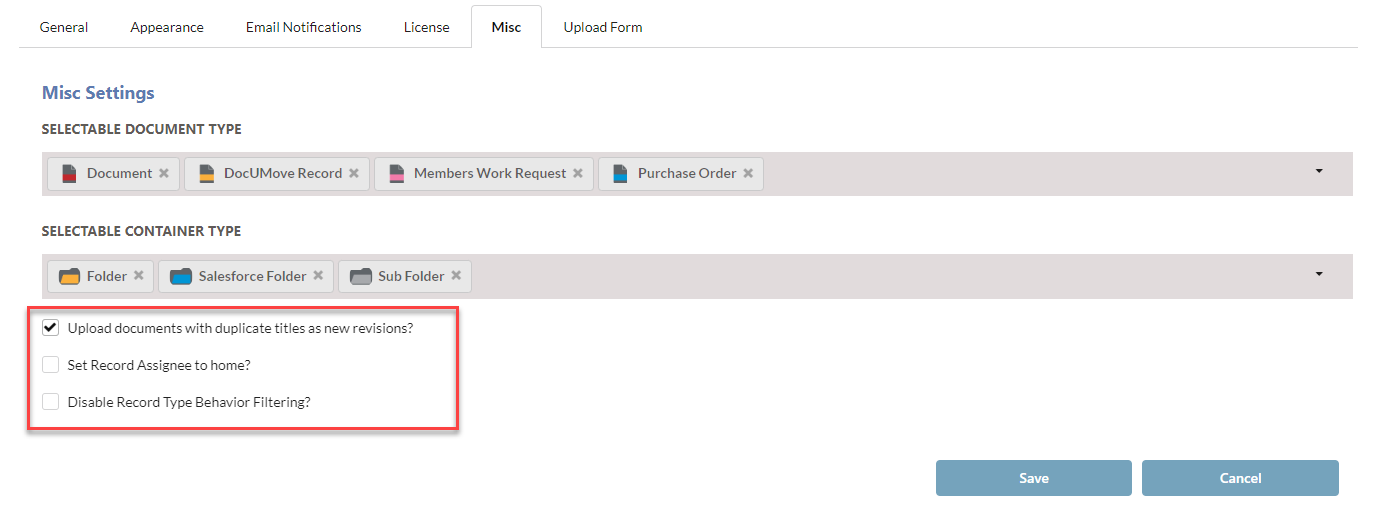
UPLOAD DOCUMENTS WITH DUPLICATE TITLES AS NEW REVISIONS
Enable this option if you wish to enable duplicate title checking.
SET RECORD ASSIGNEE TO HOME
Enable this option to automatically set the Record Assignee field to the home location of the person who submitted the upload request.
DISABLE RECORD TYPE BEHAVIOUR FILTERING
Enable this option to disable any record type behaviour filtering from the Selectable Document Type and Container Type options. These dropdowns will search for any record type with electronic document support.
UPLOAD FORM
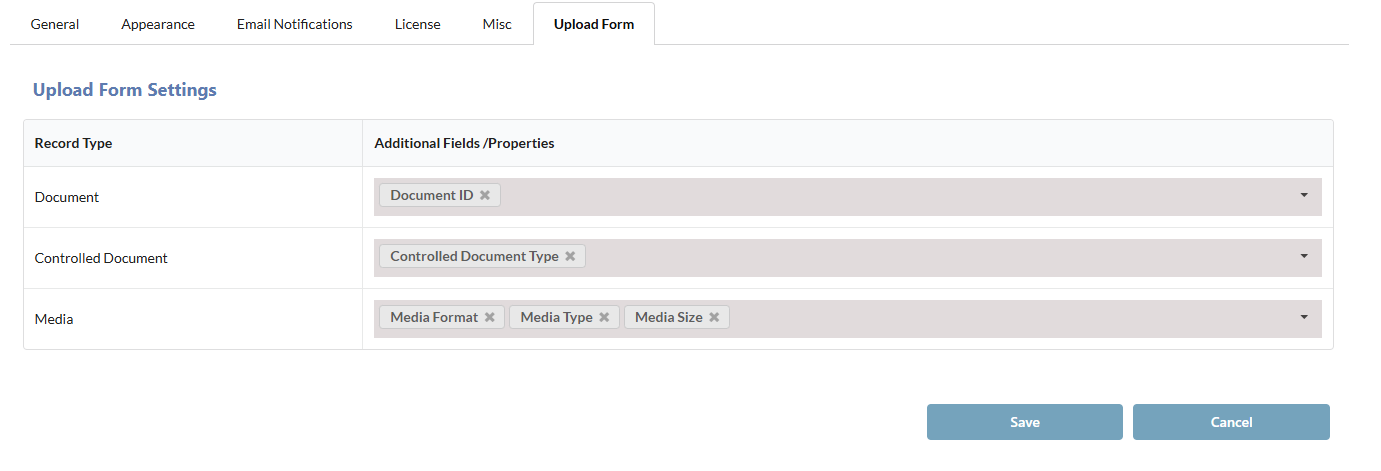
When uploading new documents to Content Manager extra non-mandatory additional fields and properties can be added into the upload form that are not currently present on the record type form set.
This allows for the option of extra metadata to be captured upon upload.
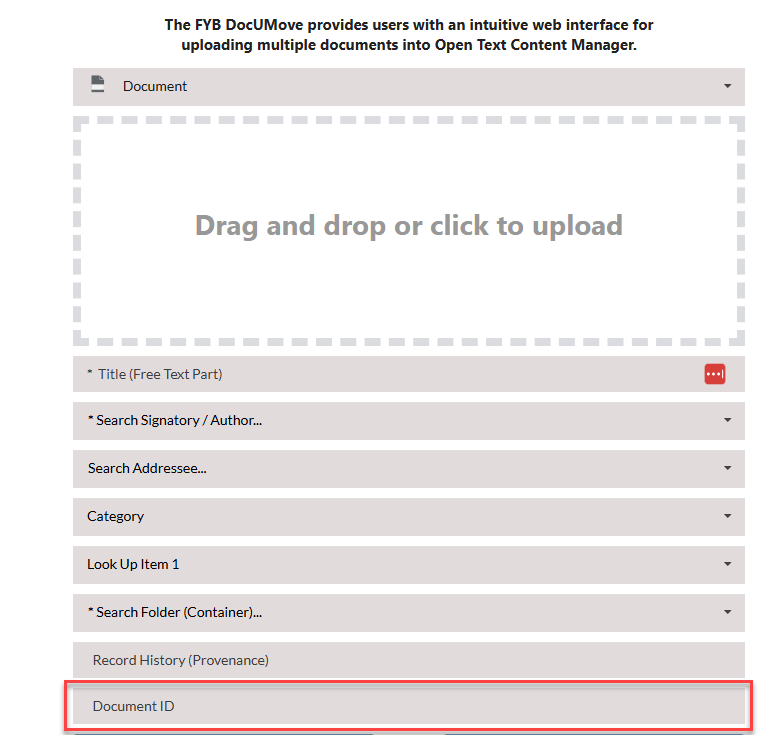
For each available record type, you can select as many extra additional fields or properties to add to the upload form within DocUMove.