DocUMove Installation Guide
DISCLAIMER
Any advice FYB provides in relation to setting up any FYB App, FYB Add-in, FYB Connector and or advice in relation to opening access to your on-premise or in the cloud systems will be general advice only. This means that the advice is of a general nature and will not take into account your network setup, network infrastructure or any security requirements that you may have or in fact need. It is highly advised that you seek advice from internal or external providers to ensure that they are comfortable with what is required prior to going ahead with any deployment, setup or configuration for external access.
LICENSE DETAILS
Please contact FYB for a valid license if you are yet to obtain one for your Add-in.
INSTALLATION COMPONENTS
The following installation components are required to ensure full functionality of the FYB DocUMove:
- FYB DocUMove web application - This is a server-side installation.
INSTALLING THE FYB DOCUMOVE
LICENSE
-
Create a folder to house the license file (.lic) on the IIS Server
-
Place the license file in this folder
NoteYou will be asked to enter this location during the installation
TRUSTED USER ACCOUNT
Add the account that will run the application pool as a Trusted User Account in Enterprise Studio.
Please refer to your Enterprise Studio help file on adding trusted accounts.
If using a system account (application pool identity, network service etc) you will be required to enter the details as DOMAIN\ServerName$ .
If using a dedicated windows service account, you will be required to enter the details as DOMAIN\username.
INSTALLATION
The fybdocumove MSI will:
- Deploy the installation files
- Setup the application pool and application in IIS
- Setup the temp folder
- Configure the application settings as specified by the user
Installation can be completed by running the MSI or using command line arguments to prefill most data.
If upgrading from a previous version, you do not need to uninstall the previous version of DocUMove. The previous version's configuration settings will be retained after installing the latest version of DocUMove.
To install DocUMove, follow these steps:
-
Run command prompt as an administrator and launch the DocUMove MSI
-
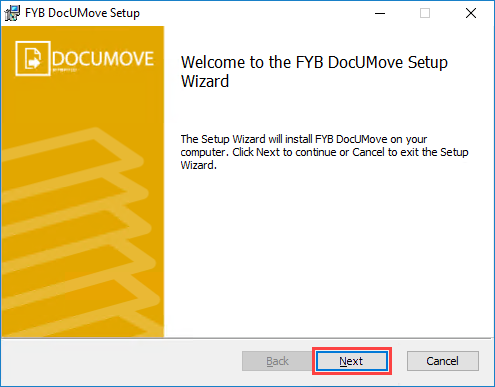
Click on the Next button
-
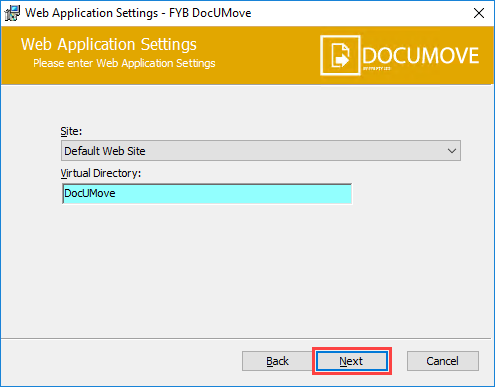
On the Web Application Settings screen, select a Site to host the application and enter a name for the Virtual Directory
 Recommendation
We recommend that DocUMove is installed under a HTTPS site with a valid SSL certificate.
-
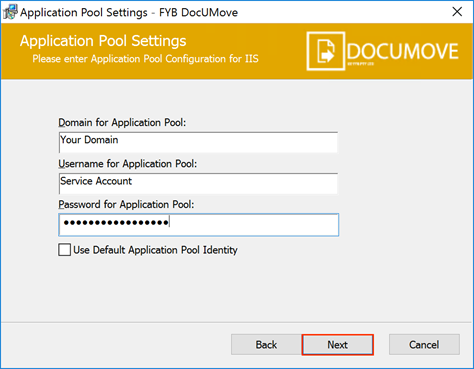
On the Application Pool Settings screen, enter the domain, username, and password for the Application Pool identity
-
On the Configuration Settings screen enter the required settings (please refer to the table below for configuration settings details)
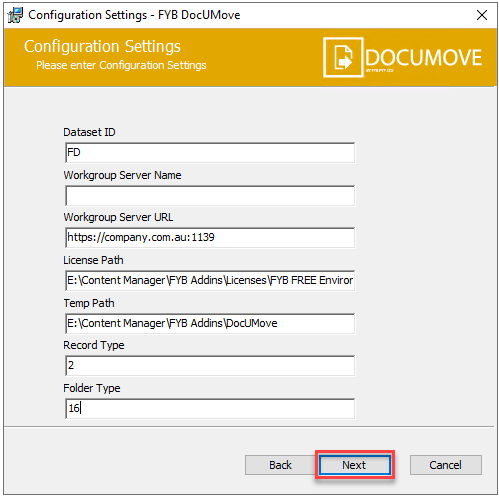
NAME DESCRIPTION Dataset ID The two alphanumeric character dataset identifier, for example: FD Workgroup Server Content Manager workgroup server name. This should generally be set to local Workgroup Server URL Content Manager workgroup server URL. Licence Path The path to your license file including the .lic file Temp Path A location for DocUMove to write and store temp data. Please include the trailing slash, for example: D:\DocUMove\Temp\ Record Type List of available document record types for use with DocUMove. Input the unique identifier of each document record type you wish to be available. If inputting more than one identifier they should be comma separated, for example: 135, 2, 14 Folder Type List of available folder record types for use with DocUMove. Input the unique identifier of each folder record type you wish to be available. If inputting more than one identifier they should be comma separated, for example: 135, 2, 14 -
If your environment is configured to only allow OpenId authentication (e.g. Azure AD or ADFS) for your Content Manager, you'll receive the following message:

-
Click OK to navigate to the Open Id settings screen and enter the required values.
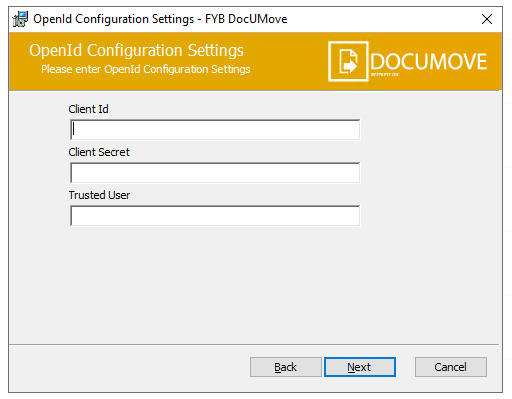 Note
NAME DESCRIPTION Client Id The Client/App Id of the Open Id application used to secure Content Manager. For ADFS authentication, this will be the username of the Confidential Client app. Client Secret The Client/App Secret of the Open Id application used to secure Content Manager. For ADFS authentication, this will be the password of the Confidential Client app. Trusted User The Network Login value of the Content Manager Confidential Client app location. For ADFS authentication, this will be the username of the Confidential Client app. -
On the Email Settings screen, enter the required settings
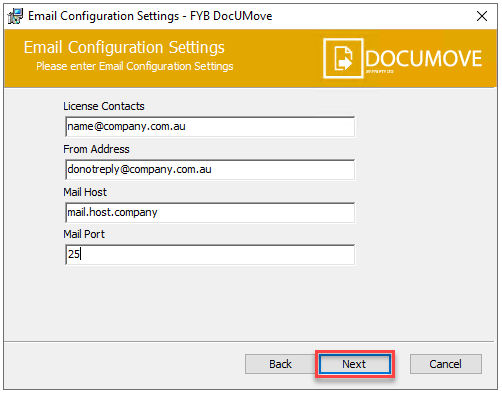
NAME DESCRIPTION License Contacts The email addresses of users who will recieve an email notification when the DocUMove license is due to expire. Emails are separated by a semi-colon ';' From Address The email address that all email notificiations will be sent from Mail Host The mailing host to send notifications Mail Port The mail port to send notifications -
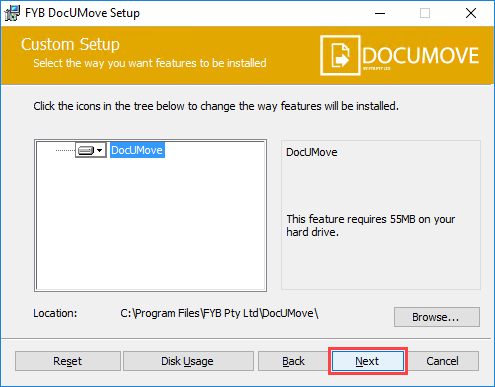
On the Custom Setup screen select the install location and click on the Next button
-
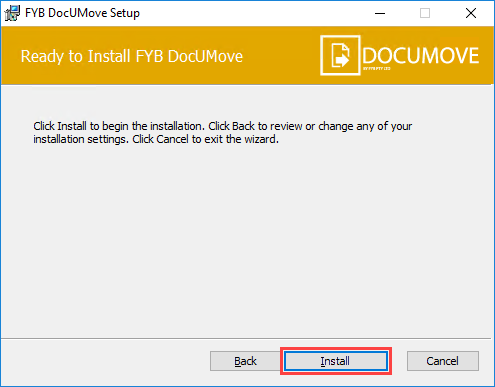
From the Confirm Installation window click on the Install button
-
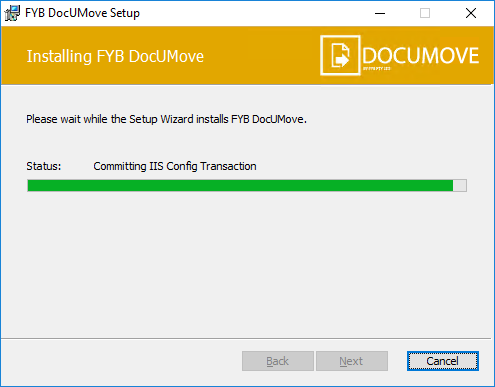
The installation process will commence
-
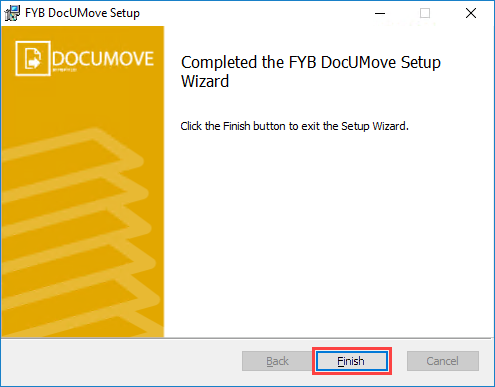
Once the installation is complete click on the Finish button
COMMAND-LINE ARGUMENTS
Use "" around values that contain special characters (non alphanumeric characters)
| ARGUMENT | PURPOSE |
|---|---|
| WEB_APP_POOL_IDENTITY_DOMAIN | Sets the App Pool domain for the application pool |
| WEB_APP_POOL_IDENTITY_NAME | Sets the App Pool username for the account running the application pool |
| WEB_APP_POOL_IDENTITY_PWD | Sets the App Pool password for the account running the application pool |
| DBID | Sets the Database ID that connects to the given Content Manager dataset |
| WORKGROUP_SERVER | Sets the Content Manager Workgroup Server name |
| WORKGROUP_SERVER_URL | Sets the Content Manager Workgroup Server URL |
| LICENSE_PATH | Path to the license file |
| TEMP_PATH | Temporary data directory for the application |
| RECORD_TYPE | List of available document record types for use with DocUMove. Input the unique identifier of each document record type you wish to be available. If inputting more than one identifier they should be comma separated, for example: 135, 2, 14 |
| FOLDER_TYPE | List of available folder record types for use with DocUMove. Input the unique identifier of each folder record type you wish to be available. If inputting more than one identifier they should be comma-separated, for example: 135, 2, 14 |
CONFIGURATION
After the installation process is complete, you will be able to locate the application installed within the site selected during installation.

-
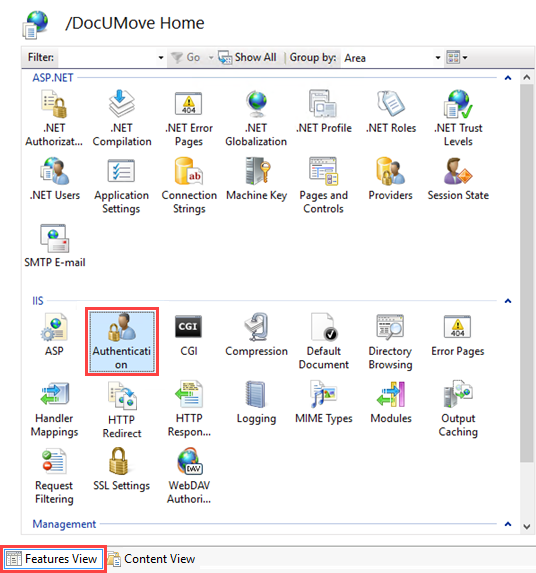
From the Features View go to Authentication and ensure that Windows Authentication and ASP.NET Impersonation are the only authentication types enabled
UNINSTALLING THE FYB DOCUMOVE
To uninstall the DocUMove manually please follow the steps below:
-
Navigate to control panel

-
Click on the uninstall a program option

-
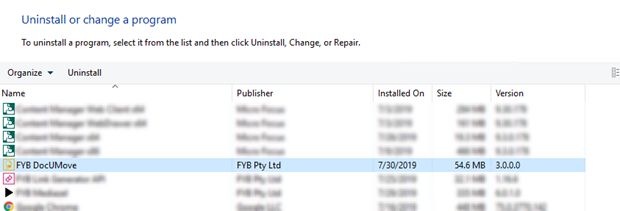
Locate FYB DocUMove in the list of Programs and Features
-
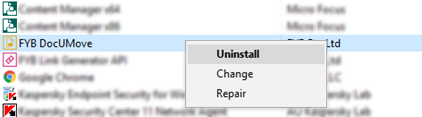
Right click on FYB DocUMove and click on the Uninstall button
-
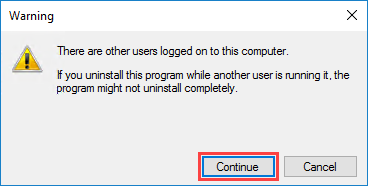
If a warning Prompt appears, click on the Continue button
-
Click on the Yes button

-
The uninstallation process will commence

-
Open IIS once the uninstallation process is completed
-
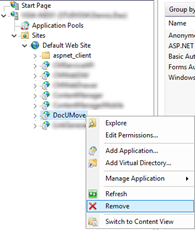
Locate DocUMove within IIS,
-
Right click and click on the Remove button
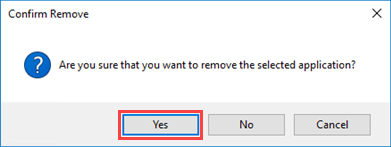
-
When the prompt appears, click on the Yes button