FYB Explore Admin Guide
GENERAL
DOWNLOAD LOGS
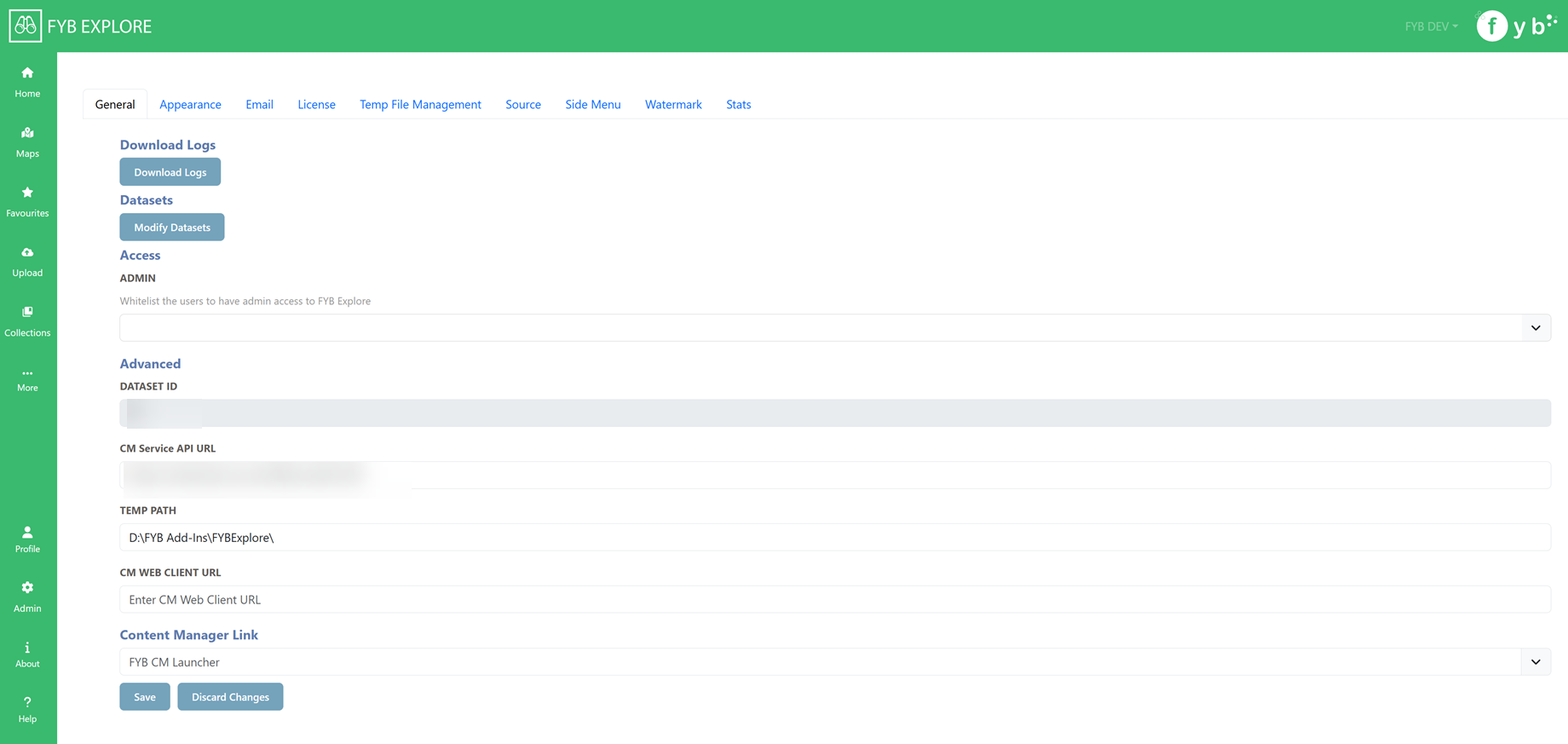
Download a zip file containing all the FYB Explore log files.
ADMIN ACCESS
This field allows you to whitelist Content Manager users who are not an Administrator or Records managers to allow them access to FYB Explore's admin console.
DATASET ID
The ID of the Content Manager dataset that FYB Explore is connecting to.
CM SERVICE API
The URL of the Content Manager Service API
TEMP PATH
For the temp directory for FYB Explore, please include the trailing slash, for example: C:\FYB Add-Ins\FYBExplore. This directory will also contain the FYB Explore log files. Changes to this field will require an App Pool restart.
The temp directory can also be a shared path as long as the account running the app pool has access to it.
CM WEB CLIENT URL
The URL of the CM Web Client. This URL is used to generate Hyperlinks of records within the CM Web Client when sharing Records via FYB Explore. In the form https://example.com.au/ContentManager
CONTENT MANAGER LINK TYPE
Choose between using the FYB CMLauncher, Content Manager Protocol or the Content Manager Web Client for launching documents from FYB Explore in Content Manager.
If the Content Manager Web Client option is enabled, you must supple the URL of the Content Manager Web Client.

CUSTOM LINKS
When using a Custom Link the following placeholders are available:
| PLACEHOLDER | DESCRIPTION |
|---|---|
| {dbid} | CM Database ID |
| {uri} | CM Record URI |
| {recordnumber} | CM Record Number |
| {title} | CM Record Title |
APPEARANCE
PRIMARY BACKGROUND COLOUR
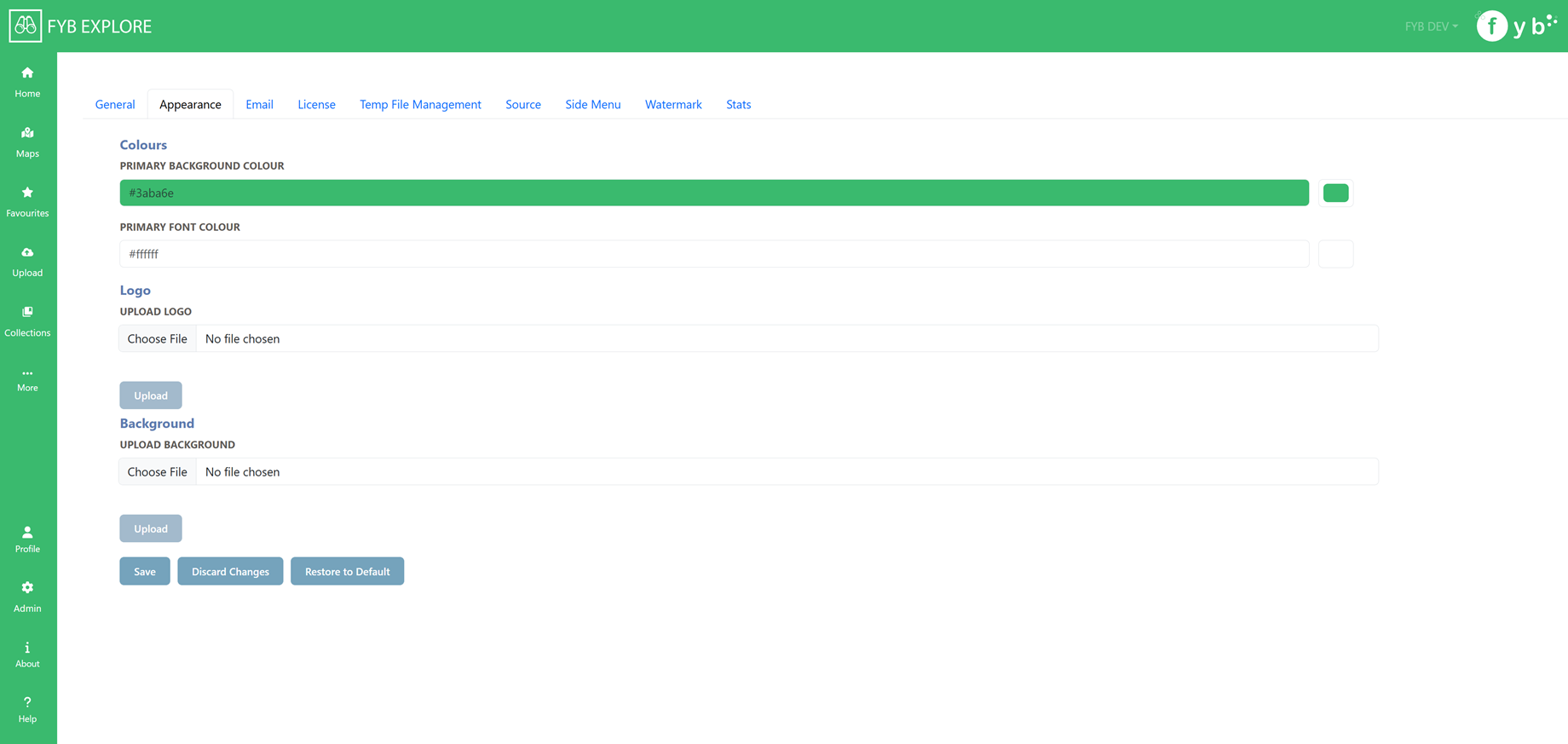
Controls the colour of the header and footers for the application.
PRIMARY FONT COLOUR
Controls the font colour of the header and footers for the application
LOGO
Sets the logo for the application
BACKGROUND
Sets the banner image for the application
RESTORE TO DEFAULT
Clicking this button will set the appearance settings back to the default settings
EMAIL SETTINGS
SMTP AUTHENTICATION
NONE
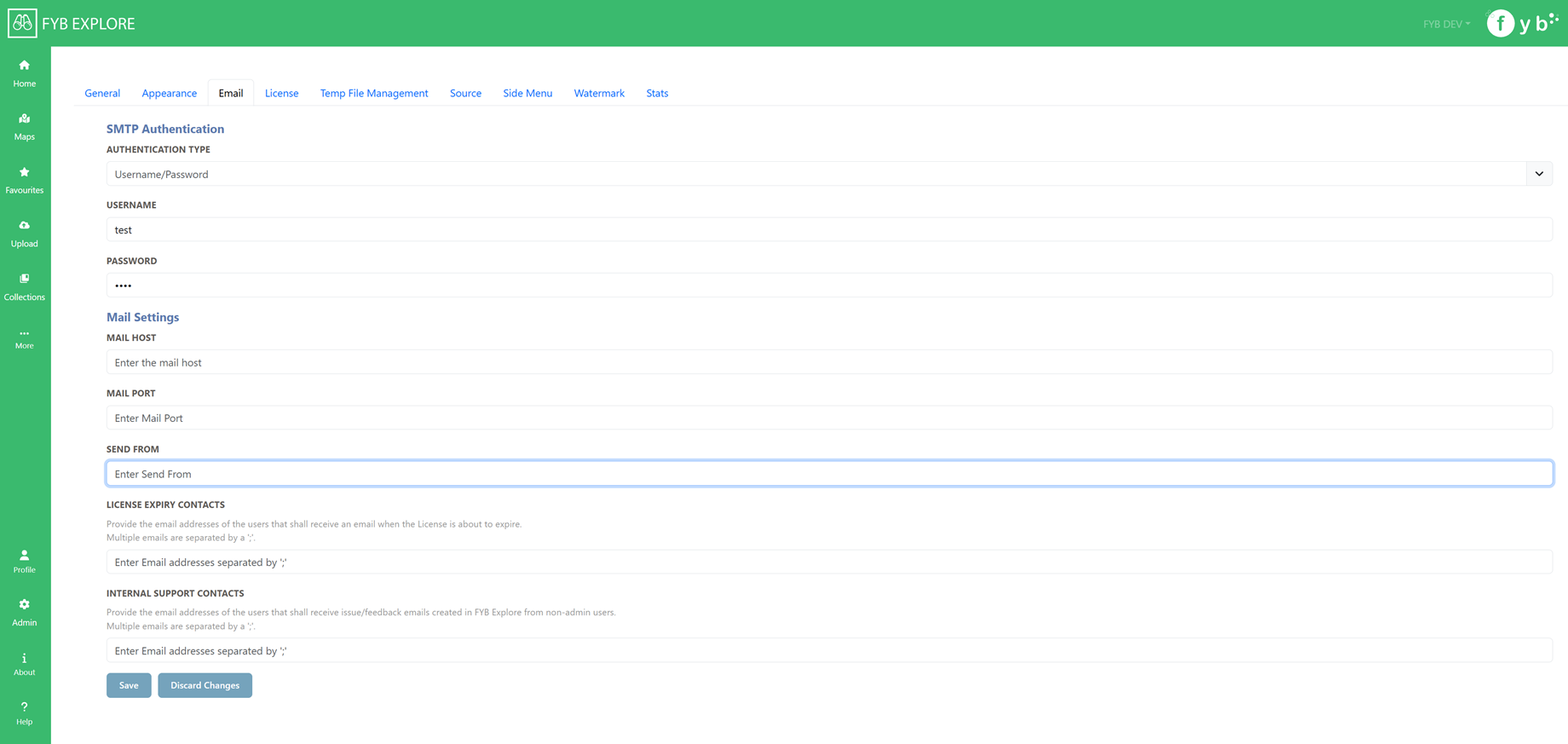
 Choose this option if your SMTP does not have authentication
USERNAME/PASSWORD
 Choose this option if your SMTP server is secured by a username and password.
Supply the values of the SMTP's username and password to the respective fields
MAIL HOST
The mail host is used to send all email notifications from.
MAIL PORT
The mail port to allow for email notifications to be sent.
SEND FROM
The email address that all email notifications are sent from.
LICENSE EXPIRY CONTACTS
Provide the email addresses of the users who shall receive an email notification when the FYB Explore license is due to expire. Multiple contacts can be added by adding a ';' between each contact. (e.g. name@company.com.au; secondname@company.com.au).
INTERNAL SUPPORT CONTACTS
Enter the email addresses of users who will receive the Contact Support and Leave Feedback emails submitted by non-admin FYB Explore users.
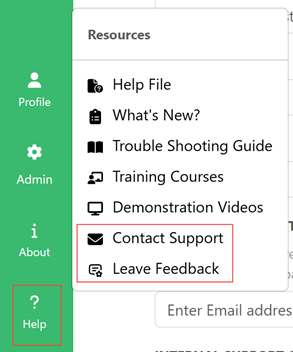
Only Support and Feedback emails sent by FYB Explore admins are sent to FreshDesk.
LICENSE
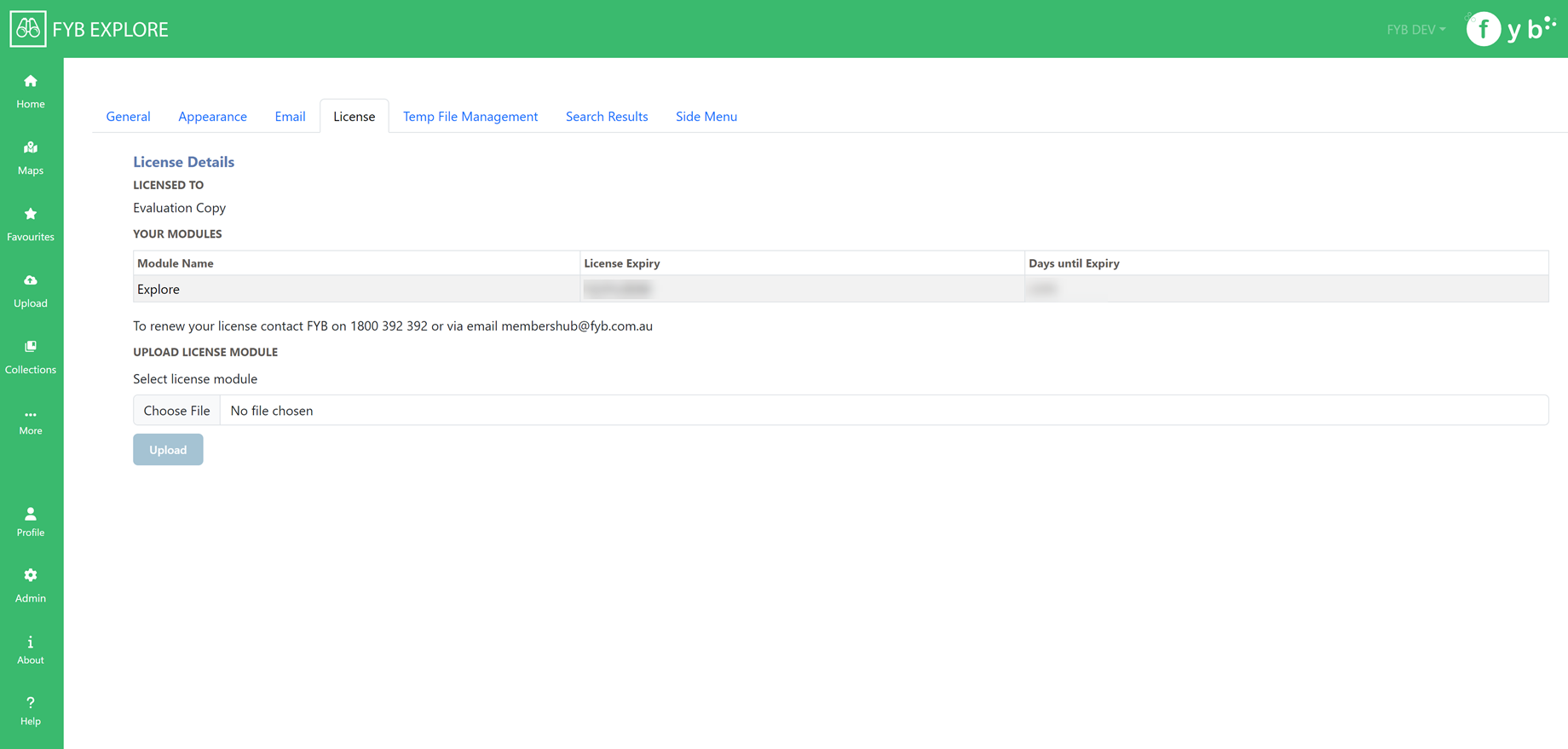 Please see the dedicated License Update guide for more details on this section.
TEMP FILE MANAGEMENT SETTINGS
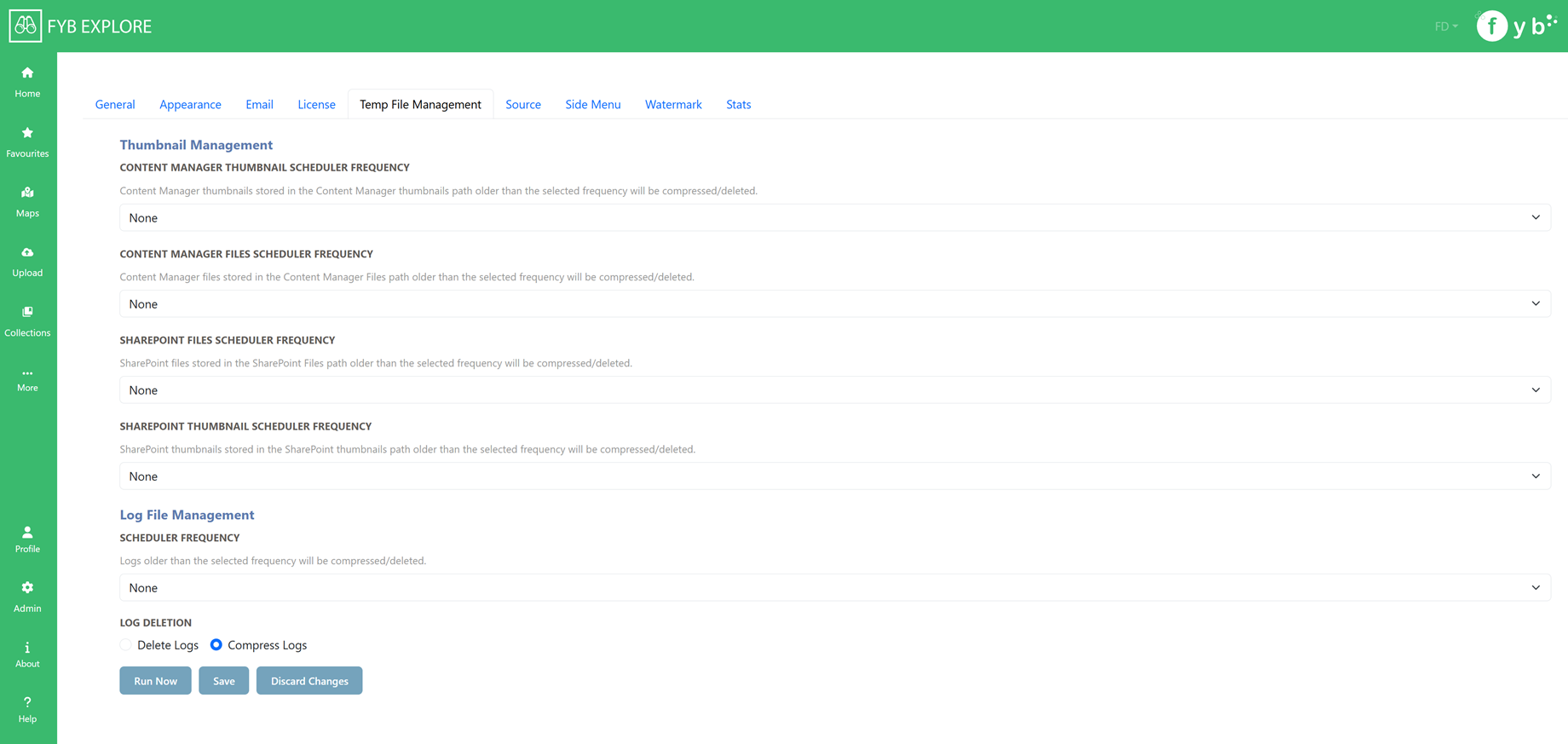
THUMBNAIL MANAGEMENT
This section is for configuring and automating the deletion of FYB Explore thumbnail files. The scheduler will run every day at 12:00am to check for files to be deleted/archived.
SOURCE FILES
This section is for configuring and automating the deletion of FYB Explore electronic files. These files are generated for viewing assets in Explore. The scheduler will run every day at 12:00am to check for files to be deleted/archived.
LOG FILE MANAGEMENT
This section is for configuring and automating the deletion of FYB Explore Log files. The scheduler will run every day at 12:00am to check for logs to be deleted/archived.
SCHEDULER FREQUENCY
Select how often the scheduler should run to delete the log files. Logs older than the selected frequency will be deleted
LOG DELETION
Select if the logs should be deleted or compressed
SOURCE CONFIGURATION
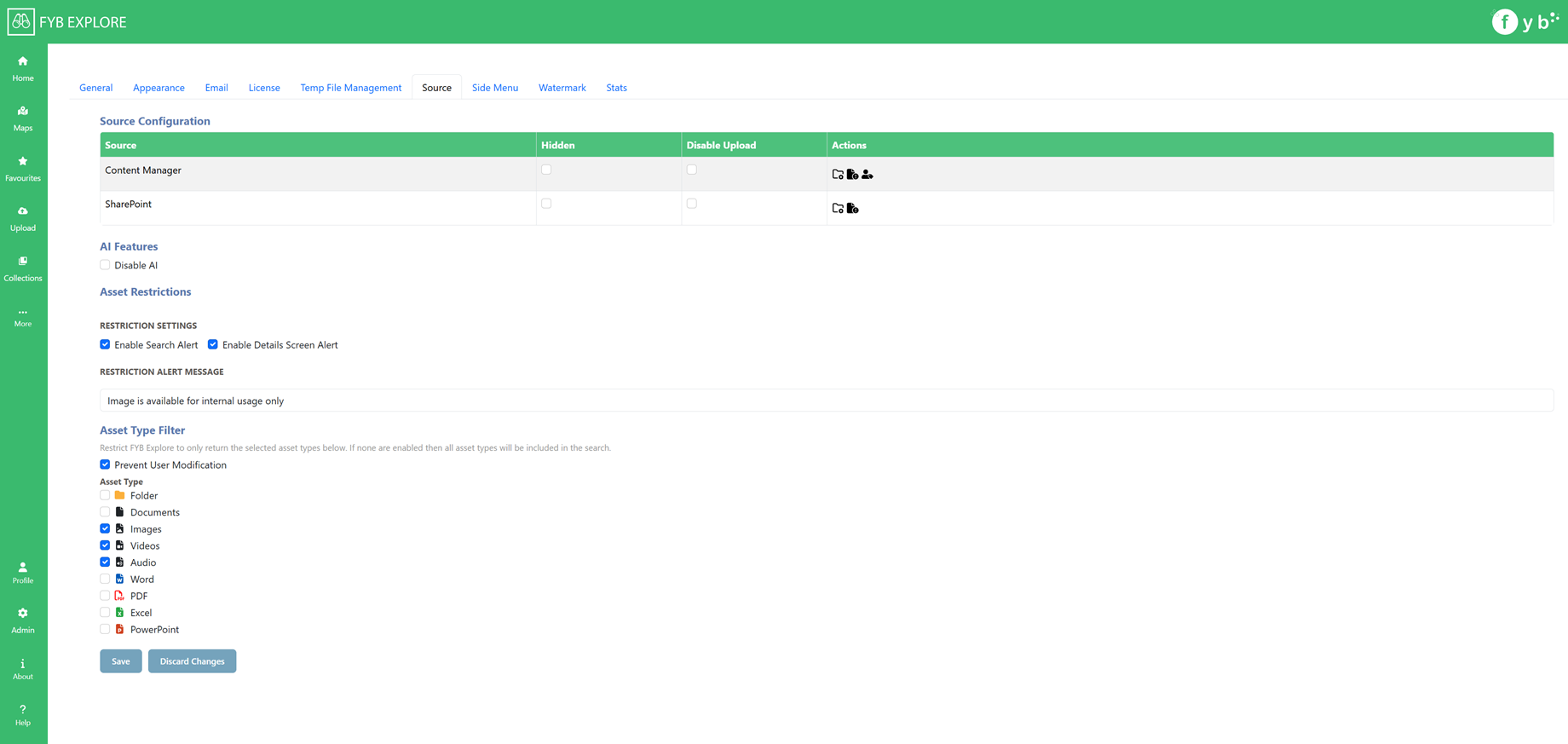
Configure the sources available in FYB Explore.
HIDING A SOURCE
 To hide a source from FYB Explore, check the checkbox in the hidden column.
If an option is hidden, the Source filter option is hidden from the Search Results Page and Advanced Search modal
DISABLE UPLOADS
Uploads to a source can be disabled by checking this checkbox

If the Disable Source option is enabled for all sources, then the Upload menu item is hidden.
FOLDER CONFIGURATION

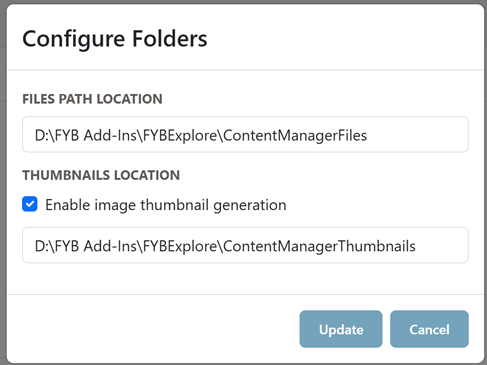
-
Files Path Specify a folder path for storing documents from the source that have been generated by FYB Explore. FYB Explore will use the files stored here when displaying documents. For example C:\FYB Add-Ins\FYBExplore\CMFiles.
-
Generate thumbnails Enable this option to generate thumbnails when searching for assets
-
Thumbnails Path Specify a folder path for storing thumbnails for items from the source generated by FYB Explore. FYB Explore will use the files stored here when displaying thumbnails For example C:\FYB Add-Ins\FYBExplore\CMFiles.
CONTENT MANAGER RESTRICTIONS

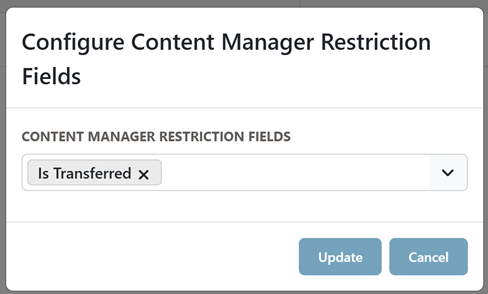
Specify the boolean additional fields to be used as Restriction fields. If a Record has at least one of these fields set to true, then the Record is marked as Restricted.
SHAREPOINT RESTRICTION FIELDS
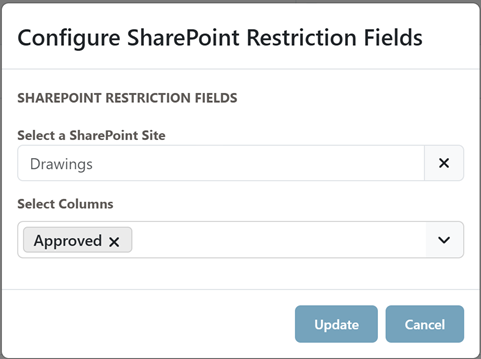
- Select a SharePoint site
- Specify the boolean custom columns to be used as Restriction fields. If a Record has at least one of these fields set to true, then the Record is marked as Restricted. Ensure the selected columns are also created in other SharePoint sites.
ASSET TYPE FILTER
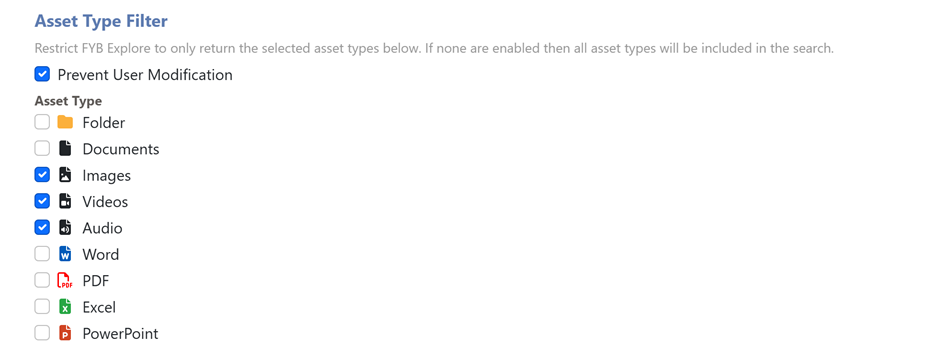
Prevent User Modification: If enabled, Users are unable to modify the Asset Type filter when performing searches
The types of assets that can be returned from a search can be restricted to specific types by 'enabling' the required asset types. The enabled types will be enabled by default on the Advanced Search Modal and the Asset Type Filter dropdown. These can be unchecked by the user if the Prevent User Modification option is disabled.
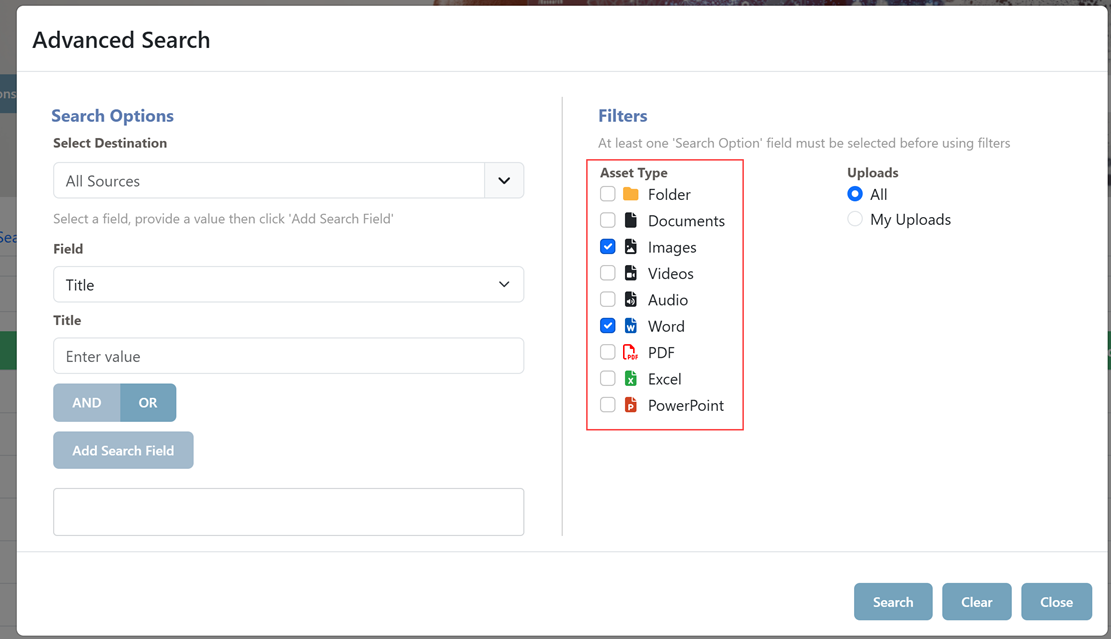
If no types are enabled then all asset types will be returned.
IMPORT CONTENT MANAGER ITEMS
IMPORT USER LABELS FROM CM
This button will import User Labels owned by the Organization as new collections. The admin that clicked this button will be the owner of these new collections. The new collections imported from User Labels will be Global collections.
DISABLE AI FEATURES
Enabling this option will disable all the AI Features in FYB Explore
IMAGE RESTRICTIONS
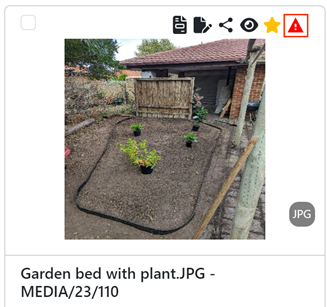
This will allow admins to flag media items that have any restrictions placed on them. These restrictions are in the form of a boolean additional fields for Content Manager Records and boolean Custom Columns for SharePoint documents. Documents that have these fields set to true will be flagged with the message shown in the “Detail Alert Message” field.
RESTRICTION SETTINGS
- Enable Search Alert: If enabled, restricted documents will have a red exclamation triangle in the Search Results page
- Enable Details Search Alert: If enabled, an alert message will be added to the document details page for restricted documents
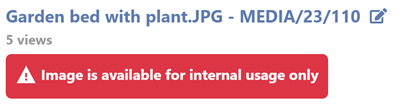
- Restriction Alert Message: The message that will appear for restricted documents
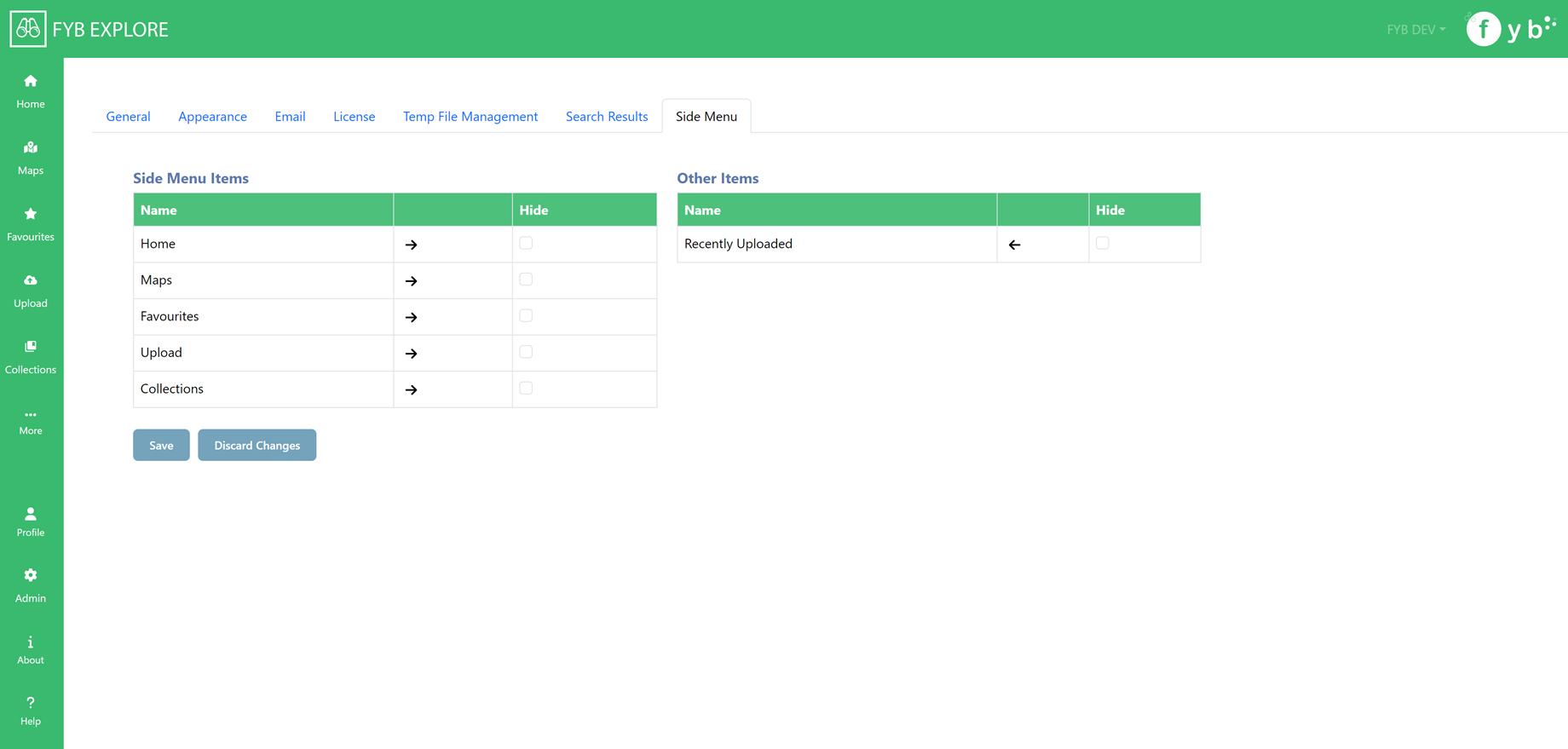
SIDE MENU SETTINGS
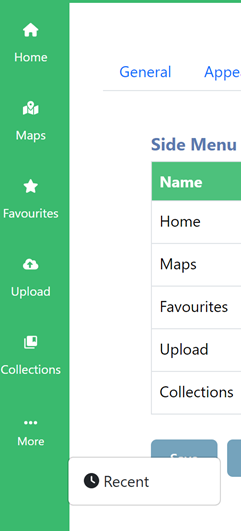
This page allows you to specify which menu items (a maximum of 5) are displayed on the sidebar. Click and drag on the table rows to reorder the items.
WATERMARK SETINGS
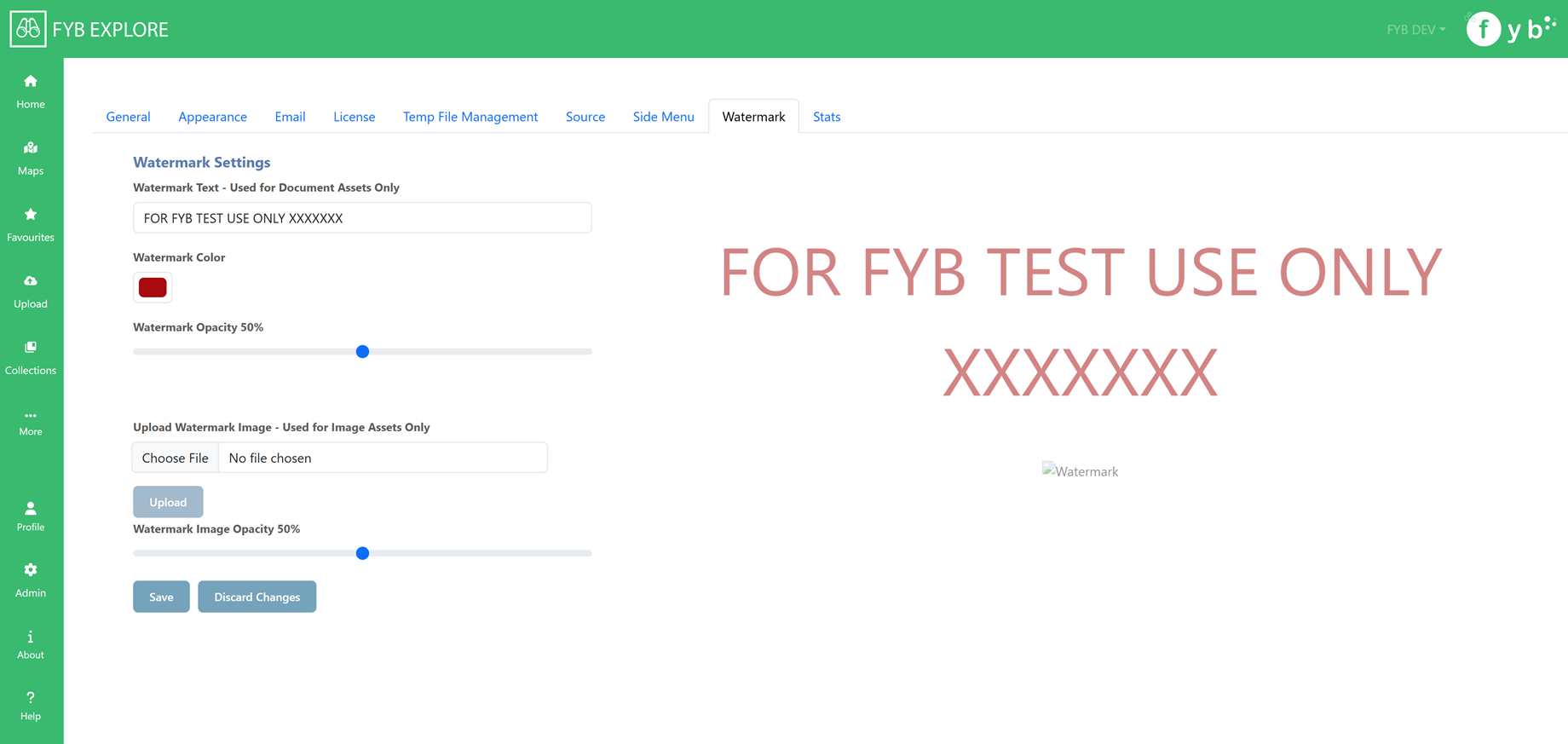
The watermark settings page allows you to control the style, text and image for the watermarks used when downloading assets in FYB Explore.
Text watermarks are only used for Document Assets and Image watermarks are only used for image Assets
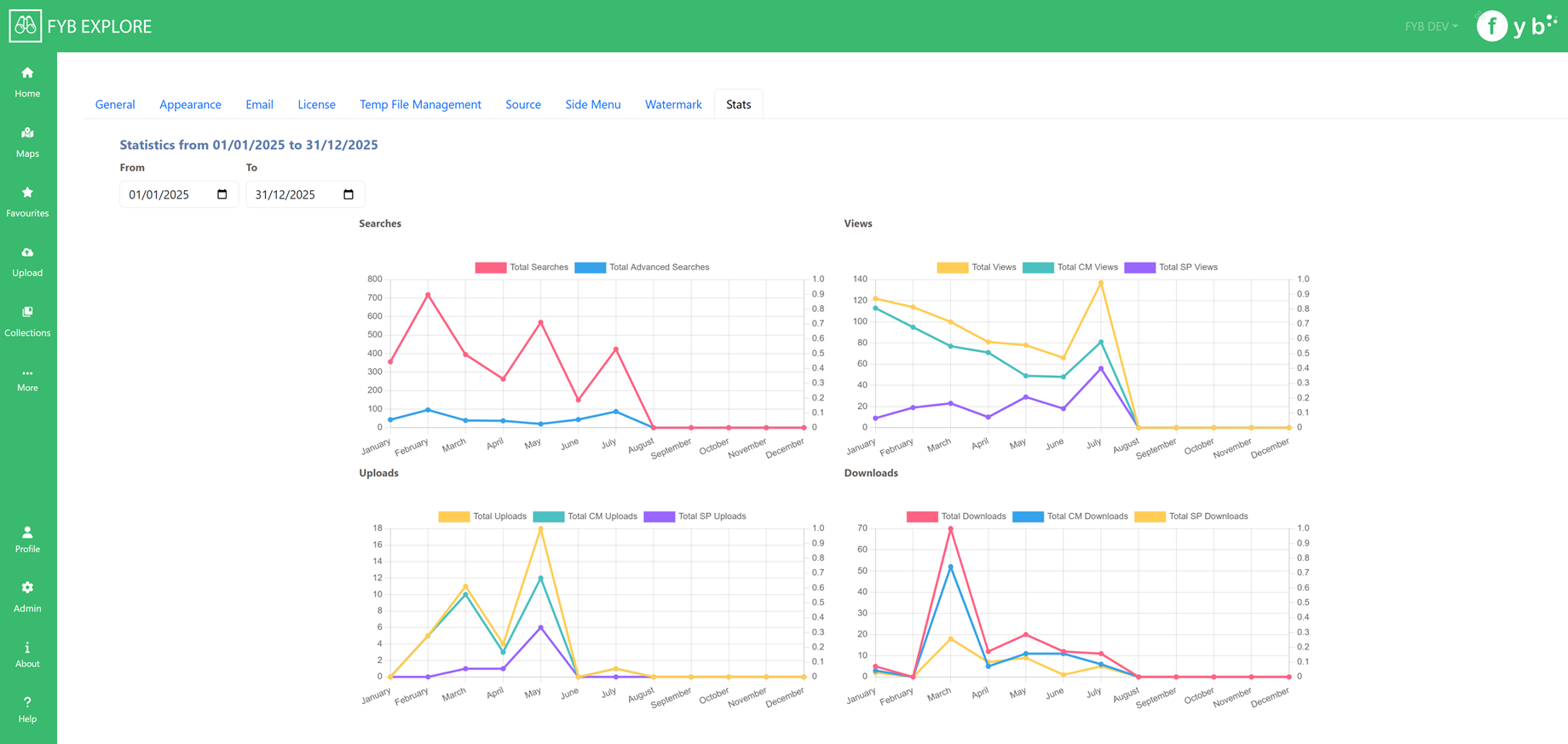
STATS
The stats page shows various statistics captured by FYB explore. Use the Date fields to change the date range for displaying the statistics