
InfoInsert License Update
LICENSE DETAILS
Please contact FYB for a valid license if you are yet to obtain one for your Connector.
UPLOADING THE LICENSE FILE
This process may require assistance from your IT department/team.
-
Firstly find out where the existing license is being stored. To do this navigate to C:\Users\firstname.lastname\AppData\Roaming\FYB Pty Ltd\InfoInsert on a machine that has InfoInsert installed
-
Open the settings.json file and the LicensePath field will tell you the current location of the existing license. This should be a network share path like the below:

-
Navigate to the existing location
-
Place your new license file in the same location
-
Note down the full network share path (including file name) to the new license file. For example: \vs04-ind01\fybaddins$\licenses\new_license_filename.lic
UPDATING THE LICENSE - SINGLE USER
-
Click on the Add-Ins ribbon at the top of the screen
-
Click on the Settings icon

-
Once the settings pane appears, click on the License icon
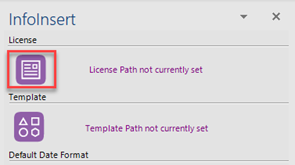
-
Using the file browser dialog, navigate and find your new license file and click Open. This will be located in the location you noted down in the previous section of this guide
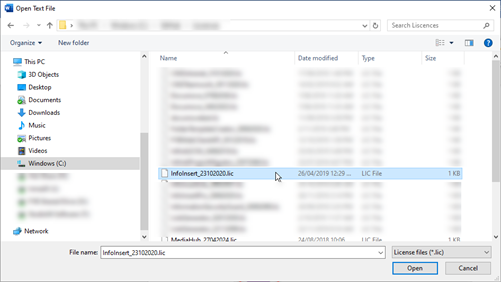
-
After applying the license file, the InfoInsert controls will become active again
UPDATING THE LICENSE - MULTIPLE USERS
- To perform a more automated deployment for all InfoInsert users navigate to C:\Users\firstname.lastname\AppData\Roaming\FYB Pty Ltd\InfoInsert on a machine that has InfoInsert installed
- Take a copy of the settings.json file
- Update the LicensePath field with the network share path of your new license file
- Save the updated settings.json file and then deploy it to all InfoInsert users using your preferred software methods. The file should be deployed to C:\Users\firstname.lastname\AppData\Roaming\FYB Pty Ltd\InfoInsert
ADDITIONAL DATASETS
Please ensure that you update the license completing the above process for all additional datasets.