
Law2CM User Manual
The Law2CM interface can only be accessed by Content Manager Administrators, Records Managers and whitelisted users.
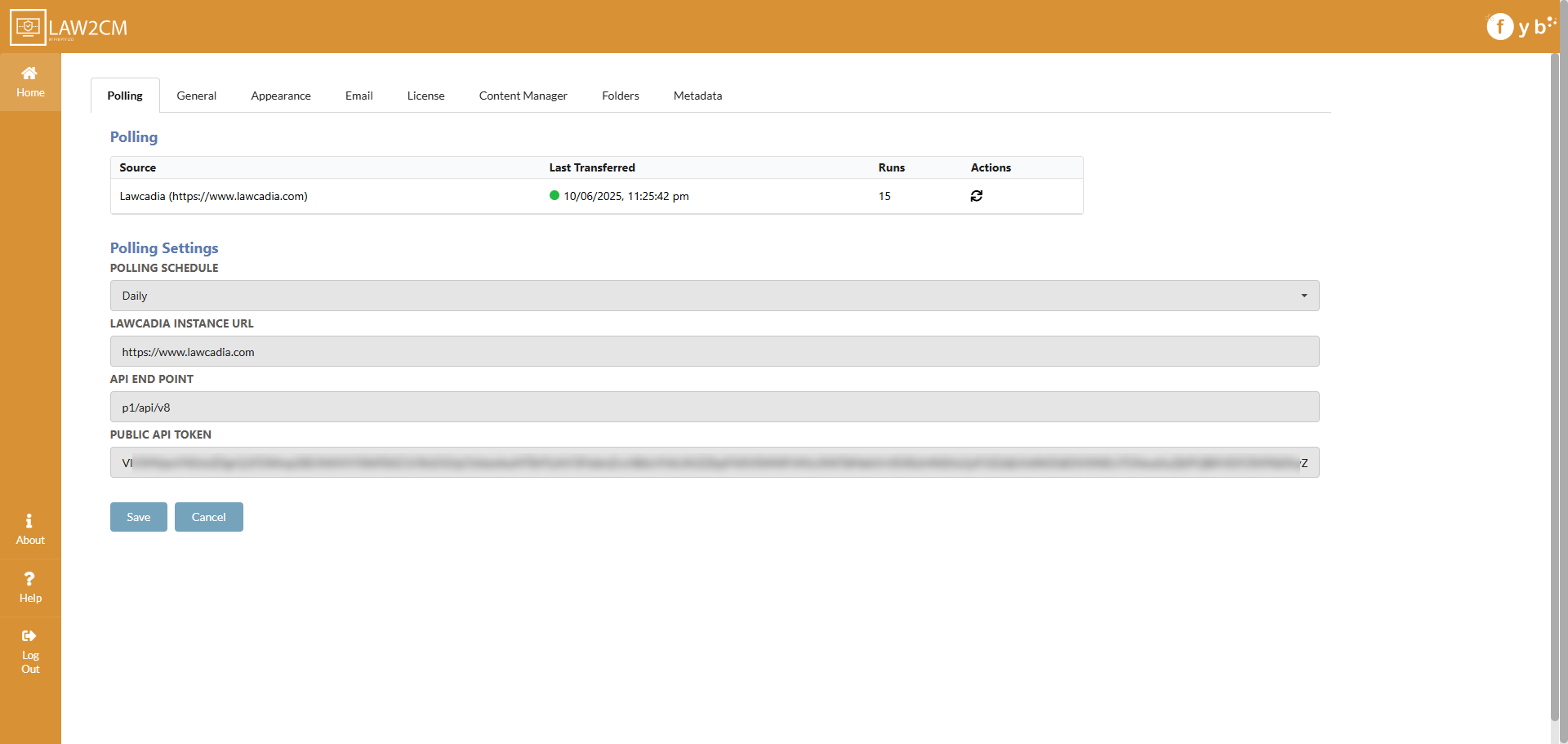
POLLING
OVERVIEW
The Polling Settings allow for the polling scheduler to be configured for Law2CM to send and receive data from Lawcadia.
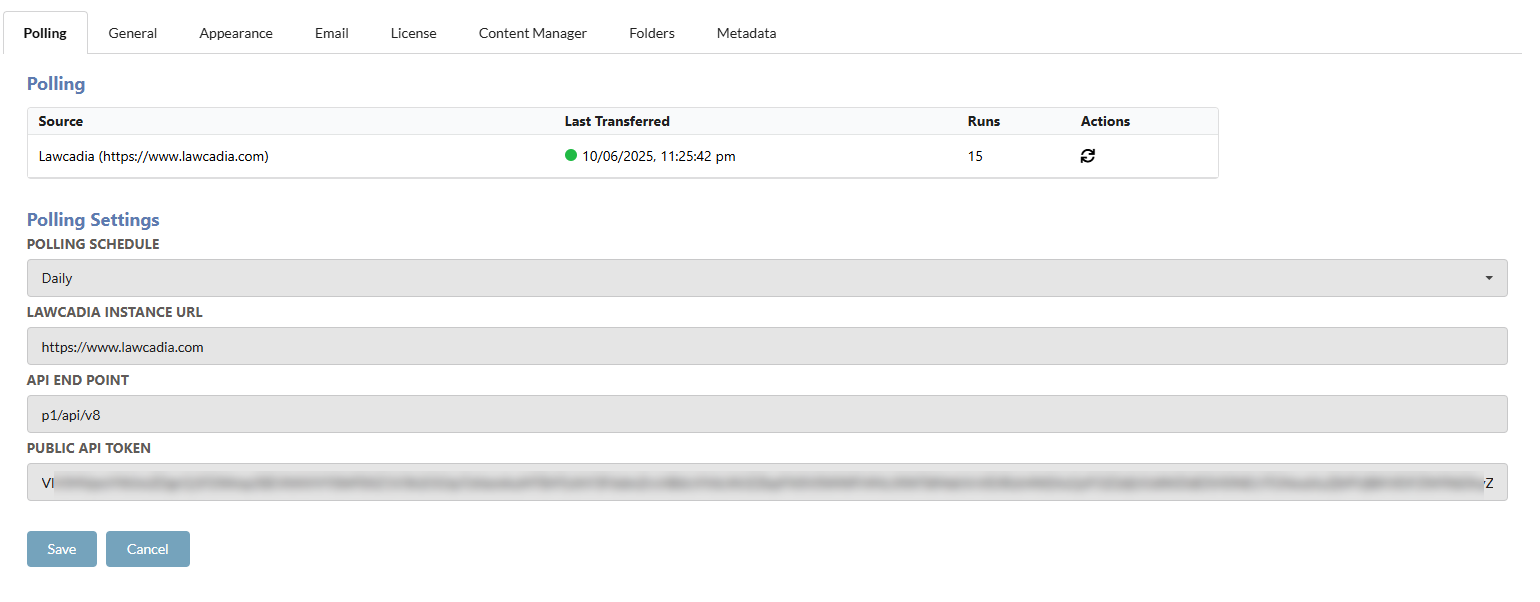
| FUNCTIONALITY | DESCRIPTION |
|---|---|
| Polling Schedule | The time schedule that the polling service should run. Hourly will run every hour on the hour. Daily, Weekly and Monthly will run at 7am on the day of the schedule. |
| Lawcadia Instance URL | The URL for the connected Lawcadia Instance |
| API End Point | The API End Point that allows for the connection to the Lawcadia API. This is the API version used within Lawcadia |
| Public API Token | The API token generated within Lawcadia to authenticate all API calls to Lawcadia. |
The Lawcadia instance URL will always be https://www.lawcadia.com unless specified by Lawcadia when providing the instance.
MANUAL ARCHIVING
To obtain matters and their documents from Lawcadia outside of the scheduled archiving period, a manual archive can be completed.

Click on the Archive button to automatically start the archive process.
A notification will display if the archive was successful or unsuccessful
ARCHIVING AN OLDER DATE
If there is a requirement to identify and transfer older Lawcadia matters, the Last Transferred Date can be updated to the appropriate date required to back date a transfer.
Law2CM can only transfer Lawcadia Matters that have the document group functionality established on the Matter. Legacy Matters that do not utilize this functionality will not be successful in transferring into Content Manger.
To update the Last Transferred Date for back dated archiving,
-
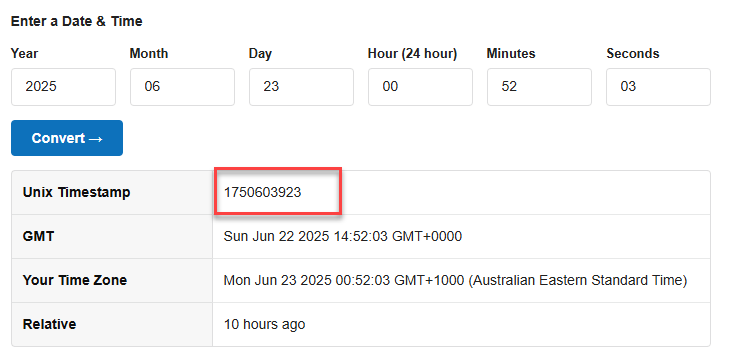
Utilize a Unix Timestamp converter, such as https://www.unixtimestamp.com/
-
Enter in the new date to transfer from.
-
Navigate to the installation path of Law2CM.
-
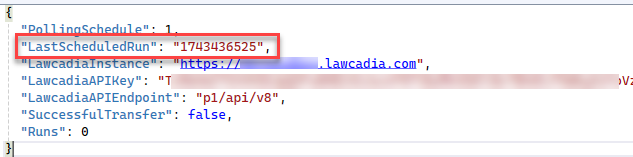
Navigate to the App_Data > PollingSettings.json.
-
Update the "LastScheduledRun" value to the new Unix value.
-
Save the file.
-
Complete an app pool restart.
GENERATING THE PUBLIC API TOKEN
To generate a public API token for Law2CM, complete the following.
Ensure these steps are completed by a Client Admin.
-
Log into Lawcadia as a Client Admin.
-
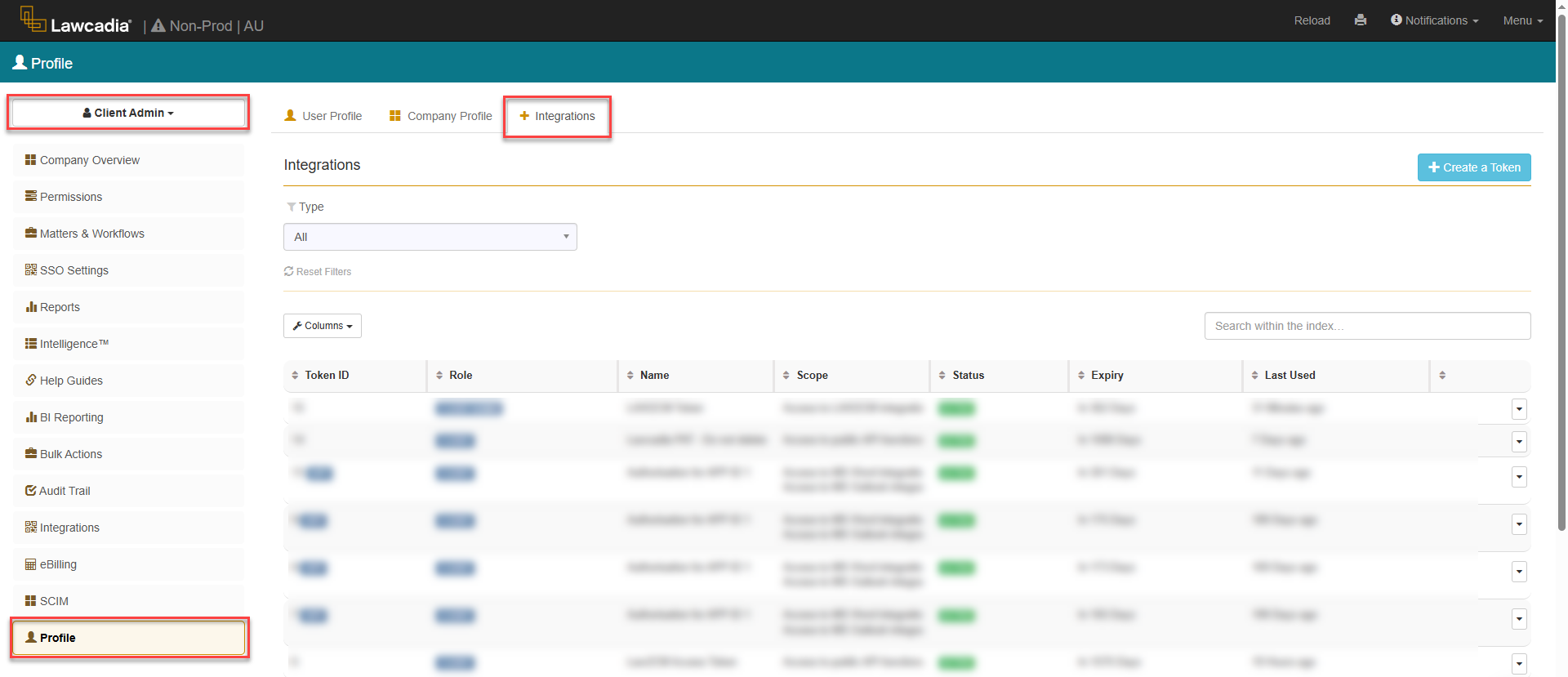
Click on Profile and navigate to the Integrations Tab
-
Click the Create a Token button.

-
Fill in the token details
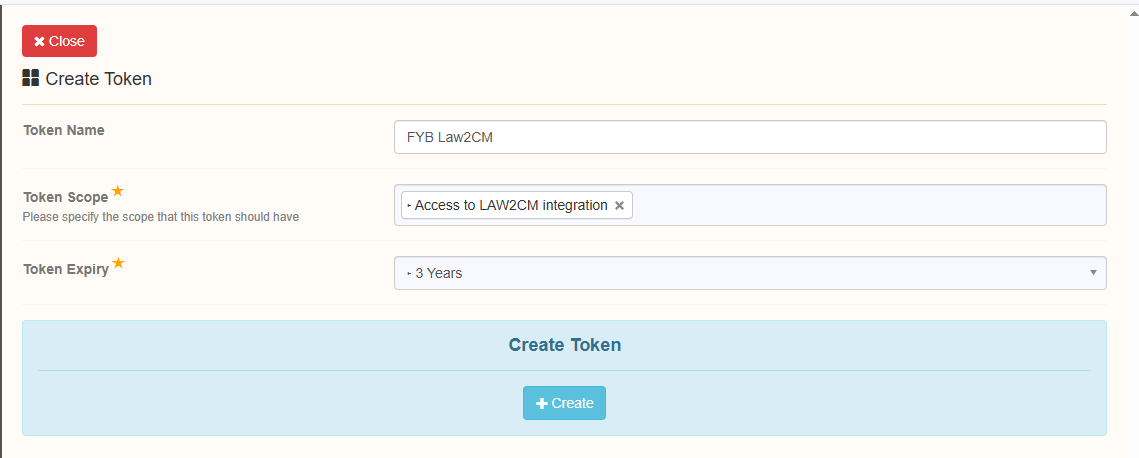
NAME FUNCTIONALITY Name A meaningful name for the token - it is recommended to set the name to FYB Law2CM Token Scope Select FYB Endpoints and Functionality Expiry Date Set the expiry date for the token -
Click Create
 Note
Ensure to store the API token after generating it. This key will only be displayed once, and will not appear again.
If there is already an existing key, do not generate a new key unless you have misplaced the old token or the token has expired.
If a new token is generated, all instances of Law2CM will need to be updated.
GENERAL SETTINGS
OVERVIEW
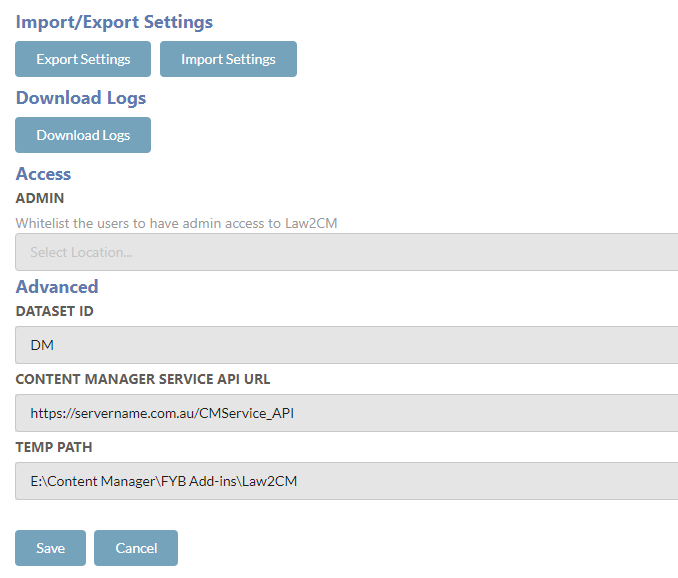
General Settings can be configured using the interface below.
EXPORT SETTINGS
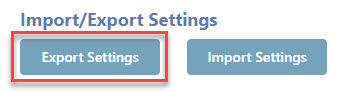
Click on the Export Settings button to download all settings files from Law2CM.
IMPORT SETTINGS
Click on the Import Settings button to import selected settings files to Law2CM.
DOWNLOAD LOGS

Click the Download Logs button to automatically download all Law2CM logs from the server.
ACCESS
Content Manager users can be added to this field, and they will be granted admin console access.

ADVANCED
The following advanced settings can be applied:
| FUNCTIONALITY | DESCRIPTION |
|---|---|
| Database ID | The two alphanumeric character dataset identifier of the server Law2CM is installed on. |
| Content Manager Service API URL | The URL of the Content Manager Service API. |
| Temp Path | The temp path used by Law2CM. |
APPEARANCE
OVERVIEW
The Appearance tab allows for the Law2CM interface appearance to be updated.
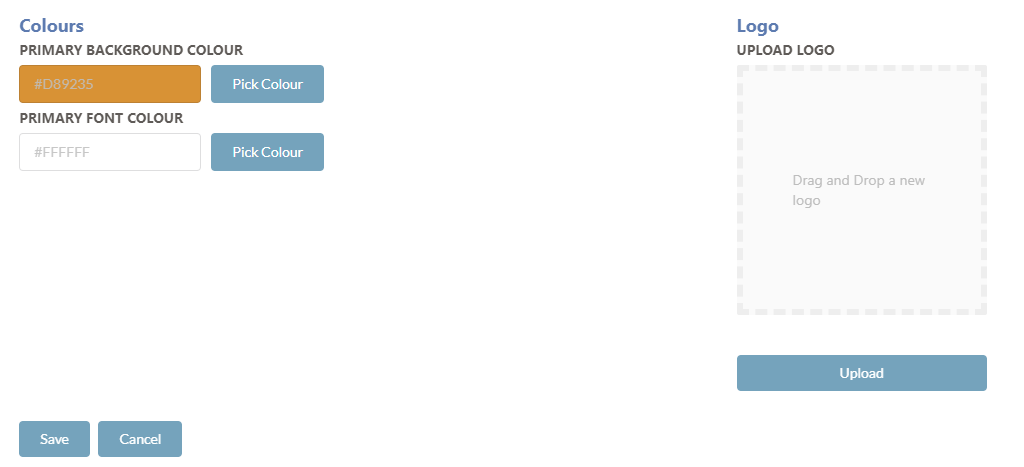
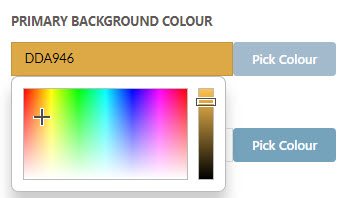
PRIMARY BACKGROUND COLOUR
The primary background colour will update the header and footer of the Law2CM interface. Click the Pick Colour button to enable the colour picker. Select the desired colour.
PRIMARY FONT COLOUR
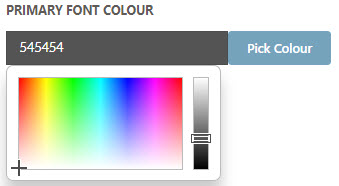
The primary font colour will update the header and footer fonts of the Law2CM interface. Click the Pick Colour button to enable the colour picker. Select the desired colour.
LOGO
The Logo in the header can be updated using the drag and drop field.

Click Upload

EMAIL NOTIFICATION SETTINGS
OVERVIEW
Email notifications will provide a list of errors and exceptions that have occurred during the transaction process and also license expiry notifications.
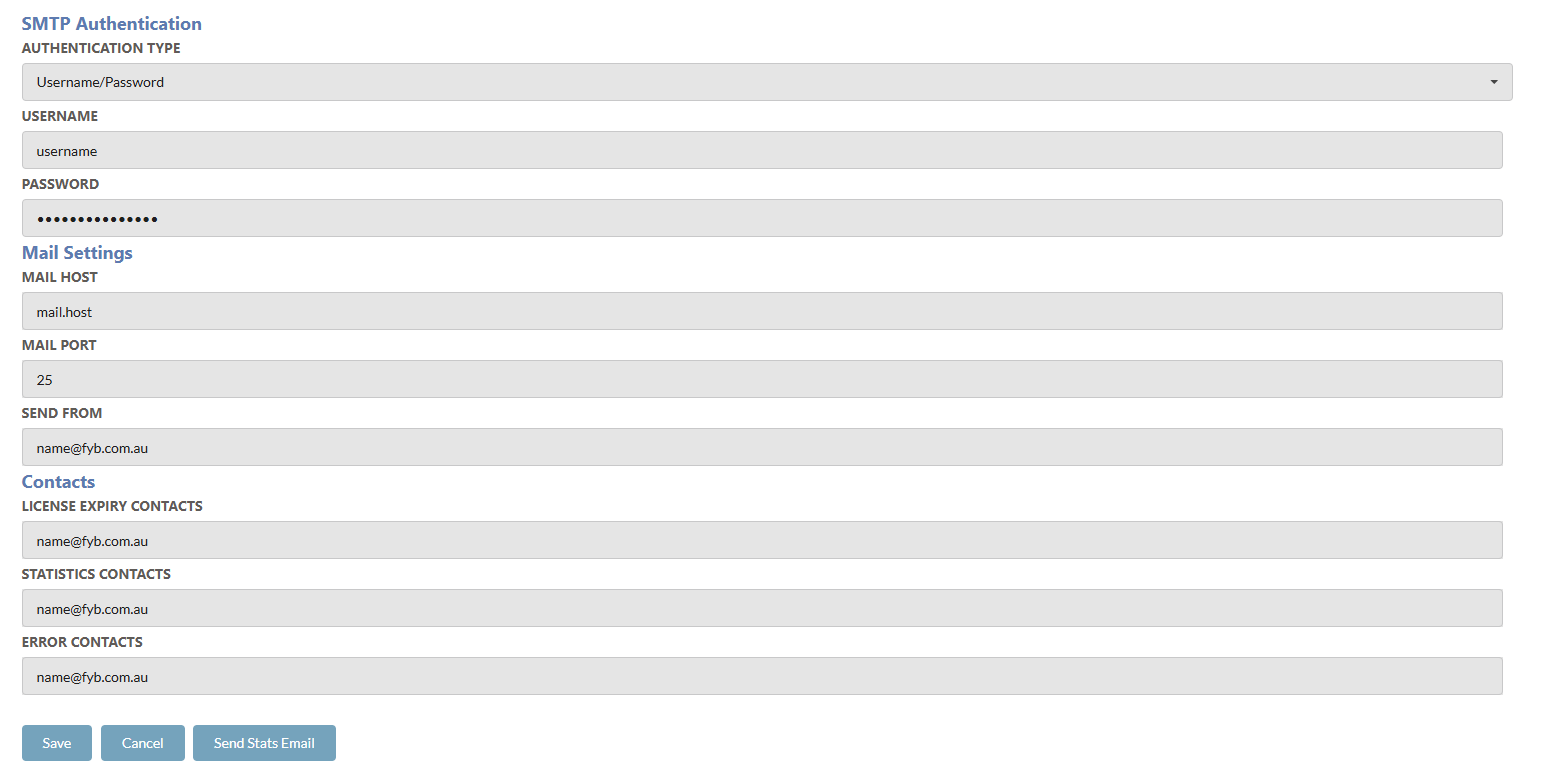
SMTP AUTHENTICATION
NONE

Choose this option if your SMTP does not have authentication
USERNAME/PASSWORD

Choose this option if your SMTP server is secured by a username and password. Supply the values of the SMTP's username and password to the respective fields
| FUNCTIONALITY | DESCRIPTION |
|---|---|
| Mail Host | The hosting mail system that all email notifications will connect to. |
| Mail Port | The SMTP mail port to connect to the mail host. |
| Send From | The email address that all email notifications will be sent from. |
| License Expiry Contacts | Provide the email addresses of the users who shall receive an email notification when the Law2CM license is due to expire. Multiple contacts can be added by adding a ';' between each contact. (e.g. name@company.com.au; secondname@company.com.au). |
| Statistics Contacts | Provide the email addresses of the users who shall receive an email notification for monthly usage statistics of Law2CM. Multiple contacts can be added by adding a ';' between each contact. (e.g. name@company.com.au; secondname@company.com.au).. |
| Error Contacts | Provide the email addresses of the users who shall receive an email notification errors have occurred after archiving. Multiple contacts can be added by adding a ';' between each contact. (e.g. name@company.com.au; secondname@company.com.au). |
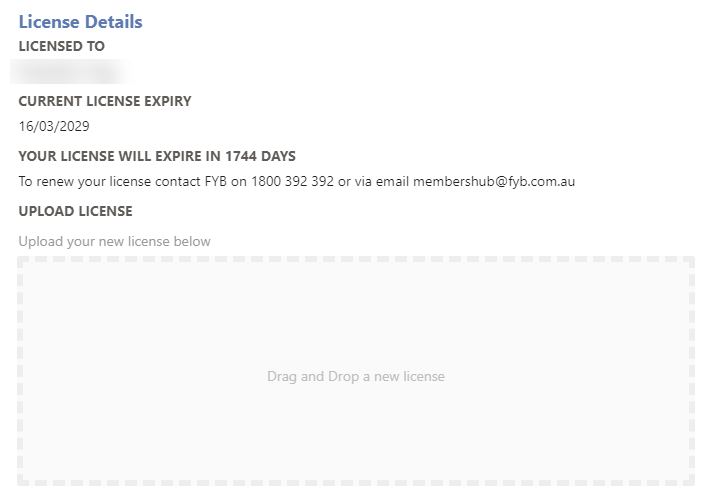
LICENSE SETTINGS
OVERVIEW
Licenses can be uploaded from the Law2CM interface. Please refer to the license update guide for further details.
CONTENT MANAGER
OVERVIEW
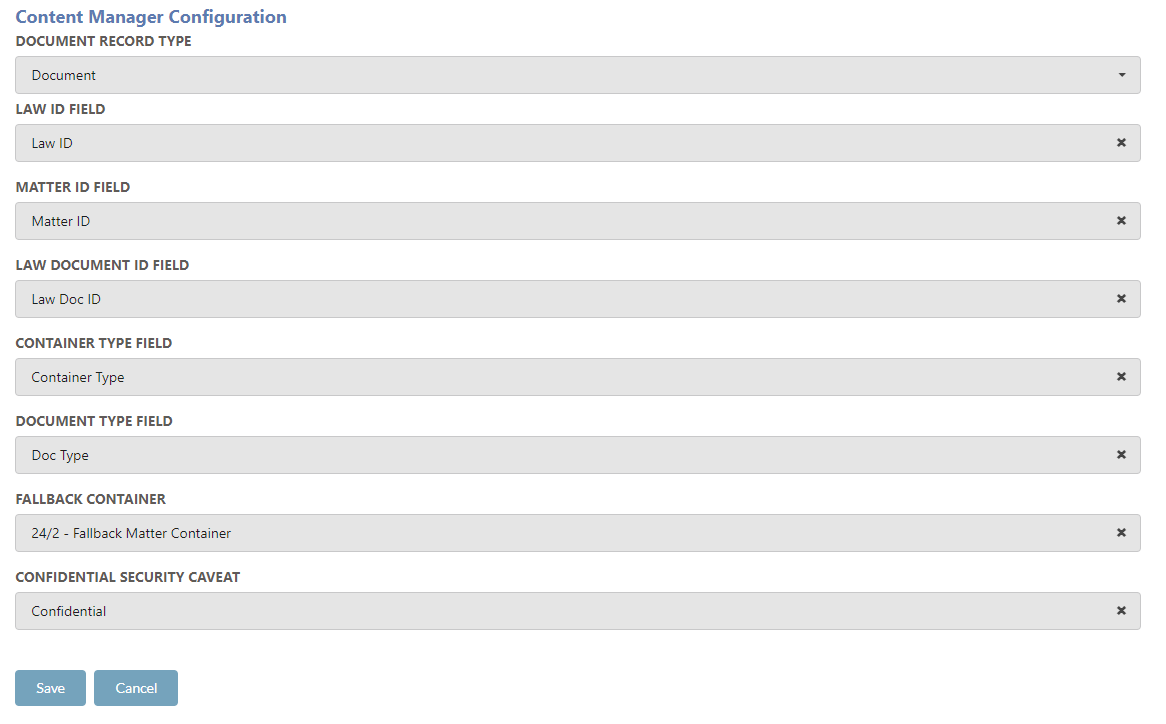
The Content Manager settings assist with the configuration of Law2CM Content Manager fields.
| FUNCTIONALITY | TYPE | DESCRIPTION |
|---|---|---|
| Document Record Type | String | The Document record type to store all matter attachments and documents captured from Lawcadia into Content Manager |
| Law ID Field | String | The Law ID additional field that is attached to the Matter record type within Content Manager. |
| Matter ID Field | String | The Matter ID additional field that is attached to the Matter record type within Content Manager. |
| Law Document ID Field | String | The Law Doc ID additional field that is attached to the Document record type within Content Manager. |
| Container Type Field | String | The Container Type additional field that is attached to the Matter Sub Folder record type within Content Manager. |
| Document Type Field | String | The Document Type additional field that is attached to the Matter Sub Folder record type within Content Manager. |
| Fallback Container | Record | The fall-back container is used for failed transfers of Law Documents. The error log email notifications will provide an update if any documents have been stored within the Fallback Container. |
| Confidential Security Caveat | Caveat | The Confidential security caveat that will be attached to the Matter record type on any confidentially marked Matters. |
FOLDERS
OVERVIEW
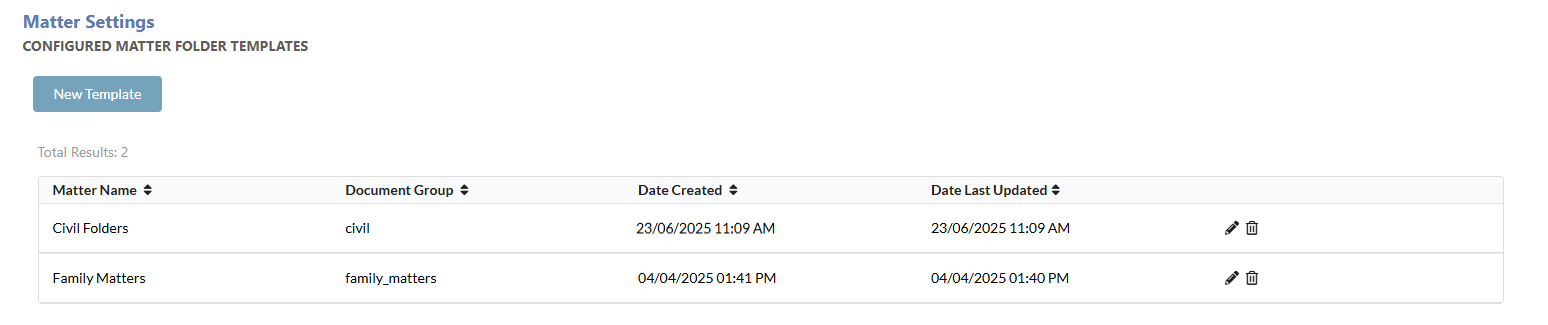
Each Matter Document Group will have its own folder structure that will be generated for the creation of the Matter.
CREATING A NEW FOLDER STRUCTURE
To create a new structure, click on New Template Provide a unique Matter Name to identify the folder structure configuration. Select the Lawcadia Document Group. Folders will automatically generate for all Document Labels created in Lawcadia. There will also be an emails and invoices folder generated
RECORD TYPE
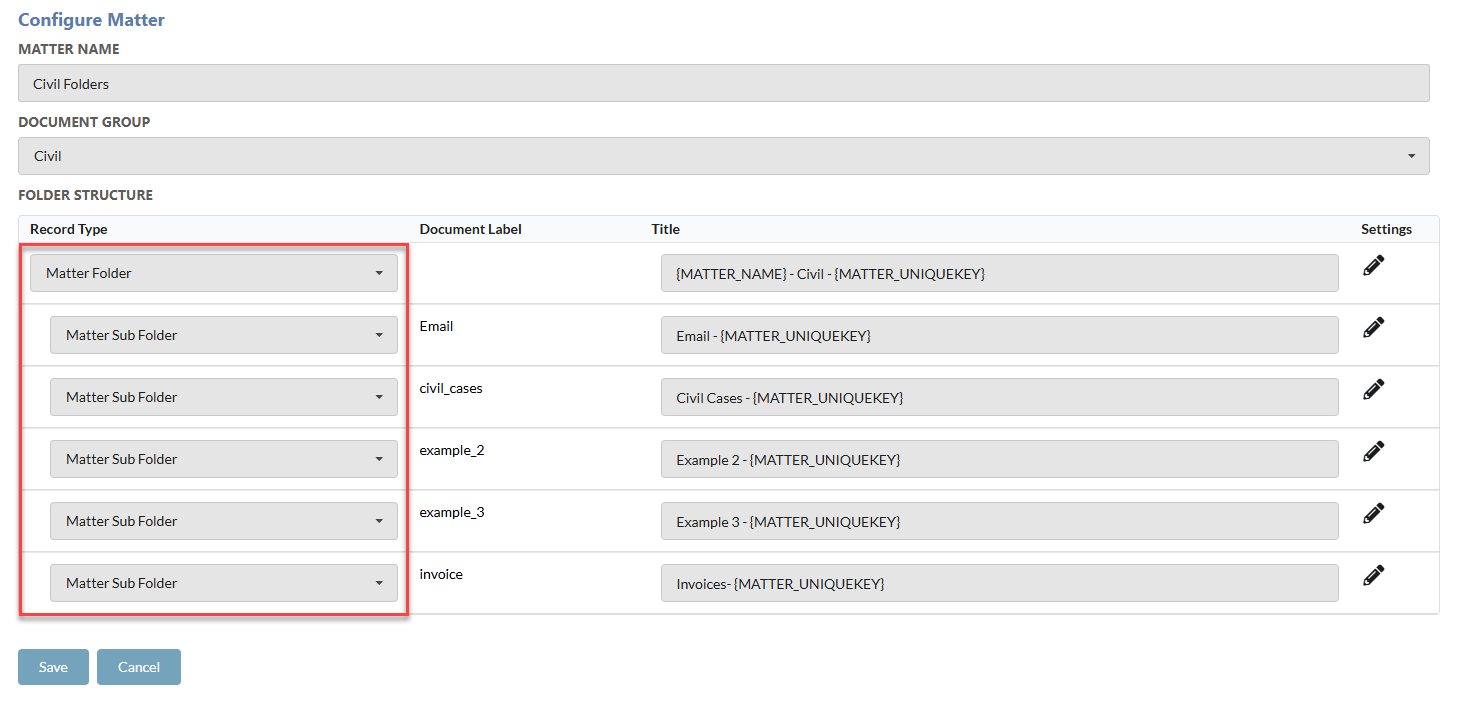
The record type utilized for the folder structure for all matters captured from Lawcadia into Content Manager. Search for the appropriate record type from the dropdown by name.
Select the Record Type for the Parent level folder and all sub level folders Modify the titles of the folder structure Update any mandatory fields, retention schedules or notes required for each folder Click Save
DOCUMENT LABEL
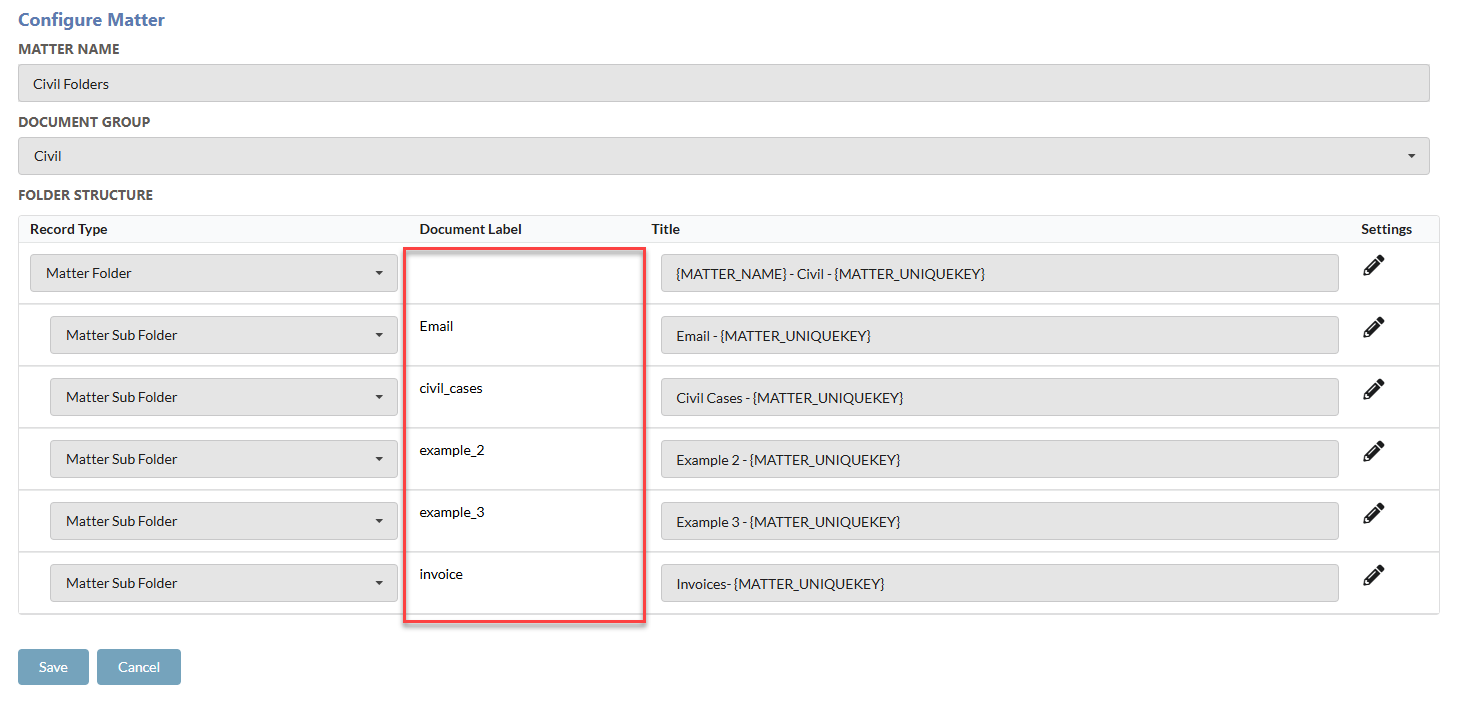
The document label determines which folder will be used for each document from Lawcadia. These pre-determined within Lawcadia document groups.
TITLING
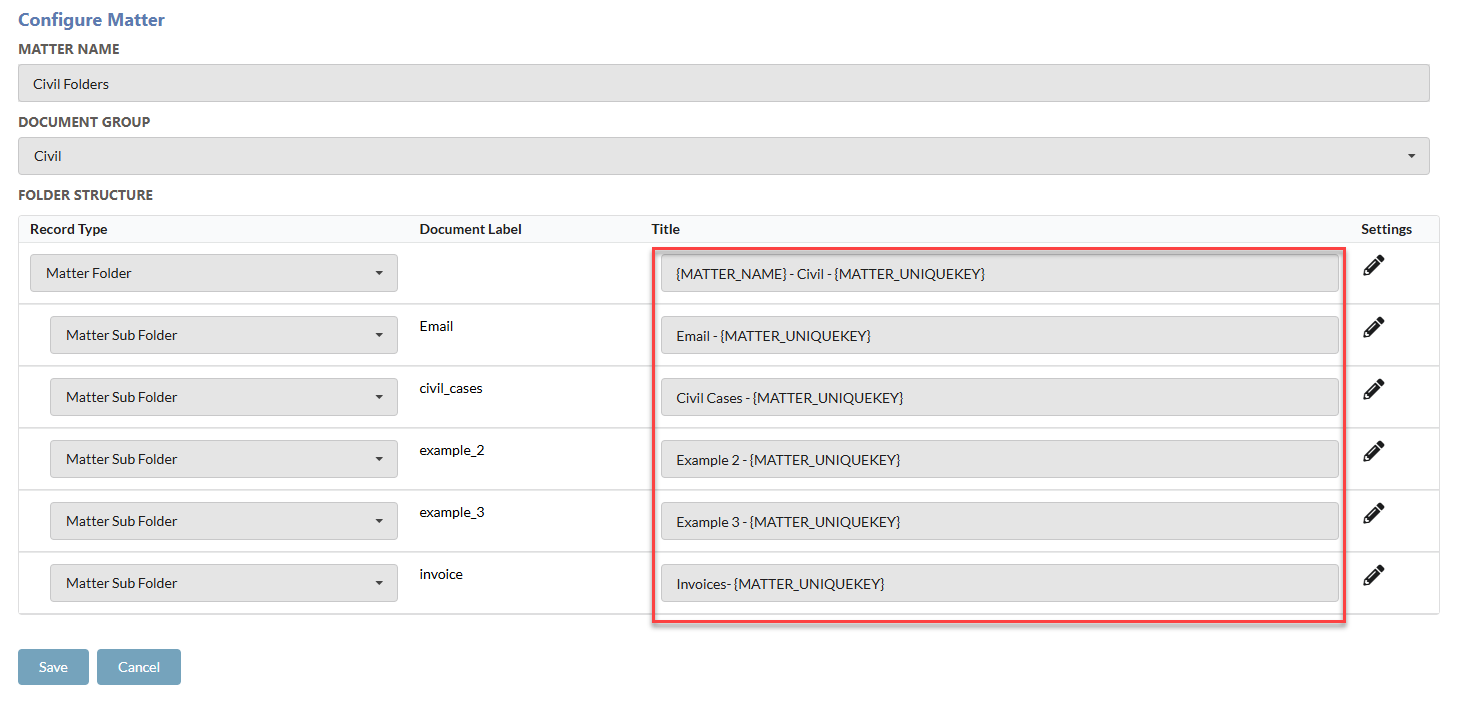
The titling for each individual folder within the structure. Metadata placeholders can be included into the titling. Determining which placeholders to use can be found within the configure placeholders section.
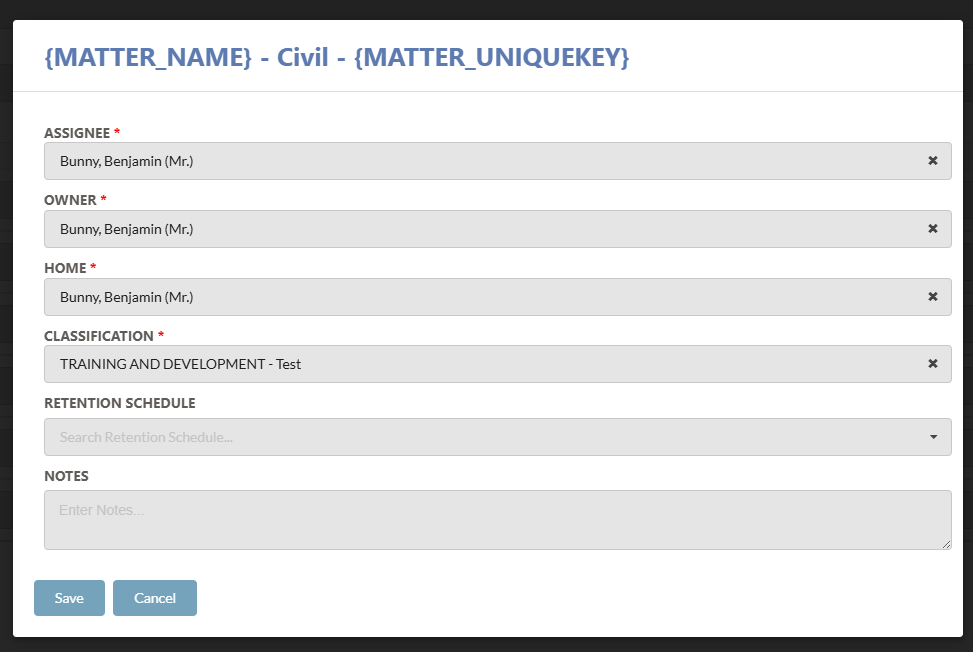
FOLDER PROPERTIES
-
Click on the Settings button to add additional settings to the folder
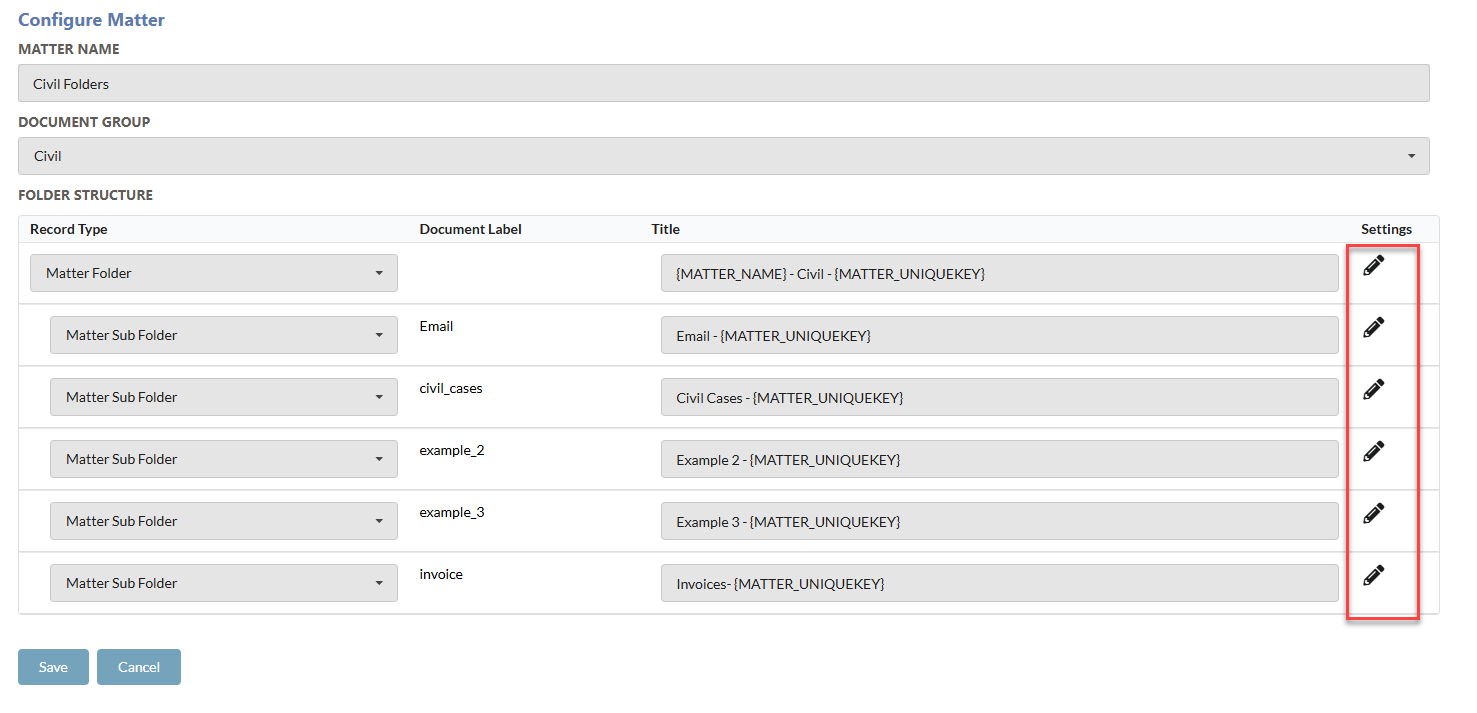
-
Populate the additional mandatory fields for the folder.
-
Provide any Retention Schedules or Notes for the folder.
-
Click Save on the entire structure to save all changes.

CONFIGURING PLACEHOLDER VALUES
Placeholders can be utilized to populate data from Lawcadia Matters into the tilting of the folder structure created in Content Manager. The following placeholders can be utilized within Law2CM
When determining the placeholder, placeholders are in the format {Parent.Field}. Parent is the Matter or PrimaryContact, and Field is the fields available from the tables below.
MATTER
| Name | Placeholder | Example Output |
|---|---|---|
| Id | {Matter_Id } | 12345 |
| Unique Key | {Matter_UniqueKey} | LAW#4567 |
| Company Id | {Matter_CompanyId} | 50 |
| Status | {Matter_Status} | new / updated |
| Name | {Matter_Name} | Example Matter Name |
| Client Reference | {Matter_ClientReference} | KBR-A001 |
| Organisation Units | {Matter_OrgUnits} | CompanyName Pty Ltd ; Company2 Pty Ltd |
| Individual Units | {Matter_IndividualUnits} | John Citizen ; Jane Anderson ; Colin Berley |
| Created On | {Matter_CreatedOn} | 12/02/2024 |
| Updated On | {Matter_UpdatedOn} | 16/02/2024 |
| Is Confidential | {Matter_IsConfidential} | yes / no |
PRIMARY CONTACT
| Name | Placeholder | Example Output |
|---|---|---|
| Id | {PrimaryContact_Id } | 12345 |
| Company Id | {PrimaryContact_CompanyId} | 40 |
| First Name | {PrimaryContact_FirstName} | John |
| Last Name | {PrimaryContact_LastName} | Citizen |
| {PrimaryContact_Email} | jcitizen@company.com.au |
METADATA

FINALISE ON TRANSFER

All documents can be set to final upon transfer into Content Manager ensuring no further changes can occur within Content Manager.
If disabled, records will not be set to final on transfer.
METADATA DOCUMENT
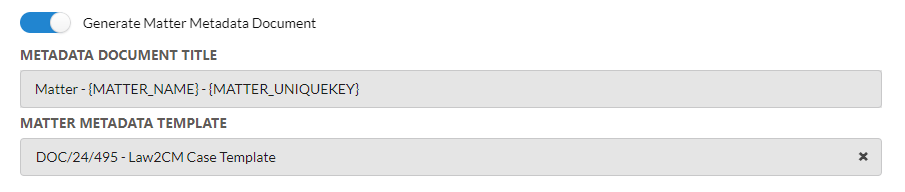
The option to include a generated PDF metadata document outlining all captured metadata from the matter. The metadata document will be contained to the parent matter.
METADATA DOCUMENT TITLE
The titling of the metadata document. Placeholders can be utilized to populate with matter metadata.
MATTER METADATA TEMPLATE
The metadata template is utilized to generate the metadata document. The template must be a Word document saved within Content Manager. The template is fully customizable and can be updated to include all information from the matter required and any colours or branding. The metadata document will be generated by Law2CM, and converted to PDF and stored onto the parent Matter within Content Manager.