
Ungerboeck2CM Installation Guide
DISCLAIMER
Any advice FYB provide in relation to setting up any FYB App, FYB Add-in, FYB Connector and or advice in relation to opening access to your on-premise or in the cloud systems will be general advice only. This means that the advice is of a general nature and will not take into account your network setup, network infrastructure or any security requirements that you may have or in fact need. It is highly advised that you seek advice from internal or external providers to ensure that they are comfortable with what is required prior to going ahead with any deployment, setup or configuration for external access.
LICENSE DETAILS
Please contact FYB for a valid license if you are yet to obtain one for your Connector.
INTRODUCTION
The integration is designed to automate and streamline the importing of events and related information from Ungerboeck to Micro Focus Content Manager and from Content Manager to Ungerboeck. From an end user’s perspective, when creating or updating an event, document, or account through the Ungerboeck web application the FYBUngerboeck service will import this information and record it in Content Manager. Similarly, when creating or updating documents through Content Manager the CM2UngerboeckEventAddin event add-in will import this information and store in Ungerboeck. There are two components to the integration:
- The Windows Service (FYBUngerboeck) which is responsible for handling creation or updates of information in Ungerboeck and pushing them through to Content Manager
- The Event Add-in (CM2UngerboeckEventAddin.dll) which is responsible for handling creation or updates to information in Content Manager and pushing them back to Ungerboeck
INSTALLATION PROCESS
WINDOWS SERVICE INSTALLATION
-
Run the MSI.

-
Run the Command Prompt as an administrator

-
Navigate to the folder that contains the application by typing: cd C:\Program Files\FYB Pty Ltd\Ungerboeck2CM\
-
run the executable by typing: C:\Windows\Microsoft.NET\Framework64\v4.0.30319\InstallUtil UngerboecktoCMconnector.exe
-
Open the Services Pane

-
Navigate to the FYBUngerboeck service and double click on it
-
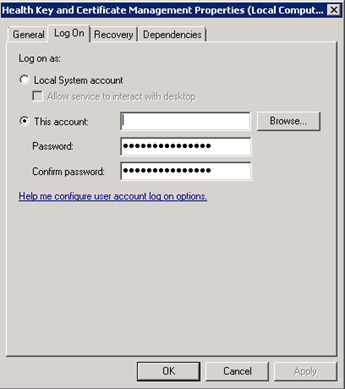
Go to the Log On ribbon and select the this account option. Input the ungerboeck2cm service account details
-
Run the service.
NoteMake sure to log in with an account that has Content Manager access.
EVENT ADD-IN INSTALLATION
-
Copy the custom Add-In files and paste them into the Content Manager installation directory. Usually located at C:\Program Files\Hewlett Packard Enterprise\Content Manager

-
Open Enterprise Studio and drop down the Datasets list

-
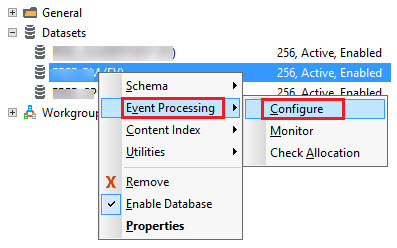
Right click on the Dataset that the CM2UngerboeckEventAddIn will to connect to, click on Event Processing then Configure
-
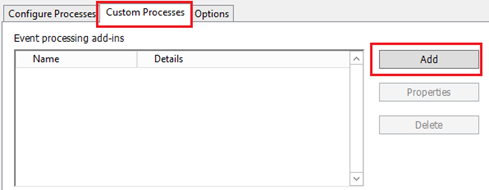
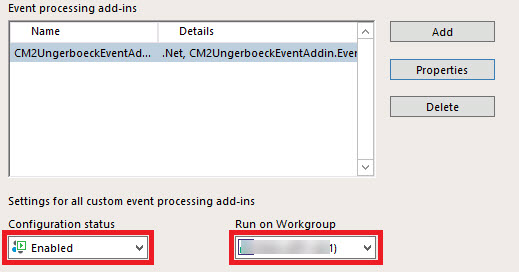
Click on the Custom Processes tab then click on Add
-
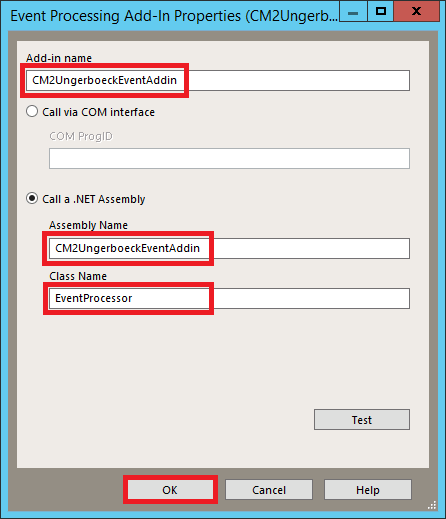
Enter in the following details and click OK
-
Set Configuration Status to Enabled and Run on Workgroup Server to the Event Processing Server
-
Complete a Save and Deploy
-
Restart HPE Content Manager Workgroup Services
FYBUNGERBOECK WINDOWS SERVICE CONFIGURATION
Values cannot contain the following characters <, >, &, “, and ‘ within the double quotes as these characters will break the XML file.
FYBUNGERBOECKCONFIG.XML
This file contains the configuration parameters of the service. It is located in C:\Program Files\FYB Pty Ltd\Ungerboeck2CM
In this file the administrator of the integration must specify the following parameters:
• Dbid: The Database ID of the CM database to connect to
• eventrecordType: The Content Manager Event record type name.
• recordType1: The Content Manager Folder record type name.
• recordType2: The Content Manager Virtual Folder record type name.
• customAPI: Link for the Custom API
• APIUser: API user account.
• APIPass: Password linked to the API user account.
• License: The path of the Ungerboeck2CM License file
• folderPath: The path to save log files to
• adhocFolderPath: The path to place adhoc.txt files for processing
• delay=”1”: The time between polling cycles (minutes)
• VerboseLogs: When set to true, the connector logs a lot of information to help with troubleshooting.
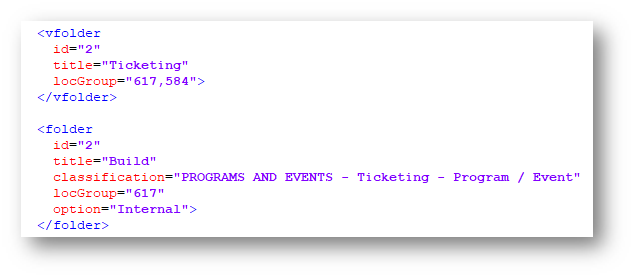
This XML config also contains the details of the Folders that get created for the Event
•  : For the virtual folders
•
 : For the folders
• id: The group number. Folders will be created within folders of the same group number. This is also the first part of the Record’s Record Number. E.g. Folders with id=”1” will have the Record Numbers “1/1”, “1/2”,”1/3” and so on.
• title: The title of the folder being created
• locGroup: The Content Manager URI of the location for access controls applied to that folder
• classification: The string of the Content Manager classification to be applied
• option: This attribute is not mandatory, it does not need to be included for every folder.
If a folder does not include the “option” attribute, then it will always get created.
If a folder has the option attribute set to “External”, then it will only be created if the associated Ungerboeck Event’s “class” setting is “XTE”.
If a folder has the option attribute set to “Internal”, then it will only be created if the associated Ungerboeck Event’s “class” setting is NOT “XTE”.
HEADINGSMAPPING.XML

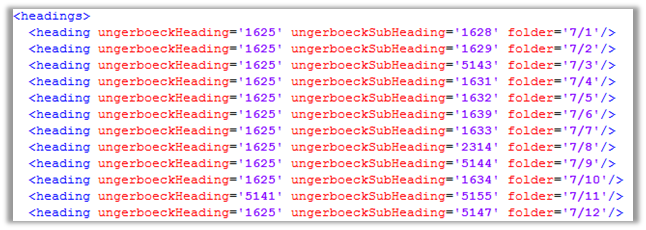
This file contains the Ungerboeck heading and subheading URIS and its mapped Content Manager Container. It is located in 2 places: C:\Program Files\FYB Pty Ltd\Ungerboeck2CM for the Ungerboeck2CM installation, and C:\Program Files\Hewlett Packard Enterprise\Content Manager for the Custom Event Add-in installation. Administrative users can add edit or deleted mapped headings if needed, by adding changing or deleting the row from the file, is needed to maintain the format and filed the corresponding fields of the row including: • ungerboeckHeading: URI of the Ungerboeck heading. • ungerboeckSubHeading:URI of the Ungerboeck sub-heading • folder: Container number linked to the Ungerboeck heading and sub-heading. Please note the container number must not include any preceding 0: e.g.: folder“1/1” must not be entered as “01/1” The format of each heading mapping must be:

For a list of Ungerboeck heading and subheading codes and their associated descriptions, ask your IT Administrator to provide viewing access to this data in the Ungerboeck database. PLEASE NOTE: The HeadingsMapping.xml file for the Ungerboeck2CM Installation should always be the same as the HeadingsMapping.xml file for the Custom Event Add-in Installation.
STATUSMAPPING.XML
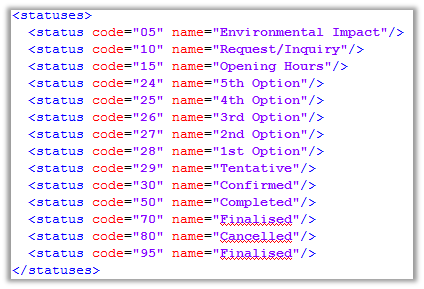
This file contains the list of Ungerboeck event statuses and their corresponding codes. It is located in C:\Program Files\FYB Pty Ltd\Ungerboeck2CM\
EVENT ADD-IN CONFIGURATION
The custom Event Add-In has two configurable files:
CM2UNGERBOECKEVENTADDIN.DLL.CONFIG

This file contains the information for the correct functioning of the tool, in this file the administrator of the integration must specify the following parameters: • UBServiceAccountCMURI: The Content Manager location URI of the service account used to run the windows service. • EventRecordTypeUri: The Content Manager Event record type URI. • DocumentRecordTypeUris: The URIs of Content Manager Record Types that should be transferred to Ungerboeck • FolderPath: Physical path where the Add-In logs are going to be stored. • CustomAPI: Link for the Custom API. • APIUser: API user account. • APIPass: Password linked to the API user account. • EmailUploadMethod: Set to “email” to upload emails to Ungerboeck as emails. Set to “document” to upload emails to Ungerboeck the same as regular documents. • MaxWait: The maximum time in milliseconds that CM2Ungerboeck will continue to try to load a document that has been added to Content Manager. Minimum = 2000. • VerboseLogging: When set to true, CM2Ungerboeck will create more detailed logs. This is useful for troubleshooting. • SoftDeleteGroupUri: The URI of the Soft Delete Group in Content Manager. This is used to identify when a record has been soft deleted, so that it can be removed from Ungerboeck.
HEADINGSMAPPING.XML
This file contains the Ungerboeck heading and subheading URIS and its mapped Content Manager Container. It is located in 2 places: C:\Program Files\FYB Pty Ltd\Ungerboeck2CM for the Ungerboeck2CM installation, and C:\Program Files\Hewlett Packard Enterprise\Content Manager for the Custom Event Add-in installation. The format of the HeadingsMapping file is described on page 8 of this manual. Administrative users can add edit or deleted mapped headings if needed, by adding changing or deleting the row from the file, is needed to maintain the format and filed the corresponding fields of the row including: • ungerboeckHeading: URI of the Ungerboeck heading. • ungerboeckSubHeading: URI of the Ungerboeck sub-heading • folder: Container number linked to the Ungerboeck heading and sub-heading.
For a list of Ungerboeck heading and Subheading codes and their associated descriptions, ask your IT Administrator to provide viewing access to this data in the Ungerboeck database. PLEASE NOTE: The HeadingsMapping.xml file for the Ungerboeck2CM Installation should always be the same as the HeadingsMapping.xml file for the Custom Event Add-in Installation.
CHANGING CONFIGURATION DETAILS
UPDATING FYBUNGERBOECK WINDOWS SERVICE CONFIGURATION
-
Change settings in FYBUngerboeckConfig.xml or HeadingsMapping.xml
-
Open Services.msc and restart the FYBUngerboeck service.
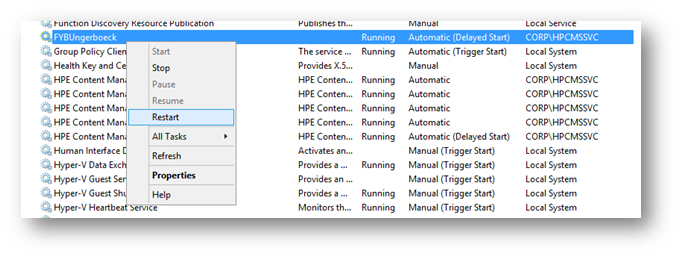
UPDATING CUSTOM EVENT ADD-IN CONFIGURATION
- Change settings in CM2UngerboeckEventAddin.dll.config or HeadingsMapping.xml
- Open Services.msc and restart the HPE Content Manager Workgroup Service
ADHOC PROCESSING OF UNGERBOECK DOCUMENTS
Users can specify a one-off list of documents for Ungerboeck2CM to download from Ungerboeck to CM. This is done by placing a file called “adhoc.txt” in the folder specified in the “adhocFolderPath” field in the FYBUngerboeckConfig.xml file, e.g. “C:\Temp\Ungerboeck2CM\Adhoc” The documents to be download should be listed in the format {Type}/{Document Sequence Number}. The type “EMAIL” is used for documents stored Ungerboeck as emails (as opposed to MSG files stored as documents). One document per line. E.g.:
EMAIL/47329 EMAIL/47266 C/34008 S/15868 S/15509
If the file is there, Ungerboeck2CM will download the listed documents from Ungerboeck, then move the adhoc.txt file to the folder “C:\Temp\Ungerboeck2CM\Adhoc\output”. The file can be placed in this location any time that Ungerboeck2CM is running, and it will be picked up on the next polling cycle.