
FYB Connect 365|2CM Admin Guide
365|2CM ADMIN SETTINGS
Settings configured here will only affect the 365|2CM module
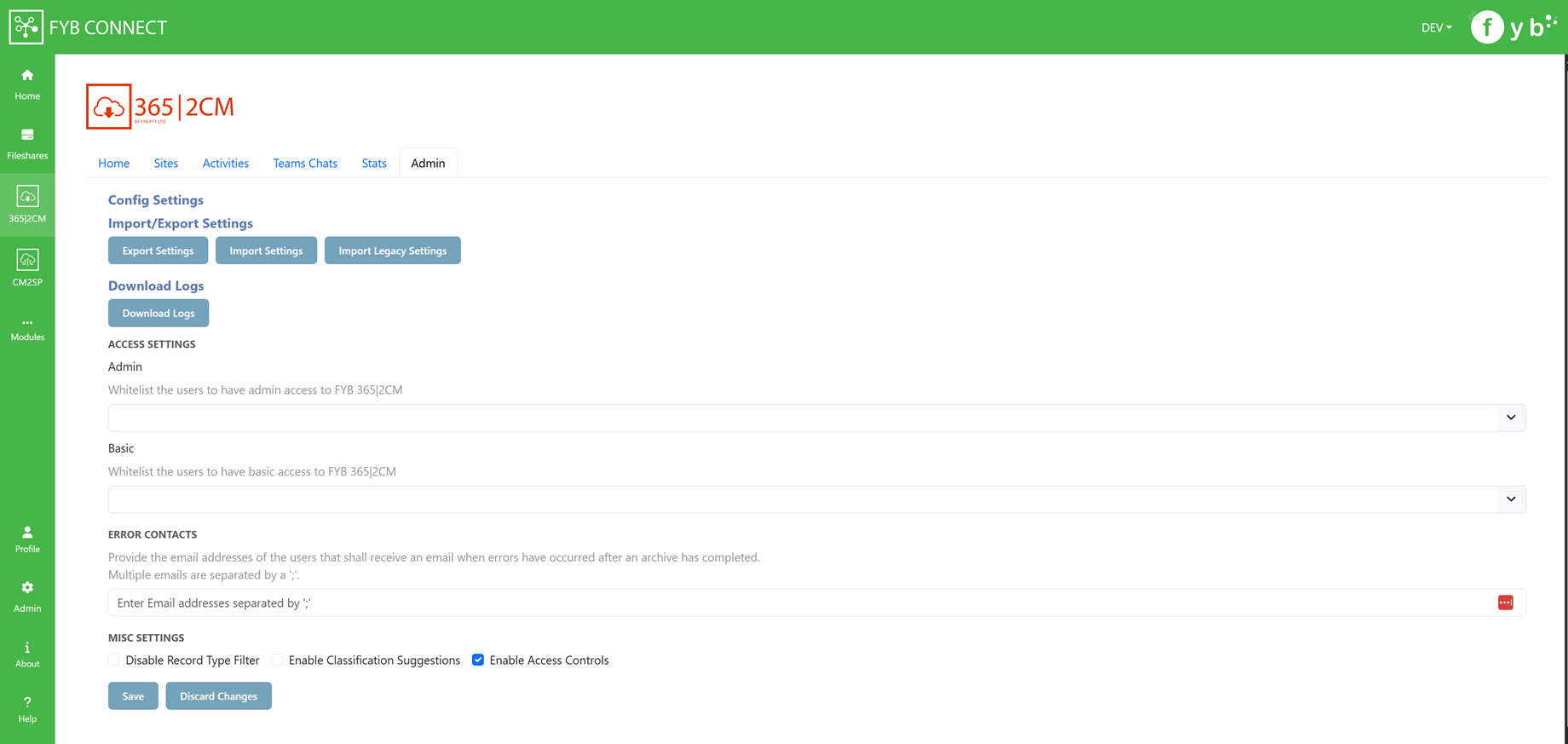
IMPORT SETTINGS
Import settings previously exported from the 365-2CM Module
IMPORT LEGACY SETTINGS
Import settings exported from the 365|2CM standalone web application versions 3.0.23 and above .
EXPORT SETTINGS
Export the 365-2CM settings
DOWNLOAD LOGS
Download the 365-2CM logs
ADMIN ACCESS
This field allows you to whitelist Content Manager users who are not an Administrator or Records managers to allow them access to 365|2CM's admin console
BASIC ACCESS
This field allows you to whitelist Content Manager users who are not an Administrator or Records managers to allow them access to 365|2CM.
ERROR CONTACTS
Provide the email addresses of the users who shall receive an email notification errors have occurred after archiving a 365|2CM connection. Multiple contacts can be added by adding a ';' between each contact. (e.g. name@company.com.au; secondname@company.com.au).
DISABLE RECORD TYPE FILTER
Enabling this option will allow all active record types from Content Manager to be available in any record type drop-down in 365-2CM.
ENABLE CLASSIFICATION SUGGESTIONS
If enabled 3652CM will suggest a list of classifications to use based on the names of Files and Folders in a Sharepoint Document Library when creating a New Container
ENABLE ACCESS CONTROLS
If enabled, 365|2CM administrators can set the CM access controls on documents and folders to the members of the Sharepoint site.
SENT TO CM SHAREPOINT FIELD (OPTIONAL)
365|2CM has the ability to add the record number of a transferred document to a field on SharePoint. This helps administrators to see exactly which records have been transferred and which have not. A Sent to CM field has to be created on SharePoint for this feature to work.
-
Navigate to the Sharepoint Library for the newly created connection. This can also be achieved by clicking on the Connection's name on the home page of 365|2CM
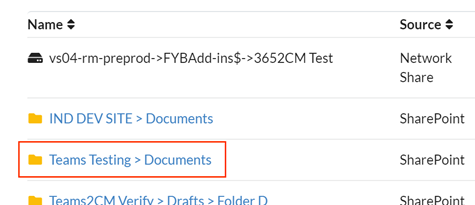
-
Click on Add Column

-
Click Single Line of Text
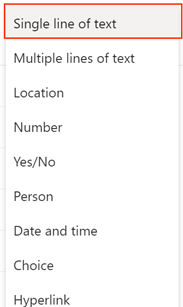
-
Specify the settings below.
Field Value Name Sent to CM Type Single Line of Text NoteThe column name must be named Sent to CM and cannot be anything different.
-
Click on the Save button
-
Now whenever the archiving process is run, documents in Sharepoint will have their Sent to CM value set to the Record Number of the transferred document

UPDATING APP REGISTRATION VALUES
This is only required if the values have changed since the initial install
To configure the Azure settings for 365|2CM:
-
Navigate to the FYB Connect 365|2CM install directory
-
Open the appettings.Production.json file
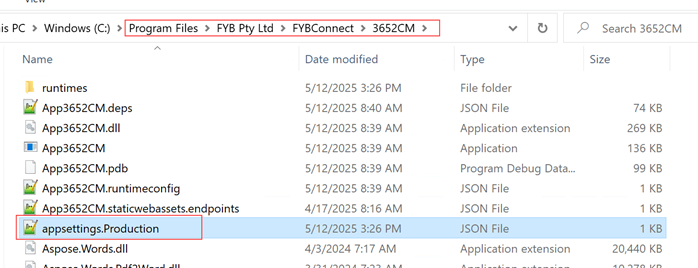
-
Fill in the values below in the MsalConfig section
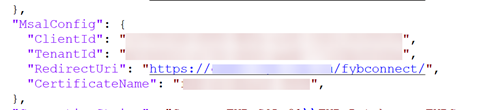
Name Description ClientId The Azure Client Id for the 365 TenantId The Azure tenant Id RedirectUri The FYB Connect Uri (e.g. https://example.com.au/fybconnect/). This value is case sensitive and must match the redirectUri supplied to the Azure app CertificateName The friendly name of the nominated certificate (.pfx) installed on the machine. This certificate is used to prove the application's identity by encrypting the application's claims in the form of a JWT token.