
Locations Manager Admin Guide
GETTING STARTED
To modify Locations Manager settings, click Admin in the top-right menu.

GENERAL TAB
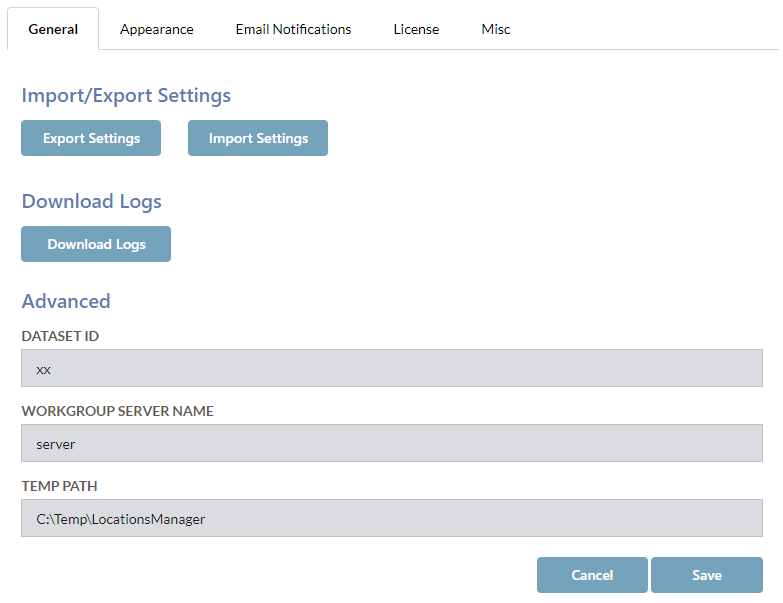
IMPORTING AND EXPORTING SETTINGS
Click the Export Settings button to download copies of all Locations Manager settings.
Click the Import Settings button to import existing settings files into Locations Manager.
DOWNLOAD LOGS
Click the Download Logs button to download a zip file containing the Locations Manager log files.
ADVANCED
| Name | Description |
|---|---|
| Dataset ID | The 2 character Content Manager dataset identifier |
| Workgroup Server Name | The name of the Content Manager Workgroup Server |
| Temp Path | Path where temporary files and logs are stored |
APPEARANCE TAB
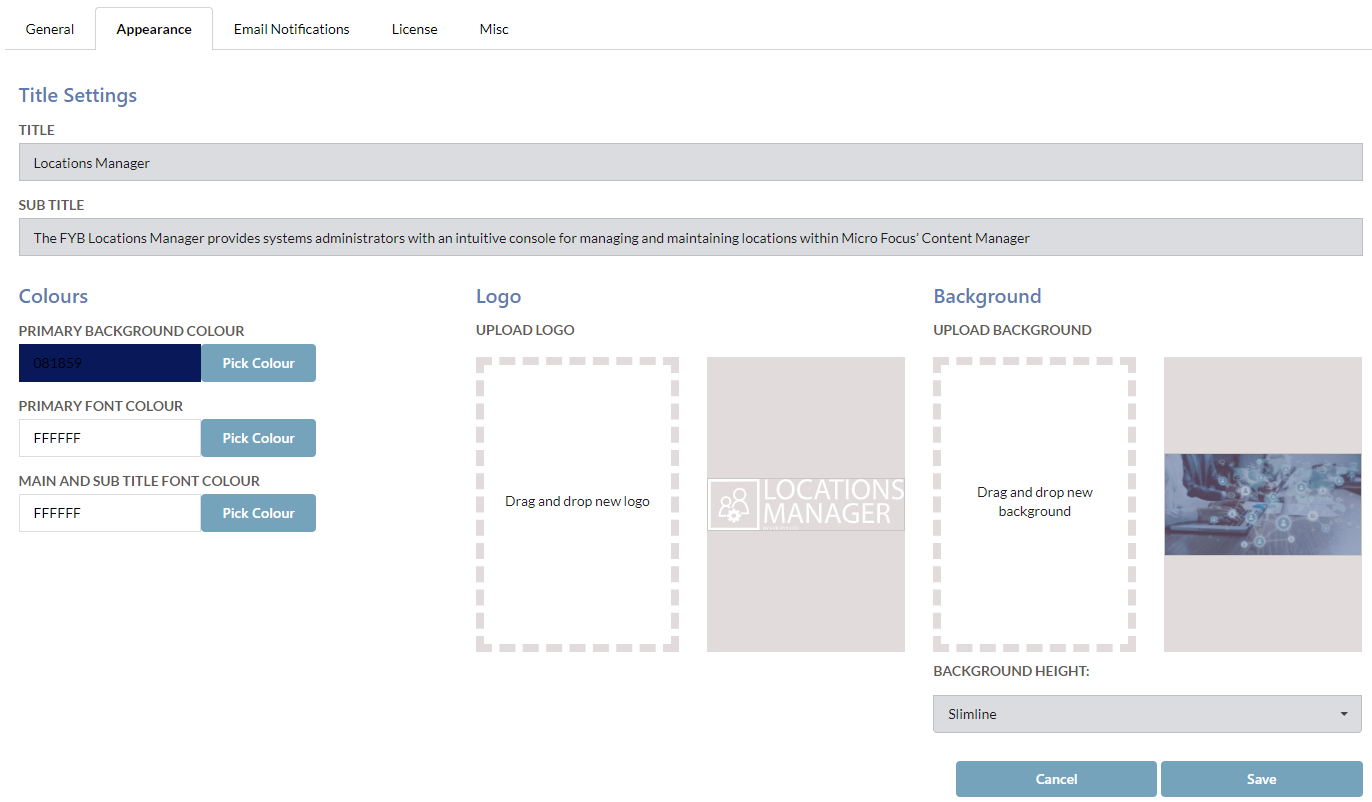
Title and Sub Title can be adjusted via the Title Settings section.
The Colours section allows you to adjust the Primary Background, Primary Font and Title colours.
To change the Logo simply drag and drop the image to the Upload Logo box. To change the Background simply drag and drop the image to the Upload Background box.
The background image height can be adjusted via the background height drop-down box.
Click the Save button to save the changes.
EMAIL NOTIFICATIONS TAB
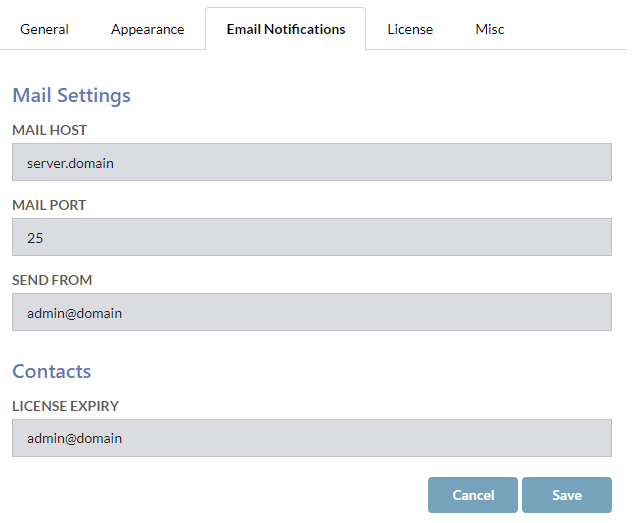
| Name | Description |
|---|---|
| Mail Host | Email server address. |
| Mail Port | The Email server port. |
| Send From | The nominated sender e-mail address |
| License Expiry | A comma separated list of email addresses that will receive the license expiry e-mail notification. |
LICENSE TAB
License details are displayed on this tab. To update the licence please see the dedicated License Update guide.
MISC TAB
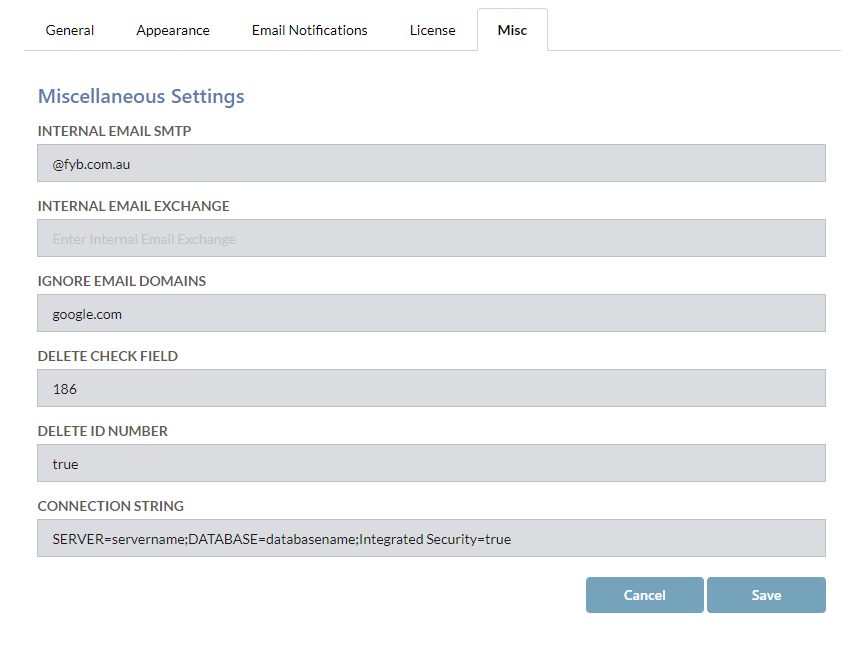
| NAME | DESCRIPTION |
|---|---|
| Internal Email SMTP | The domain name part of Internal SMTP email addresses. For example: FYB's emails all end in @fyb.com.au therefore you would enter @fyb.com.au here. Either Internal Email SMTP or Internal Email Exchange should be entered so that internal email addresses can be identified. |
| Internal Email Exchange | The exchange format string used internally when sending emails. To obtain this field you may need to check some existing internal locations in Content Manager. The string would resemble /o=First Organization/ou=Exchange Administrative Group(FYDIBOHF23SPDLT)/cn=Recipients) Either Internal Email SMTP or Internal Email Exchange should be entered so that internal email addresses can be identified. |
| Ignore Email Domains | A list of default email domains to ignore when checking for associations. This prevents association based on generic domains that are not organisation specific. Leave blank if not applicable. |
| Delete Check Field | Enter in the comma separated values of string based additional fields to prevent deletion of a location if these fields contain a value. Use the field URI. Leave blank if not applicable. |
| Delete Id Number | A Boolean (true/false) field to determine whether to block deletions of a location that contains an ID Number. Set this value to "true" to block locations from being deleted if they have an ID Number. If left blank, this field will default to "false". |
| Connection String | The Content Manager database connection string. This can be found in Content Manager Enterprise Studio in the Connection tab of the database properties window. It should be in the format SERVER=servername;DATABASE=databasename;Integrated Security=true. This field should be entered in order to enable the Duplicate locations by email and Duplicate locations by name functionality |