
Folder Template Creator OpenID Microsoft Guide
OVERVIEW
To use Microsoft Open ID with Folder Template Creator you are required to register the application on Azure Active Directory. The registration will be used to acquire an access token to requests to access the Folder Template Creator API.
APP REGISTRATION USING THE WEB PORTAL
-
Sign in to Azure web portal by clicking here
-
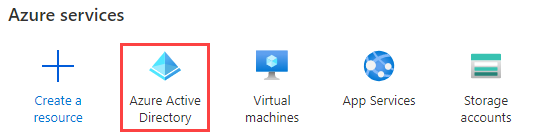
Once signed in, click on the Azure Active Directory button
-
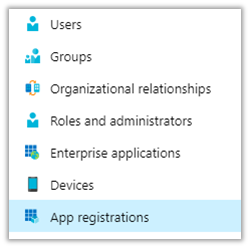
Click on the App Registrations option from the left menu
-
Click on the New registration button

-
Enter Folder Template Creator into the name input field

-
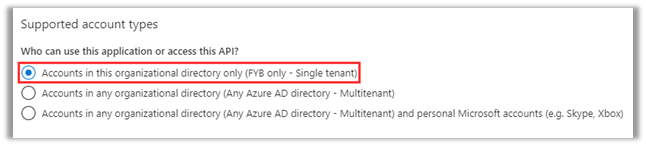
Under Supported account types section enabled Accounts in this organizational directory option
-
Select Single-page application (SPA) from the drop-down menu and type in the hostname configured for Folder Template Creator followed by /FolderTemplateCreator/
NoteThe URI is case sensitive, the route must match exactly the pattern below where the only variable that needs to be replaced is the hostname. Please include the trailing slash in the URL. Example: https://hostname/FolderTemplateCreator/

8. Click on the Register button

EXPOSE THE API
Applying a custom scope to the registration will prevent unauthorized access to the Folder Template Creator API endpoints.
-
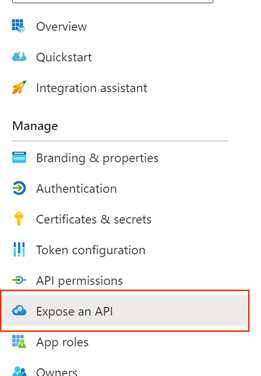
In the Left Menu, click on Expose an API
-
Next to the Application ID URI click on Set
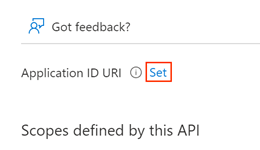
-
Click on the Save button
NoteDo not Change the Application ID URI. It must be in the following format: api://{client id}
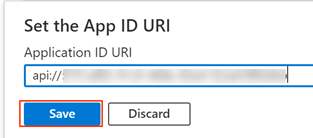
-
Click Add a scope
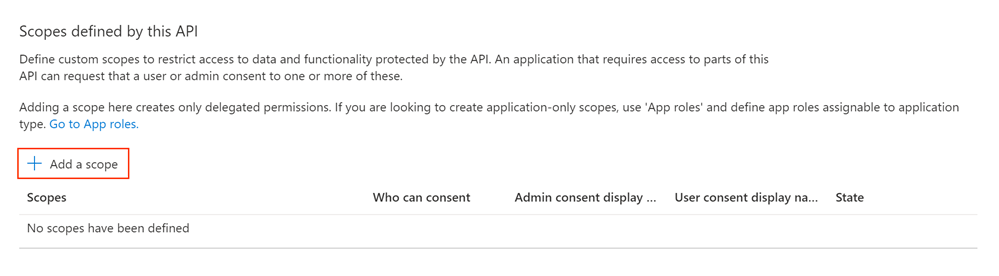
-
Specify the values below in the Add a scope window, then click Add scope
NoteThe scope must be named Grant.Access
Field Value Scope Name Grant.Access Who can consent? Admins and users Admin Consent display name Grant Access to Folder Template Creator Admin consent description Grant Access to Folder Template Creator State Enabled 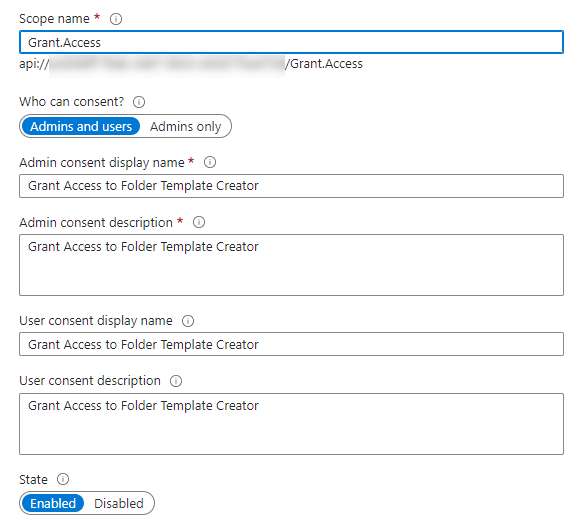
-
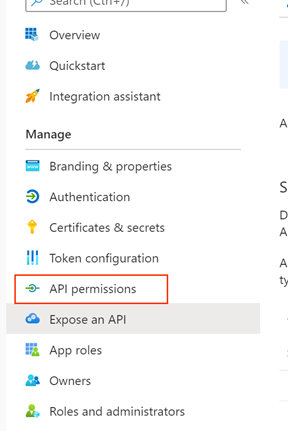
Once the scope has been added, click on API permissions
-
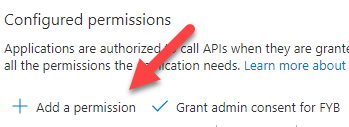
Click on Add a permission
-
Click My APIs

-
Click on the previously created Folder Template Creator Azure app registration

-
Click on the Grant.Access scope and then click Add permissions at the bottom of the screen

-
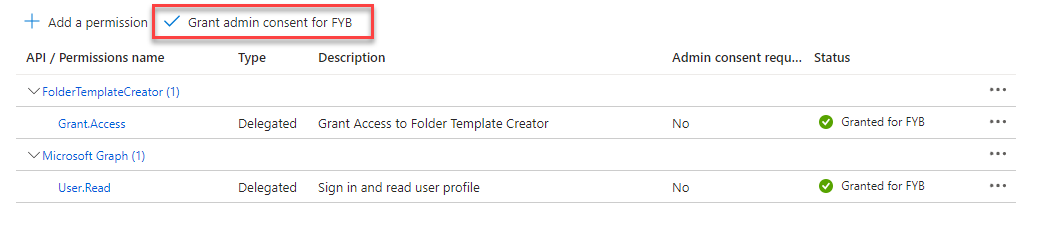
Click on Grant admin consent
GATHERING APP DETAILS
Please follow the steps below to retrieve the Application ID, Tenant ID and Redirect URL on the Azure portal. These values are required for the installation.
-
Once signed into the Azure portal click on Azure Active Directory
-
Click on App registrations

-
Click on the required application ( Folder Template Creator created previously)

-
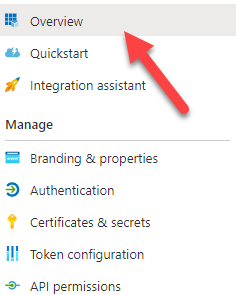
Click on Overview
-
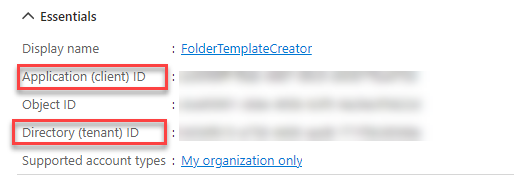
Copy the Application (client) ID and Directory (tenant) ID and note them down.
-
Click on Redirect URIs from the overview page

-
And then copy and note down the Redirect URI value

VALUES REQUIRED FOR INSTALLATION
The following values will be required for the installation of Folder Template Creator. Please ensure that the person responsible for the installation has these values.
- Redirect URI
- Application ID
- Authorization URL
| Name | Description |
|---|---|
| Redirect URI | The URI where Azure will send the authentication payload upon successful authentication. |
| Application ID | Application's unique identifier on AzureAD. |
| Authorization URL | https://login.microsoftonline.com/\{Tenant ID} |
ENDPOINTS
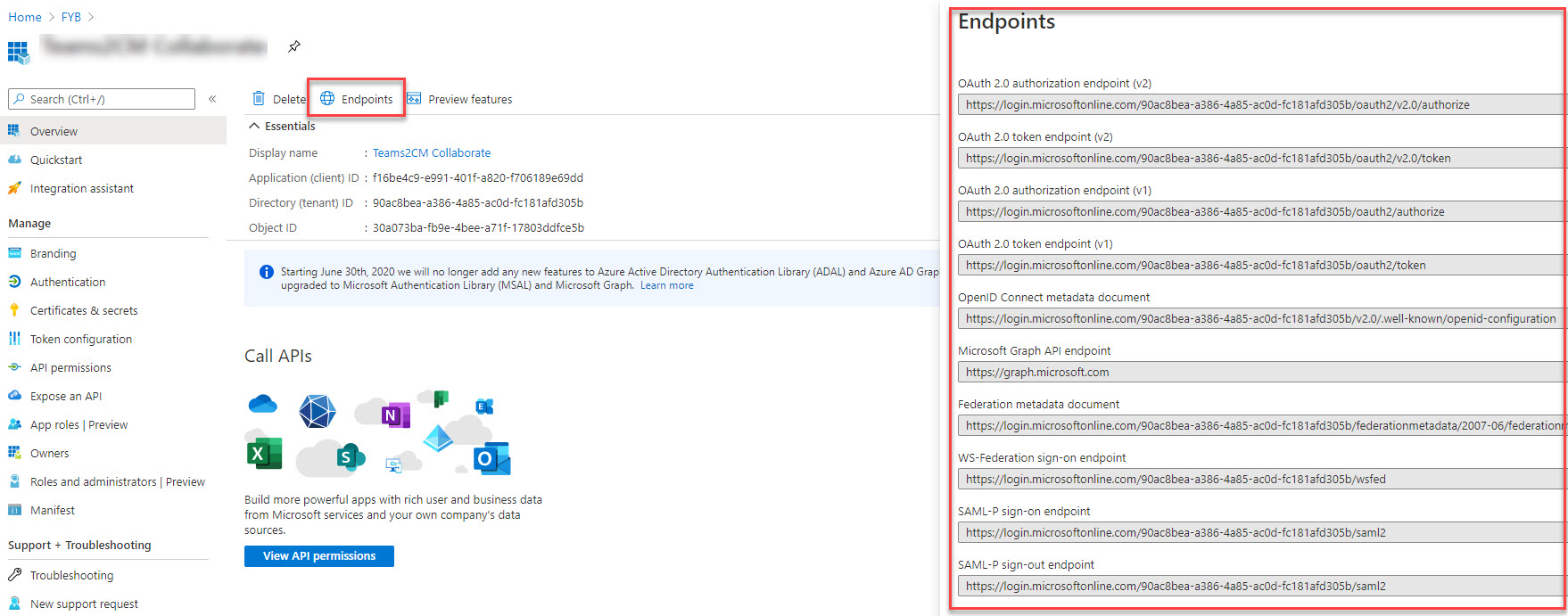
All valid endpoints for the registered application can be seen via the Azure web portal.
-
Select the registered application on Azure
-
From the Overview page select Endpoints
CONFIGURATION
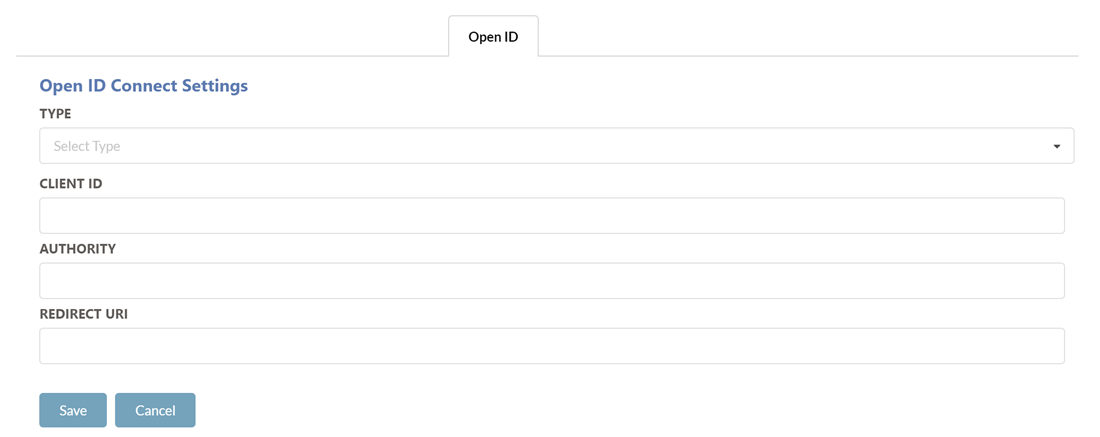
The Authentication tab allows you to specify the authentication method for Folder Template Creator, and is available within the admin section of Folder Template Creator
To enable Microsoft Open ID Authentication:
-
Set the Type field to Microsoft.
-
Enter the values for all the provided fields.
-
Click Save
-
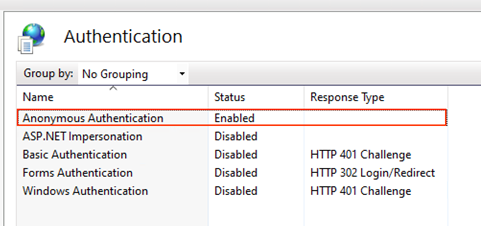
Navigate to the Folder Template Creator application in IIS
-
Ensure Anonymous Authentication is the only authentication method enabled for Folder Template Creator
-
Perform an app pool restart for Folder Template Creator