
Folder Template Creator OpenID Okta Guide
OVERVIEW
To use Okta Open ID with Folder Template Creator you are required to register the application on Okta Admin page. The registration will be used to acquire an access token to requests to access the Folder Template Creator API.
REGISTER AN APPLICATION IN OKTA
-
After logging in to Okta, navigate to the Okta Admin page (https://xxx-admin.okta.com/admin/dashboard).

-
Navigate to the Applications page

-
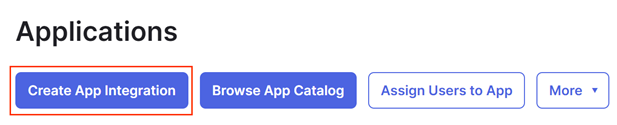
Click Create App Integration
-
For the Sign-in method select OIDC - OpenID Connect

-
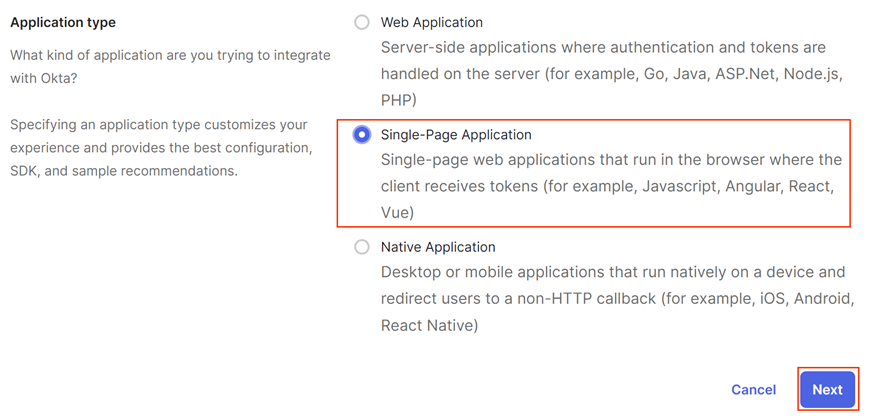
For the Application Type select Single-Page Application then click Next
-
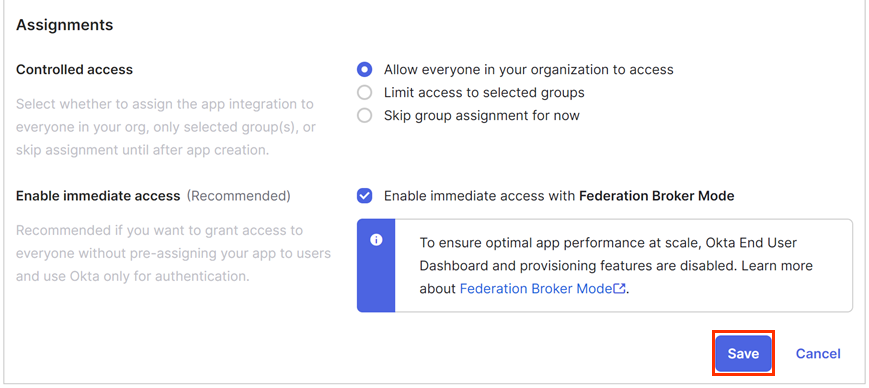
Enter the details below then click Save
NAME VALUE Grant type Authorizaztion Code App Integration Name Folder Template Creator Sign-in redirect URIs The URL of Folder Template Creator Sign-out redirect URIs The URL of Folder Template Creator Controlled access Allow everyone in your organization to access Enable immediate access Enabled 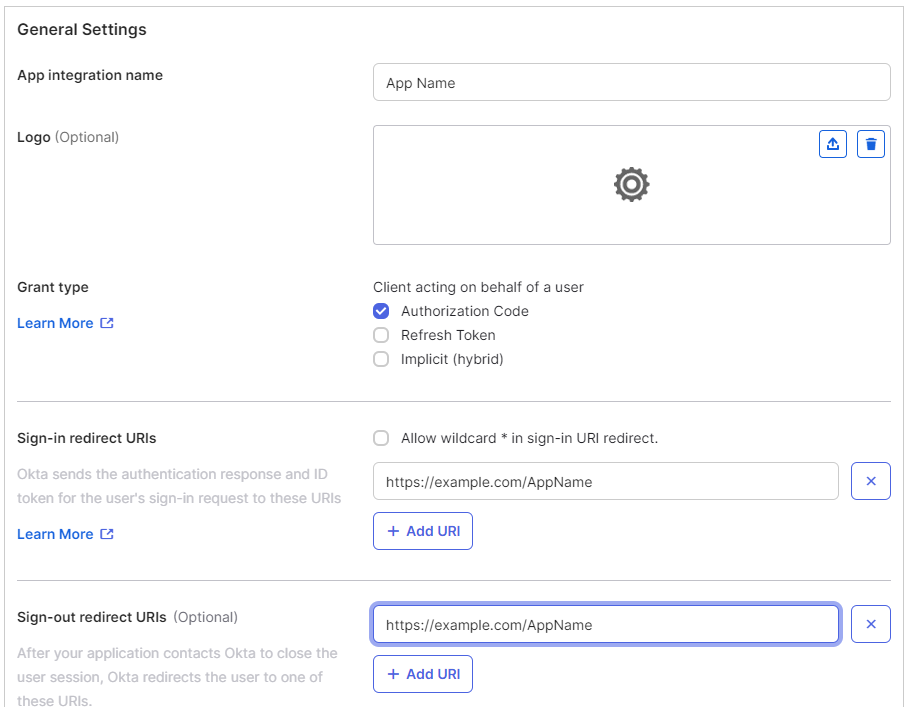
GATHERING APP DETAILS
Please follow the steps below to retrieve the Application ID, Authority URL and Redirect URL on the Okta Application Dashboard. These values are required for the installation.
CLIENT ID
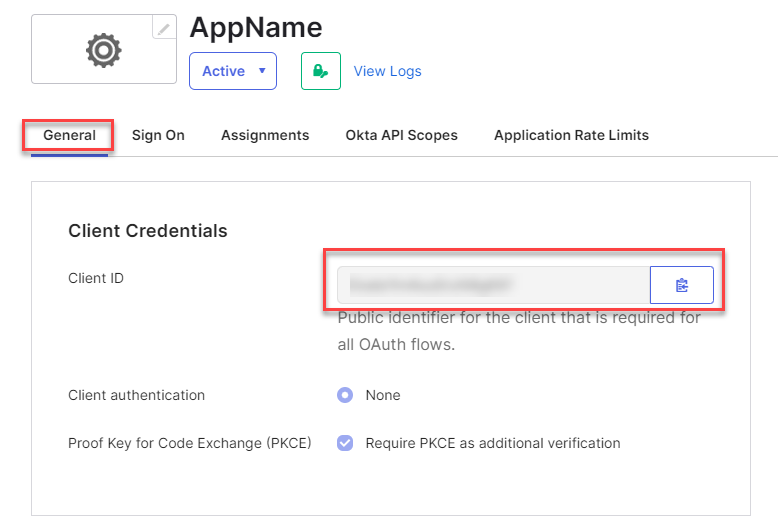
The Client ID can be found in the Client Credentials section of the General Tab of your Okta application
AUTHORITY URL
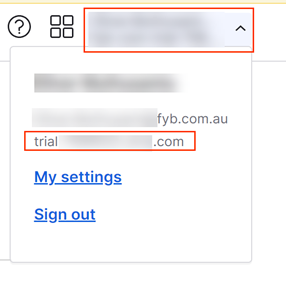
The Authority URL can be found by clicking your user name and copying the value above the My Settings link. you must add https:// to the copied value when configuring Folder Template Creator.
REDIRECT URL
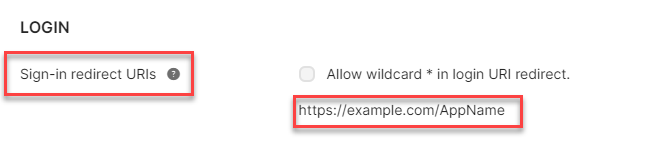
The URL of Folder Template Creator supplied in the Sign-in redirect URIs field
VALUES REQUIRED FOR INSTALLATION
The following values will be required for the installation of Folder Template Creator. Please ensure that the person responsible for the installation has these values.
- Redirect URI
- Application ID
- Authorization URL
| Name | Description |
|---|---|
| Redirect URI | The URI where Okta will send the authentication payload upon successful authentication. |
| Application ID | Application's unique identifier on Okta. |
| Authorization URL | https://{Okta Domain} |
CONFIGURATION
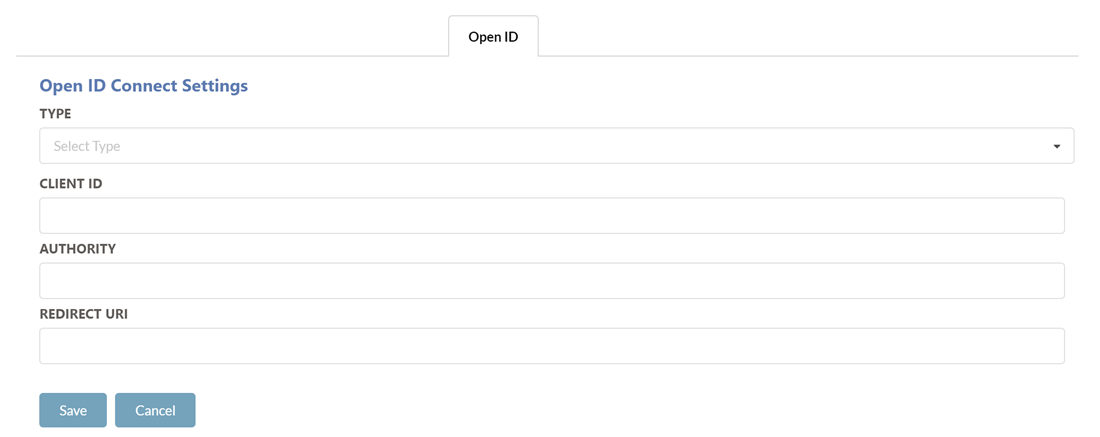
The Authentication tab allows you to specify the authentication method for Folder Template Creator, and is available within the admin section of Folder Template Creator
To enable Okta Open ID Authentication:
-
Set the Type field to OKTA
-
Enter the values for all the provided fields
-
Click on the Save button
-
Navigate to the Folder Template Creator application in IIS
-
Ensure Anonymous Authentication is the only authentication method enabled for Folder Template Creator
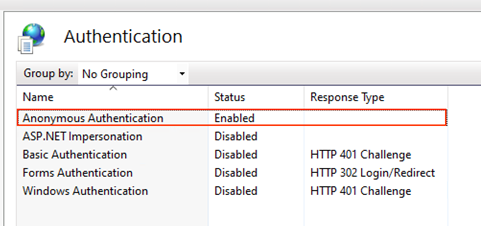
-
Perform an app pool restart for Folder Template Creator