
365|2CM and CM2SP First time setup
INTRODUCTION
If the 365|2CM or CM2SP module was not configured during install, follow the steps below to configure it.
First navigate to the module you wish to configure. For example: https://example.com.au/fybconnect/setup/cm2sp
SETTING UP THE MODULE
CONFIGURING THE MODULE
-
Supply valid values for the fields using the table below.
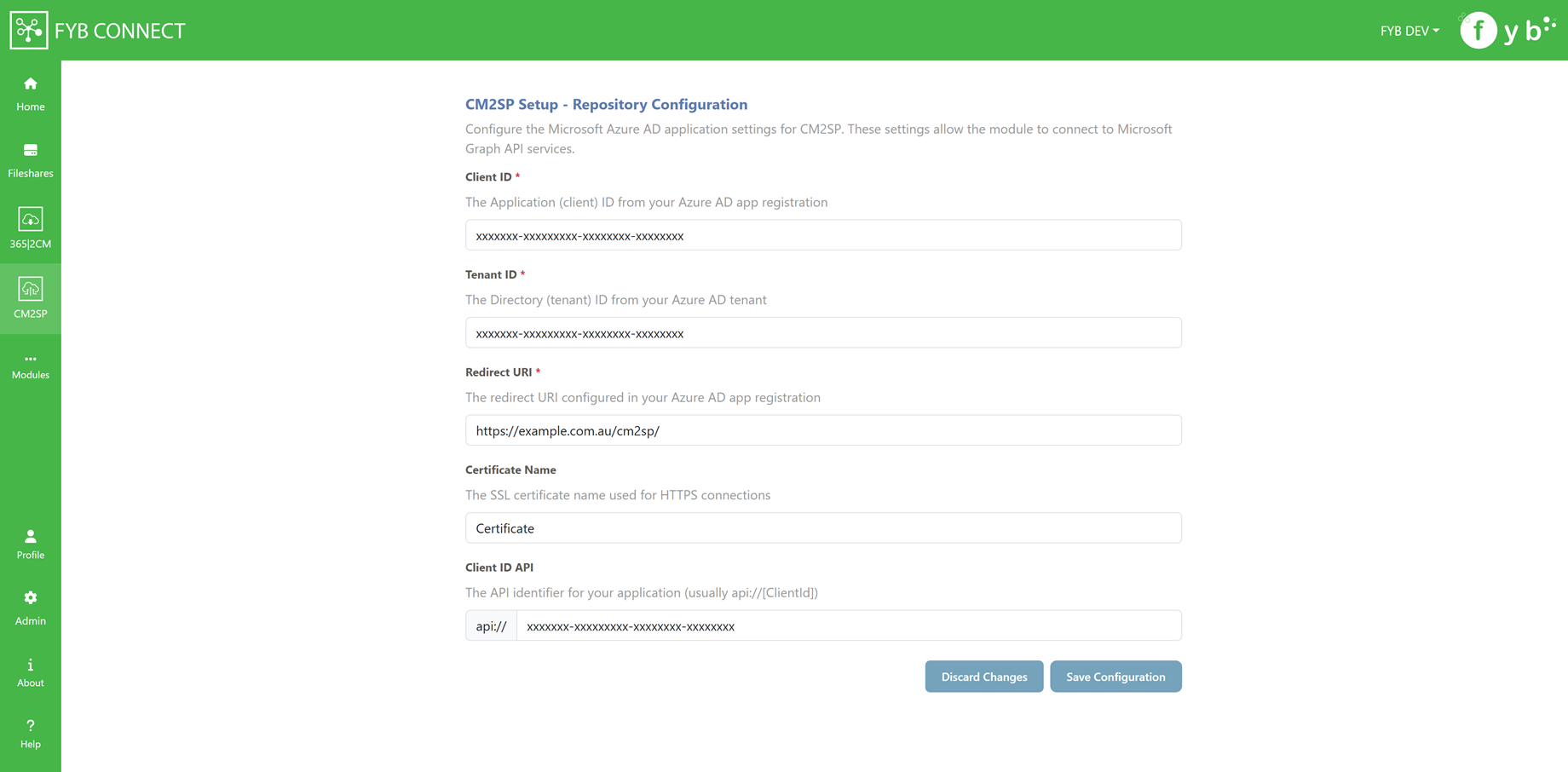
FIELD DESCRIPTION Client ID The client ID for the registered Module's app on AzureAD Tenant ID The organization tenant's unique identifier on AzureAD Redirect URL The FYBConnect URL followed by /3652cm/ or /cm2sp/. E.g. https://example.com.au/fybconnect/cm2sp/ Certificate Name The friendly name of the nominated certificate (.pfx) installed on the machine. -
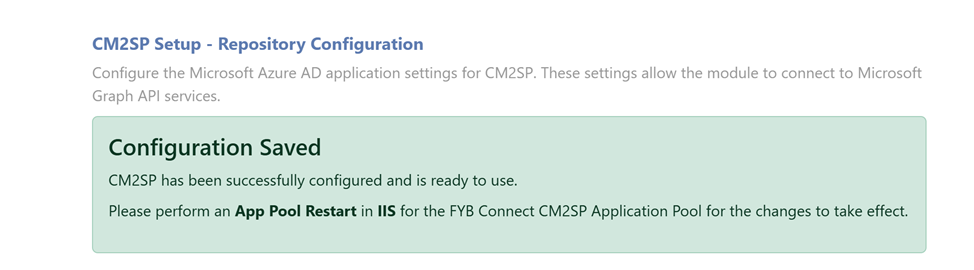
Click Save Configuration
-
One the configuration is saved, navigate to the Server that FYB Connect is installed on
-
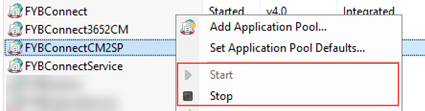
Open IIS and do an App Pool Stop then Start on the Module's App Pool
You will now have access to the module.